Product•12 min read•
CentPage: The All-in-One Productivity New Tab for Your Browser
CentPage turns your new tab into a productivity dashboard: multi-engine search, bookmark tables and 50 widgets. See features, free vs Premium and setup steps.
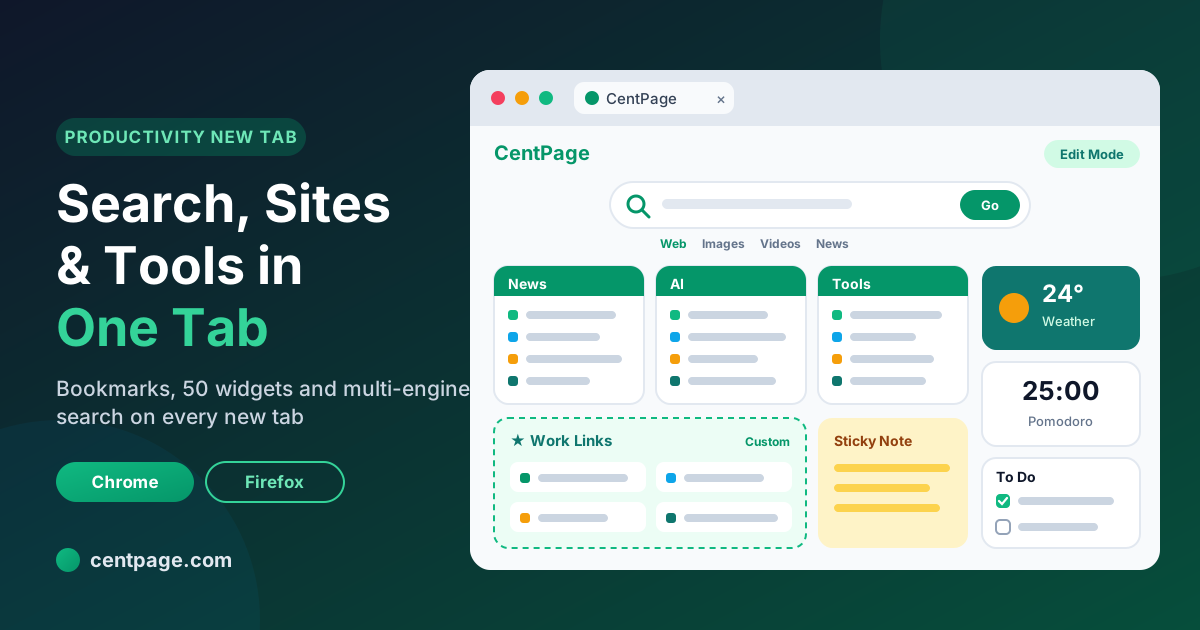
Key Takeaways
- CentPage is a personalized homepage that has been online since 2012 and now works as a productivity dashboard for search, websites and everyday tools.
- The free CentPage extension for Chrome and Firefox replaces your new tab with your dashboard, and your layout follows your account to any device.
- Core features include multi-engine search, 18+ curated website categories, custom bookmark tables, drag-and-drop edit mode and 50 widgets.
- The core product is free with 20 widgets and one custom table; Premium adds 30 more widgets, five custom tables, no ads, a personal URL and priority support.
- Every widget also runs as a standalone tool page, so you can try the calculators, timers and converters without installing anything.
You open a new tab dozens of times a day, and most of the time you already know what you want: your email, a project board, a quick search, a currency conversion, a note you meant to write down. Yet the page that greets you is usually a blank screen or a grid of recently visited sites that shuffles itself without asking.
So the small jobs spread out. Bookmarks live in one place, the to-do list in an app, the timer on your phone, the calculator in another tab. Each switch is tiny, but together they add up to a browser that works against your attention instead of for it.
CentPage was built to fix exactly that: one page, opened in every new tab, that holds your search, your sites and your everyday tools. This guide explains what CentPage is, how it works, every major feature, who it suits, what is free and what is Premium, and how to set it up in about ten minutes.
What is CentPage?
CentPage is a personalized internet homepage and start page that has been online since 2012. It began with a simple idea: instead of hunting through bookmarks, keep the websites you use most in neat, categorized tables on one page. Over the years that start page grew into a full productivity dashboard, adding a multi-engine search bar, custom bookmark tables and a library of 50 widgets.
The idea behind it hasn't changed. Your browser's first screen should be the most useful screen you have, because you see it more often than any other page. If you want the background on how new tab pages evolved from blank screens to speed dials to dashboards, our explainer on what a new tab page is and why it matters covers the history.
In practice, CentPage gives you three things in one place:
- Search across several engines from one bar
- Sites, organized into curated categories plus your own bookmark tables
- Tools, as widgets you arrange around your links: notes, tasks, timers, calculators, weather, finance tracking and more
You can start using it right now: open the CentPage homepage, or install the free new tab extension for Chrome or Firefox.
How does CentPage work?
CentPage has three parts that fit together.
- The homepage. Your dashboard lives on centpage.com and works in any modern browser, on desktop or mobile. You can use it without signing up to browse categories and search.
- The new tab extension. The official CentPage – Productivity New Tab extension for Chrome and Firefox replaces the default new tab with your dashboard, so it appears every time you press Ctrl+T or Cmd+T.
- Your account. When you create a free account, your layout, custom tables and widgets are tied to it. Sign in on another computer and the same dashboard is waiting.
If you use a browser without a CentPage extension, you can still set centpage.com as your homepage. Our guide to setting a start page in each browser walks through the settings for the major browsers.
CentPage features: a tour of the dashboard
The dashboard is organized so the things you do most sit highest on the page: the search bar at the top, website tables in the main area and widgets alongside them.
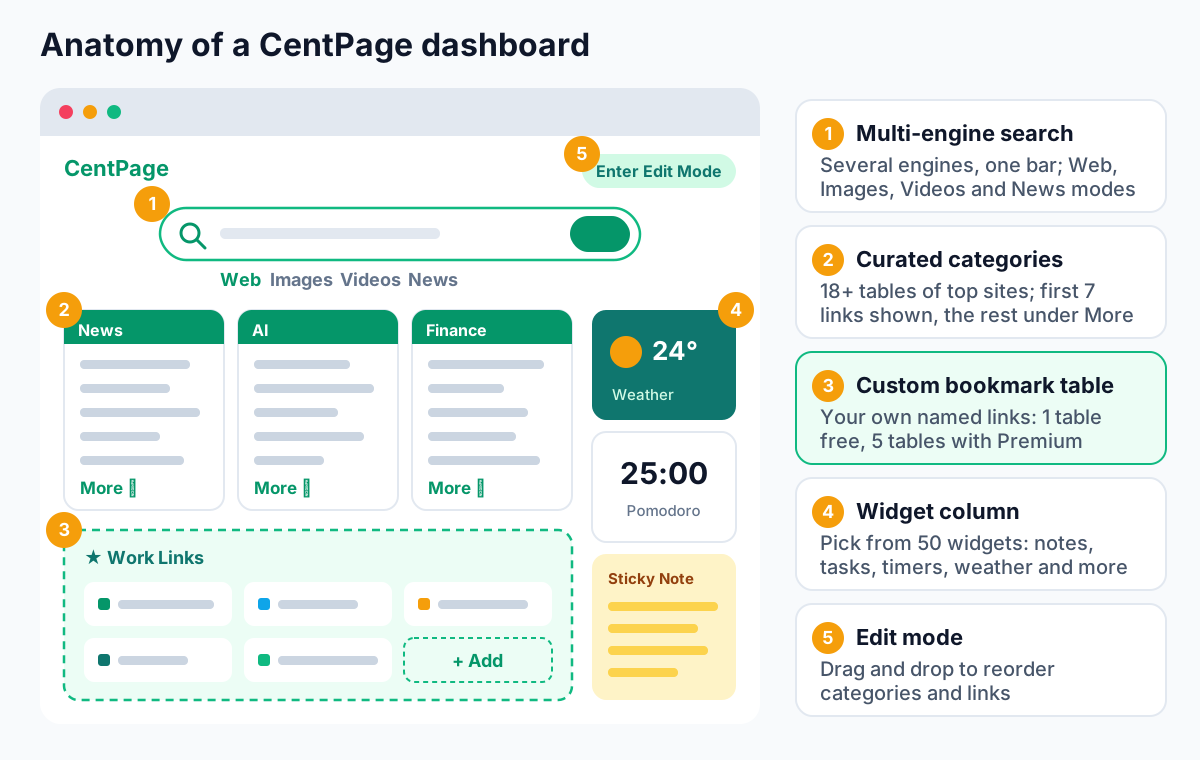
Multi-engine search from one bar
The search bar lets you search Google, Bing, Yahoo and other engines without visiting each one. Switch between Web, Images, Videos and News modes to go straight to the results type you need. It's handy when one engine gives thin results and you want a second opinion without retyping your query into another site.
Curated website categories
CentPage includes 18+ curated categories, each a compact table of popular sites: Social, News, AI, Shopping, Reference, Videos, Email, Movies, Music, Games, Sports, Career, Tools, Technology, Travel, Finance, Learn, Health, Food, Crypto and more. They work as a ready-made starting point, so a new dashboard is useful before you customize anything.
Several categories also have their own pages if you want to browse more widely, such as AI tools and sites or finance resources.
Custom bookmark tables
Custom tables are where CentPage becomes yours. Create a named table such as "Work Links", "Course Portals" or "Family" and add the exact sites you visit. On the free plan you get one custom table with up to eight links; Premium raises that to five custom tables.
Custom tables are also a practical way out of bookmark sprawl. Instead of saving everything, you keep a short, curated list of links you actually open. For a broader system to tame both open tabs and bookmark folders, see how to stop tab and bookmark overload.
Edit mode with drag and drop
Click Enter Edit Mode and the dashboard becomes rearrangeable. Drag categories into the order you prefer and drag links within a table to reorder them. The first seven links in a category show on the homepage; anything beyond that moves into a More dropdown, which keeps tables compact without deleting anything.
Pro tip: Put the links you open daily in the top seven slots of each table. Everything else still lives in the More menu, one click away, but your eye only scans what matters.
50 widgets across seven categories
Widgets are the small tools that sit on your dashboard. CentPage has 50 of them, 20 free and 30 premium, grouped by what they help with.
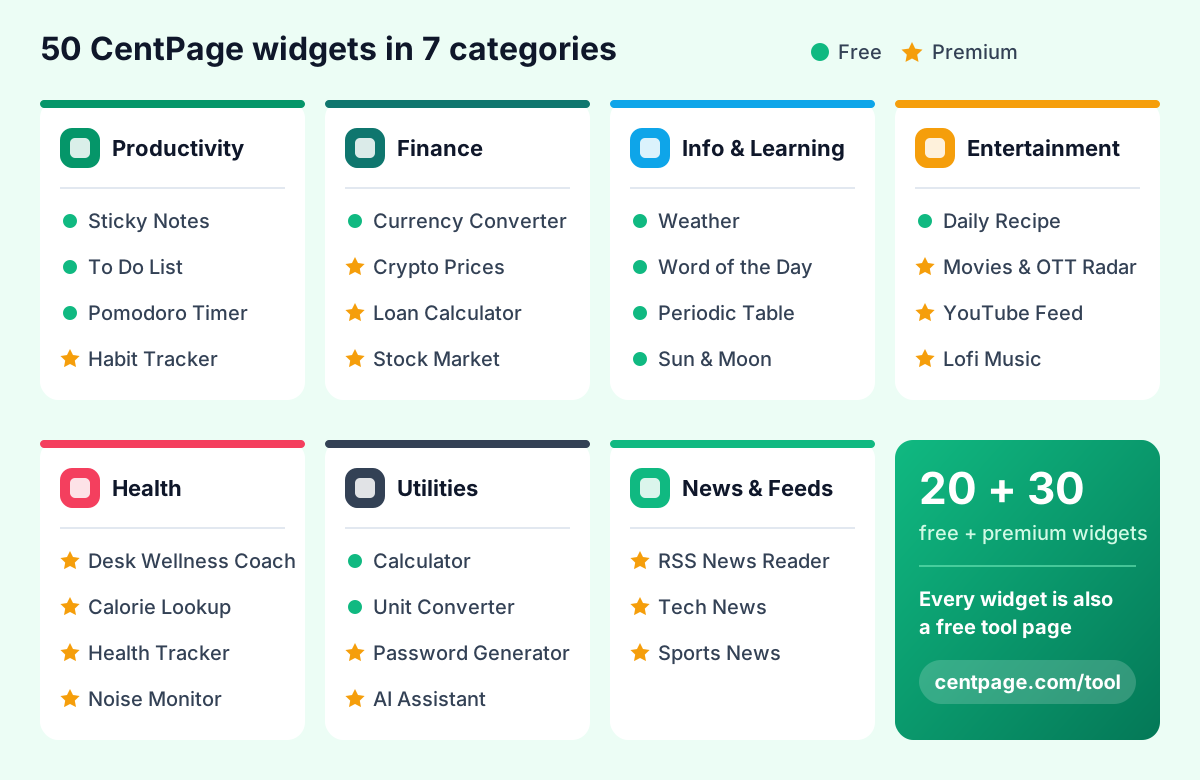
- Productivity: Sticky Notes, To Do List, Link List, Calendar, Habit Tracker, Expense Tracker, Subscription Manager, Pomodoro Timer, and Clock & Timer with world clock, stopwatch and countdown.
- Finance: Investment Growth (compound interest, SIP, ROI and FIRE calculations), a Tax/EMI/Loan calculator, Stock Market indices, Crypto Prices, Precious Metal Prices and a Currency Converter.
- Information and learning: Daily Fact, Word of the Day, Daily AI Tips, Dictionary, On This Day, an Interactive Periodic Table, NASA's Astronomy Picture of the Day, Weather (current, hourly and five-day), Sun & Moon (sunrise, sunset, golden hour, moon phase), Air Quality Index and Device & Browser Info.
- Entertainment and lifestyle: Movies & OTT Radar, a Smart Recommender for movies and books, a YouTube Feed, Daily Recipe, Daily Jokes, Motivational Quotes and a Lofi Music player.
- Health: a Personal & Health tracker, Desk Wellness Coach with stretches and eye-relief reminders, Calorie Lookup and a Noise Level Monitor.
- Utilities: Calculator with history, Unit Converter, Language Translator, Text Formatter, QR & Barcode Generator, Password Generator with a strength checker, Internet Speed Test, Typing Speed Test, a Developer Toolbox and an AI Assistant chat.
- News and feeds: an RSS News Reader, Tech News and Sports News.
The free set covers the everyday basics: Sticky Notes, To Do List, Calendar, Pomodoro, Clock & Timer, Currency Converter, Weather, Sun & Moon, Calculator, Unit Converter, Language Translator and several daily learning widgets. Some free widgets have daily usage limits, which Premium removes.
The trick is restraint. Five well-chosen widgets beat twenty you never look at. Our roundup of which free browser widgets are actually worth adding helps you pick a sensible starting set.
Try it: The fastest way to see how widgets fit around your links is to open CentPage in your browser and add two or three. When you like the layout, add the CentPage extension for Chrome or Firefox so it opens in every new tab.
Standalone tool pages, no install needed
Every widget also works as its own free tool page on centpage.com. Need a quick timer? Open the Pomodoro timer. Converting recipe measurements? Use the unit converter. Creating an account on a new site? The password generator checks strength as it goes.
These pages are useful when you are on someone else's computer or just want one tool without setting up a dashboard. If you like that approach, our reference list of useful browser tools that don't need an app install groups more than 50 of them by task.
Who is CentPage for? Four example setups
A productivity new tab only helps if it matches how you actually work. Here are four starting layouts you can copy and adjust. For a deeper, step-by-step method for planning zones and choosing tools, read our walkthrough on building a productivity dashboard for work or study.
Developers
Developers juggle repositories, documentation, staging environments and a steady stream of small conversions.
- Custom table "Dev": your repo host, CI dashboard, staging URL, API docs, issue tracker
- Widgets: Developer Toolbox (base converter, markdown preview and more), Text Formatter, Pomodoro Timer, Tech News
- Categories to keep near the top: Technology, Tools, AI
With the Developer Toolbox and Text Formatter one tab away, many quick jobs no longer need a separate utility site.
Students
Students need their course portals, a way to track assignments and tools to protect study blocks.
- Custom table "Study": learning platform, library database, shared drive, class timetable
- Widgets: To Do List, Calendar, Pomodoro Timer, Dictionary, Interactive Periodic Table, Word of the Day
- Categories to keep near the top: Learn, Reference
The Learn category is a good place to find additional course and reference sites.
Professionals and remote workers
Remote work usually means several tools, several time zones and a lot of context switching.
- Custom table "Work Links": email, calendar, project board, team chat, shared docs
- Widgets: Clock & Timer with world clock for colleagues abroad, To Do List, Sticky Notes, Calendar, Desk Wellness Coach
- Categories to keep near the top: Email, Career, News
Having the whole working day's entry points on one page reduces the hop between apps. Our article on browser productivity tools that cut context switching explains why centralizing them helps.
Everyday users and families
At home, the new tab is where people check the weather, look up recipes, keep an eye on spending and find something to watch.
- Custom table "Home": bank, utilities, school portal, streaming services, grocery delivery
- Widgets: Weather, Daily Recipe, Expense Tracker, Subscription Manager, Movies & OTT Radar, Motivational Quotes
- Categories to keep near the top: Shopping, Food, Movies, Travel
A shared family computer benefits most from a tidy start page, since everyone can find the common sites without digging through bookmarks.
CentPage Free vs Premium: what's included?
The core of CentPage is free, and for many people the free plan is enough. Premium is for those who want more custom tables, the full widget library without limits and no ads.
| Feature | Free | Premium |
|---|---|---|
| Personalized dashboard and new tab extension | Yes | Yes |
| Multi-engine search and 18+ curated categories | Yes | Yes |
| Edit mode with drag and drop | Yes | Yes |
| Custom bookmark tables | 1 table (up to 8 links) | 5 tables |
| Widgets | 20 free widgets (some with daily limits) | All 50 widgets, limits removed |
| Ads | Shown | Ad-free |
| Personal URL (centpage.com/username) | No | Yes |
| Support | Standard | Priority support |
A sensible approach is to start free, use CentPage for a couple of weeks and upgrade only if you hit the custom-table limit or want a premium widget such as the Habit Tracker, Stock Market indices or the AI Assistant. Current plans and pricing are on the CentPage pricing page.
How to get started with CentPage in 5 steps
Setting up takes about ten minutes, and you can refine it over time.
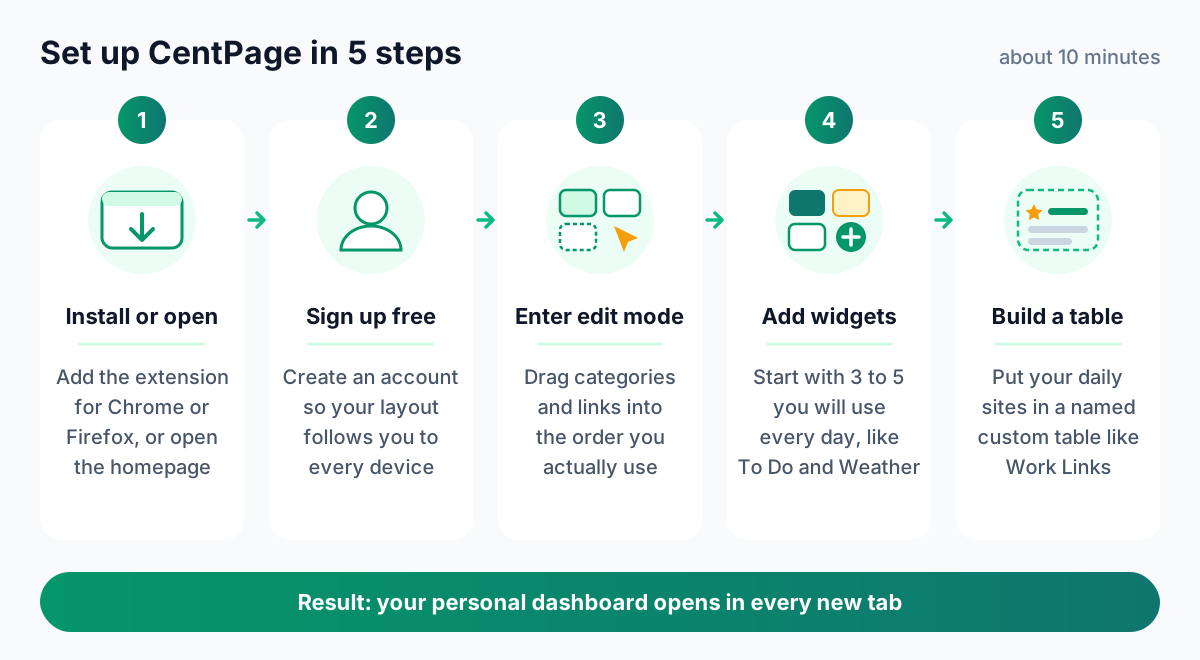
- Install the extension or open the homepage. Add CentPage to Chrome or Firefox to make it your new tab, or simply open centpage.com/homepage in any browser.
- Create a free account. Sign up here so your layout is saved and follows you across devices.
- Enter edit mode. Click Enter Edit Mode, drag the categories you use most to the top and move rarely used ones down.
- Add widgets. Start with three to five: for example To Do List, Weather, Pomodoro Timer and Sticky Notes. Add more only when you notice a real need.
- Build your custom table. Create a table like "Work Links" or "Home" and add the sites you open daily, putting the most important ones in the first seven slots.
If you get stuck, the CentPage user guide covers each feature in more detail. And if you're still comparing options, our buyer's guide to new tab extensions for Chrome and Firefox sets out the criteria worth checking before you commit to any of them.
Privacy and permissions: what the extension does
A new tab extension sees your browser every day, so it's fair to ask what it can access. The CentPage extension's job is narrow: it loads your CentPage dashboard when you open a new tab. It asks for minimal permissions to do that, and you can review them on the Chrome Web Store or Firefox Add-ons listing before you install.
Your layout, custom tables and widget choices are stored with your CentPage account, which is what lets the same dashboard appear on every device where you sign in. That also means you can use the website without the extension at all, and removing the extension doesn't delete your account setup.
A few habits worth keeping with any extension, CentPage included:
- Check the permissions list on the store page before installing
- Remove extensions you no longer use
- Keep your browser updated so extensions run on current security fixes
Staying focused with a productivity new tab
A dashboard can calm your browser down or crowd it further, depending on how you set it up. CentPage gives you the pieces; the discipline comes from keeping them lean.
- Limit widgets to what you use daily. If you haven't touched a widget in two weeks, remove it.
- Keep one custom table for the day's work. It becomes your launchpad instead of a dozen pinned tabs.
- Hide or move down categories that pull you off task. If Social or Videos tempts you during work, drag them to the bottom in edit mode.
- Use the Pomodoro Timer to box your focus time, and the Desk Wellness Coach to remember to take breaks.
For a full approach covering tabs, feeds, notifications and shortcuts, see our distraction-free browser setup guide.
The CentPage family: companion tools from the same team
The team behind CentPage also builds a few focused browser extensions. They are separate products, and each one handles a job a dashboard shouldn't try to do.
Super Session Manager
Super Session Manager saves, organizes and restores browser tab sessions, tab groups with their names and colors, and bookmarks. It includes crash recovery and JSON export and import, and it keeps data in local storage. It pairs well with CentPage: the dashboard holds your everyday links, while saved sessions hold the dozen tabs of a project you'll return to next week. Read our deep dive on Super Session Manager, or install it for Chrome, Firefox or Edge.
SummaryTube
SummaryTube summarizes YouTube videos with AI directly on YouTube, which helps when you need the key points of a long talk or tutorial before deciding whether to watch it all. Available for Chrome and Firefox.
WebDeveloperTools.dev
WebDeveloperTools.dev is a Chrome extension for inspecting, outlining, editing and auditing any web page, with 500+ web development tools and utilities. It complements CentPage's Developer Toolbox widget when you need to work on a live page rather than just convert or format text.
Web Archive Viewer
Web Archive Viewer lets you view archived, historical versions of web pages, which is useful when a saved link has gone dead or a page has changed since you bookmarked it. Get it for Chrome.
Learn more about new tab pages and browser productivity
This article is the hub of a series on getting more out of your browser. Each guide stands on its own:
- Basics: what a new tab page is and how start pages differ from homepages and speed dials
- Choosing tools: comparing new tab extensions for Chrome and Firefox and picking widgets you'll actually use
- Building your setup: a hands-on productivity dashboard tutorial and a practical system for organizing tabs and bookmarks
- Tools and focus: ten categories of browser productivity tools, 50+ web tools you can use without installing apps and how to set up a focused, distraction-free browser
Make your next new tab count
You don't need to rebuild your whole workflow to benefit. Put your daily sites in one custom table, add three widgets you'll really use and let every new tab open to that page. Adjust it after a week based on what you actually clicked.
CentPage is free to start. Add it to Chrome or Firefox, or create your free account and build your dashboard at centpage.com.
Frequently Asked Questions
Is CentPage free to use?
Yes. The core CentPage dashboard, the browser extension, multi-engine search, curated website categories, one custom bookmark table and 20 widgets are free. Premium is an optional upgrade that adds more widgets, more custom tables, an ad-free experience, a personal URL and priority support.
Which browsers does the CentPage new tab extension support?
The official CentPage – Productivity New Tab extension is available for Google Chrome and Mozilla Firefox. In other browsers you can still use CentPage by setting centpage.com as your homepage or opening it in a pinned tab.
Do I need an account to use CentPage?
You can open the CentPage homepage and browse its categories without signing up. Creating a free account lets you save your own layout, custom tables and widgets, and it keeps that setup the same on any device where you sign in.
What is the difference between CentPage Free and Premium?
Free includes the full dashboard, search, curated categories, one custom table with up to eight links and 20 widgets, some with daily usage limits. Premium adds 30 premium widgets, removes usage limits, allows five custom tables, removes ads and gives you a personal centpage.com URL plus priority support.
Can I use CentPage widgets without installing the extension?
Yes. Every CentPage widget also works as a standalone tool page on centpage.com, such as the Pomodoro timer, calculator, unit converter and password generator. You can open these in any modern browser without installing anything.
Is the CentPage extension safe to install?
The extension is published on the Chrome Web Store and Firefox Add-ons and requests minimal permissions, since its main job is to load your CentPage dashboard in new tabs. As with any extension, you can review the permissions on the store page before installing and remove it at any time.
Does CentPage work on mobile?
The CentPage website is mobile-responsive, so you can open your dashboard in a mobile browser and sign in to see the same layout. The new tab extension itself is for desktop Chrome and Firefox.
Tags:#CentPage#Productivity New Tab#All-in-One New Tab#Personalized Homepage#Custom Start Page#New Tab Extension#Browser Widgets#Chrome and Firefox Extensions
More from the CentPage Blog
Browser Tips
What Is a New Tab Page? Turn Your Browser Into a Productivity Dashboard
What is a new tab page, how did it evolve, and how do you change it? Learn how to turn the most-seen page in your browser into a useful productivity dashboard.
10 min readRead →
Guides
How to Create a Productivity Dashboard for Work and Study
Learn how to create a productivity dashboard in 6 steps, with ready-made setups for professionals, developers and students you can copy into your browser today.
10 min readRead →