Guides•11 min read•
The Ultimate Guide to Browser Start Pages
Browser start page guide: homepage vs new tab vs speed dial vs dashboard, how to set one in Chrome, Firefox, Edge and Safari, and how to organize your sites.
Key Takeaways
- Homepage, startup page, new tab page, speed dial, start page and dashboard are six different things, and most browsers let you set each one separately.
- Every major browser lets you point the homepage and startup page at any URL, but Chrome and Firefox need an extension to replace the new tab page itself.
- A good browser start page is organized by how often you visit a site: daily links up front, weekly links one click away, reference links tucked into categories.
- Keep roughly seven visible links per category, name them for scanning, and prune anything you have not clicked in a month.
- CentPage works as a start page in any browser via its URL, and as your new tab page on Chrome and Firefox via its extension.
You open your browser and it shows you something. Maybe a blank page, maybe a news feed you never asked for, maybe the tabs you left open on Friday. Then you open a new tab and see something else entirely. Then you press the Home button, if you can even find it, and get a third page.
That confusion is not your fault. Browsers use at least four separate settings for "the page you see first," and the words people use for them (homepage, start page, new tab, speed dial) get swapped around constantly. The result is that most people never set up a browser start page that actually works for them.
This guide fixes that. You will get clear definitions of every term, a short history of how start pages came to be, step-by-step setup instructions for Chrome, Firefox, Edge and Safari, and a practical system for organizing the websites you visit most.
What is a browser start page?
A browser start page is a web page you deliberately choose as your starting point online. It typically combines a search box with an organized set of links to the sites you use most, and increasingly adds small tools such as weather, notes or a to-do list.
The key word is "deliberately." Your browser always shows you something at launch. A start page is what you get when you take control of that choice instead of accepting the default.
Start page vs homepage vs new tab: the terms explained
The single most useful thing to understand is that these terms describe two different kinds of things. Some are browser settings (slots where a page appears). Others are kinds of pages you can put into those slots.
Browser settings (the slots)
- Homepage. The page that loads when you click the Home button. In some browsers, such as Firefox and Safari, it can also be what loads in new windows. In Chrome and Edge the Home button is often hidden by default.
- Startup page(s). What appears when the browser first launches. Usually you can choose between the default new tab, reopening your previous session, or a specific page or set of pages.
- New tab page. What you see every time you open a new tab. This is the slot you see most often by far, and it is the hardest one to customize.
Page types (what goes in the slots)
- Speed dial. A grid of large tiles linking to your top sites. It usually lives on the new tab page.
- Start page or portal. The classic homepage website: a search box plus a directory of categorized links, sometimes with news headlines.
- Productivity dashboard. A modern start page that adds working tools, such as tasks, notes, calendars, timers and feeds, alongside your links.
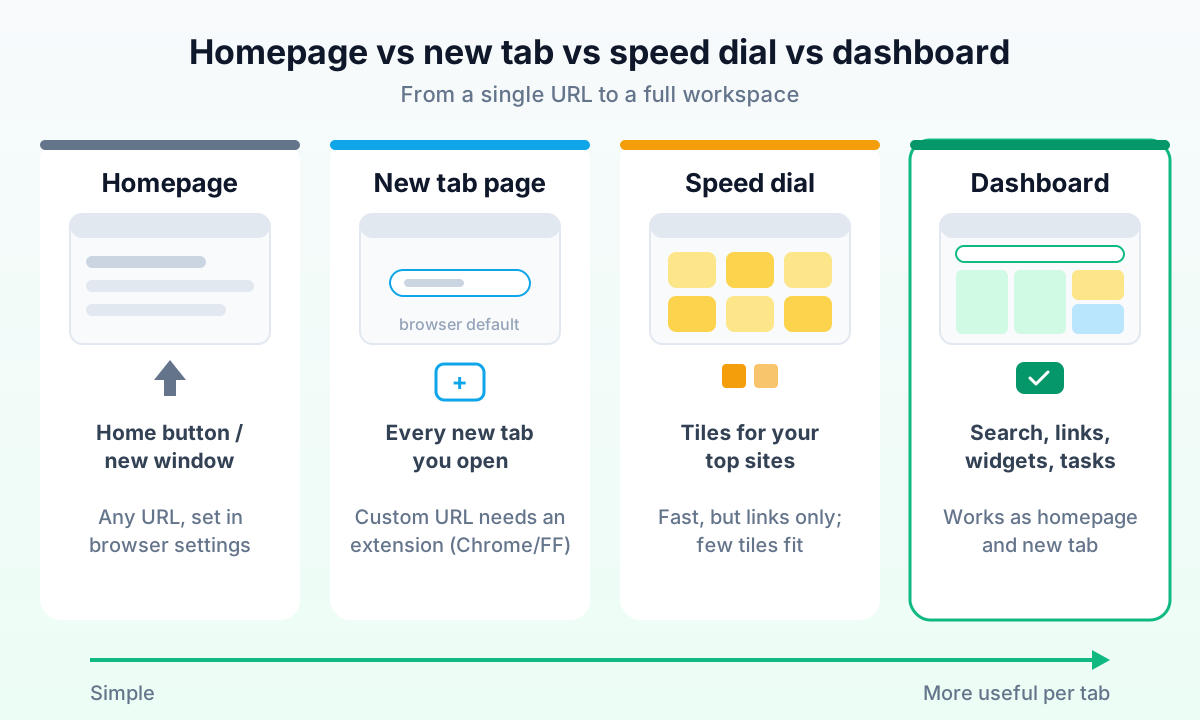
Here is how they compare side by side:
| Term | What it is | When you see it | How you change it | Typical contents |
|---|---|---|---|---|
| Homepage | Browser setting | Home button, sometimes new windows | Built-in settings, any URL | Whatever page you choose |
| Startup page(s) | Browser setting | When the browser launches | Built-in settings, any URL or previous session | One or more pages, or last session |
| New tab page | Browser setting | Every new tab | Extension in Chrome and Firefox; limited built-in options | Browser default, speed dial or extension page |
| Speed dial | Page type | Usually on the new tab page | Pin or remove tiles | Tiles for top or pinned sites |
| Start page / portal | Page type | Wherever you set it | Pick a site, customize its links | Search plus categorized links |
| Productivity dashboard | Page type | Homepage and new tab | Website plus extension | Search, links, widgets, tasks, notes |
If you want to go deeper on the most-used slot, our explainer on how the new tab page evolved from a blank screen to a dashboard covers it in detail.
A brief history of the start page
In the mid-1990s, most people reached the web through a portal. Sites like Yahoo, Excite, Lycos, AOL and MSN competed to be the page your browser opened to, because whoever owned your homepage owned your first click of the day. Portals were essentially curated directories: categories of links, a search box, headlines and weather.
In the 2000s, portals became personal. Services such as My Yahoo, Netvibes, Pageflakes and iGoogle let you drag modules around, pick your own feeds and add small gadgets. iGoogle was hugely popular and its shutdown in 2013 left many users looking for a replacement.
Meanwhile, browsers started building their own answer. Opera introduced Speed Dial in 2007, and other browsers soon added thumbnail grids of frequently visited sites to the new tab page. As people began opening dozens of tabs a day, the new tab page quietly became more important than the homepage.
Today, the ideas have merged. A modern start page is part portal (categorized links), part speed dial (quick access to favorites) and part dashboard (tools you actually use during the day). CentPage followed exactly this path: it launched in 2012 as a classic start page with curated website categories and has grown into a full productivity dashboard.
Try it: See a modern start page for yourself: open CentPage in your browser, no signup required, or add the CentPage extension for Chrome / Firefox to make it your new tab.
How to set your start page in every major browser
Menu labels shift slightly between browser versions, so the steps below describe where to look rather than promising exact wording. The general pattern is the same everywhere: set the homepage, set the startup behavior, then deal with the new tab page.
Google Chrome
- Open the three-dot menu and choose Settings.
- Go to the On startup section and look for the option to open a specific page or set of pages. Add your start page URL.
- To get a Home button, look in the Appearance section for Show home button, turn it on and enter your start page as the custom web address.
- For the new tab page, Chrome has no built-in custom URL option. You need a new tab extension from the Chrome Web Store.
Mozilla Firefox
- Open the menu and choose Settings, then go to the Home panel.
- Under Homepage and new windows, choose the custom URLs option and paste your start page address.
- Under New tabs, Firefox offers its own Firefox Home page or a blank page. To load a custom page in new tabs, install a new tab extension from Firefox Add-ons.
- For startup, look in the General panel for the option to open previous windows and tabs, and decide whether you want that or your homepage.
Microsoft Edge
- Open the menu and go to Settings, then look for the section covering start, home and new tabs.
- Under When Edge starts, choose to open these pages and add your start page URL.
- Turn on the Home button in the same section (or under Appearance) and set it to your start page.
- Edge lets you customize its own new tab layout, but loading a different URL in new tabs generally requires an extension.
Apple Safari (Mac)
- Open Safari, then Settings (called Preferences in older versions), and go to the General tab.
- Type your start page address into the Homepage field.
- Set New windows open with and New tabs open with to Homepage.
Safari is the easy case here: it can load a custom start page in new tabs natively. On iPhone and iPad, Safari's start page is its own customizable Favorites screen, so the simplest option there is to bookmark your start page and add it to Favorites.
Pro tip: If what you actually want at startup is to pick up exactly where you left off, with all your tabs, tab groups and windows, a session manager does that job better than a startup page. Super Session Manager, a companion extension from the same team, saves and restores whole browser sessions with named, colored tab groups. Use your start page for daily navigation and a session manager for project work.
Which setup should you choose?
For most people, the best setup is one start page in every slot: homepage, startup page and new tab. That way there is only one place to organize, and you never wonder which page you will land on.
With CentPage, that means setting centpage.com as your homepage and startup page in any browser, and installing the extension on Chrome or Firefox so every new tab opens your dashboard too. Your layout is tied to your CentPage account, so it looks the same on every browser where you sign in.
What makes a good personal start page?
Before organizing your links, check that your start page does the basics well. Whether you use CentPage, another service or a page you built yourself, look for:
- Speed. It appears almost instantly. A start page you wait for is a start page you learn to ignore.
- Search in the first position. Most sessions start with a search, so the search box should be the first thing your eye lands on.
- Editable structure. You can rename, reorder, add and remove categories and links without friction.
- Sync across devices. Your layout follows you, so you are not maintaining three different versions.
- Restraint. No autoplaying media, no endless feeds you did not choose, no clutter you cannot turn off.
- Room to grow. Optional tools such as notes, tasks or weather are available when you want them and invisible when you don't.
If you want to go beyond links and turn your start page into a real workspace, our walkthrough on building a productivity dashboard for work or study shows complete example setups.
How to organize frequently visited websites on your start page
Most start pages fail not because of the tool but because of the list. People add every site they might ever need, and the page turns into a second bookmarks bar nobody reads. The fix is to organize by how often you visit, not just by topic.
Step 1: Sort your sites into three tiers
Spend ten minutes going through your browser history and bookmarks, and put every site you care about into one of three tiers:
- Daily. Sites you open most days: email, calendar, your main work tools, one or two news sources. This is usually 5 to 12 sites.
- Weekly. Sites you use regularly but not constantly: banking, project boards, learning platforms, shopping.
- Reference. Sites you need occasionally but want to find instantly when you do: documentation, government portals, travel booking, rarely used tools.
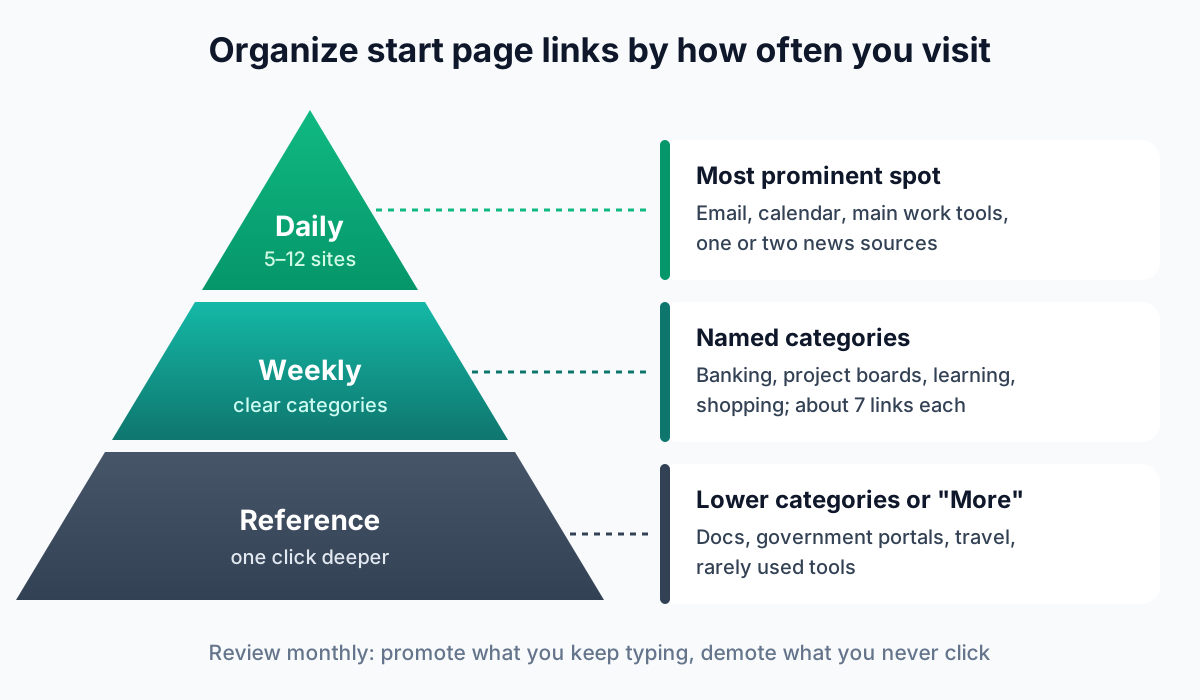
The tier decides the placement. Daily sites belong in the most prominent spot on the page. Weekly sites go into clearly named categories. Reference sites can sit in categories further down, or in a "More" menu, because you will search for them deliberately.
Step 2: Group each tier into categories
Next, group sites into categories that match how you think about your day. Two approaches work well:
- By activity: Work, Finance, Learning, Entertainment, Shopping.
- By project or role: Client A, Side Project, Home Admin, Study.
Pick one approach and stick with it. Mixing "Work" with "Google tools" with "Stuff to read" creates overlapping buckets, and you end up hunting in three places for one link.
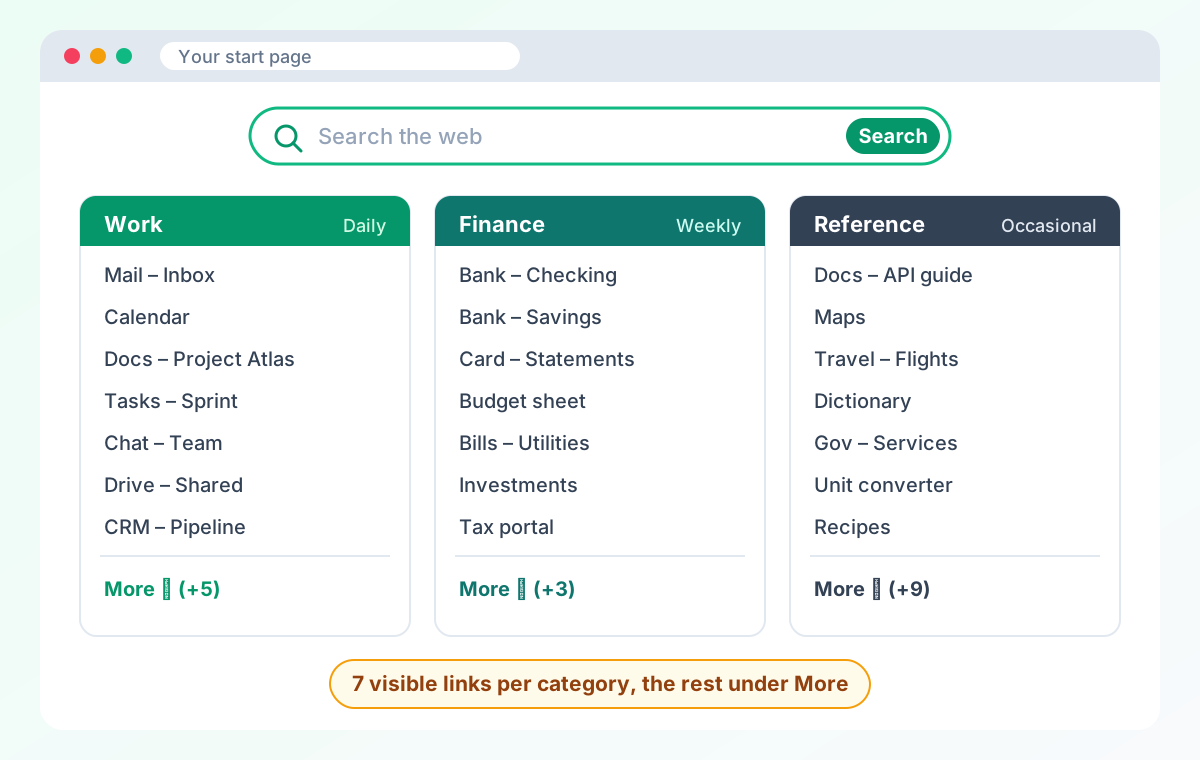
Step 3: Keep about seven visible links per category
A practical rule of thumb: show roughly seven links per category. It is about how many items you can scan and choose from at a glance without reading every label. Beyond that, the eye starts skipping.
CentPage builds this rule into its layout. Each category table shows the first 7 links on the homepage, and any additional links drop into a More dropdown. In edit mode you drag and drop to reorder, so your seven most-used links always stay visible while the long tail stays out of the way.
Step 4: Name links for scanning
Labels matter more than icons. Keep them short, specific and front-loaded with the word you would look for:
- "Bank – Checking" instead of "My Online Banking Login Portal"
- "Docs – Project Atlas" instead of "Untitled document (3)"
- "Jira – Sprint" instead of "Board"
If two links would start with the same word, make the distinguishing word come first.
Step 5: Prune on a schedule
A start page is a living document. Once a month, spend five minutes on cleanup:
- Remove any link you have not clicked in the past month, or demote it to the reference tier.
- Promote anything you keep searching for or typing manually.
- Merge categories that have fewer than three links.
This is the same discipline that keeps bookmarks and open tabs under control. If your problem extends beyond the start page, our guide on breaking the tab and bookmark hoarding habit lays out a complete system for organizing websites and resources.
Common start page mistakes
- Mirroring your bookmarks bar. Your start page should be a short, curated list, not a copy of hundreds of bookmarks.
- Too many widgets. Every tool added to a start page competes with your links. Add one only when you will use it daily.
- Different pages in different slots. A homepage on one site and a new tab on another means two places to maintain.
- Never revisiting it. The sites you use change every few months. Your start page should too.
Where CentPage fits as a modern start page
CentPage has been a browser start page since 2012, and it still does the classic job well: 18+ curated categories such as News, AI, Finance, Tools, Learn and Travel, each a table of top sites you can open with one click. Browse the tools category to see how a curated table looks.
What has changed is everything around the links. There is a multi-engine search bar that searches Google, Bing, Yahoo and others with Web, Images, Videos and News modes. You can add your own custom bookmark tables, such as "Work Links," alongside the curated ones. And there are dozens of optional widgets, from sticky notes, a to-do list and a Pomodoro timer to weather and a currency converter, so your start page doubles as a workspace.
For a tour of every feature and how people use it day to day, see our full CentPage overview.
Set up your start page today
You now know which slot is which, how to fill each one in your browser, and how to arrange your sites so the page actually saves you time. The whole setup takes about fifteen minutes: set the homepage and startup page, sort your sites into daily, weekly and reference tiers, and keep each category to about seven visible links.
If you want a ready-made starting point, open CentPage and set it as your homepage, then add the Chrome extension or Firefox add-on so every new tab opens the same organized dashboard.
Frequently Asked Questions
What is the difference between a start page and a homepage?
A homepage is a browser setting: the page that loads when you press the Home button or, in some browsers, when a new window opens. A start page is a type of website designed to be used as that homepage, usually a page of search and organized links. In practice, you set a start page as your homepage.
How do I set a custom new tab page in Chrome?
Chrome does not offer a built-in setting to load a custom URL in new tabs. You can set a custom homepage and startup page in Settings, but to change the new tab page itself you need to install a new tab extension from the Chrome Web Store.
Can Safari open my start page in new tabs?
Yes. Safari on Mac lets you type any address into the Homepage field in its General settings, and then choose Homepage as the option for new windows and new tabs. This makes Safari one of the few major browsers that can load a custom start page in new tabs without an extension.
What is a speed dial in a browser?
A speed dial is a grid of large tiles, often with thumbnails or icons, that links to your most visited or pinned websites. It usually lives on the new tab page. Opera popularized the idea in 2007 and most browsers now include some version of it.
How many links should I keep on my start page?
Fewer than you think. A useful rule of thumb is about seven visible links per group, because that is roughly how many items people can scan and choose from quickly. Put the rest in a secondary menu or a separate category, and remove links you have not used in a month.
Is it safe to use a third-party start page?
It is generally safe if you choose an established service and install any related extension only from the official Chrome Web Store or Firefox Add-ons site. Check what permissions an extension requests, and prefer ones that ask for as little access as possible.
Should my homepage and new tab page be the same?
For most people, yes. Using the same start page for both means your links and tools are in one place no matter how you open the browser, so you only have to organize things once.
Tags:#Browser Start Page#Start Page vs Homepage#Speed Dial#Browser Homepage Setup#Personal Start Page#New Tab Page#Website Organization
More from the CentPage Blog
Browser Tips
What Is a New Tab Page? Turn Your Browser Into a Productivity Dashboard
What is a new tab page, how did it evolve, and how do you change it? Learn how to turn the most-seen page in your browser into a useful productivity dashboard.
10 min readRead →
Guides
How to Create a Productivity Dashboard for Work and Study
Learn how to create a productivity dashboard in 6 steps, with ready-made setups for professionals, developers and students you can copy into your browser today.
10 min readRead →