Productivity•11 min read•
Too Many Tabs? How to Stop Tab and Bookmark Overload
Too many tabs and a bookmark bar nobody opens? Learn why tab overload happens and use a simple 4-bucket system to organize tabs, bookmarks and daily sites.
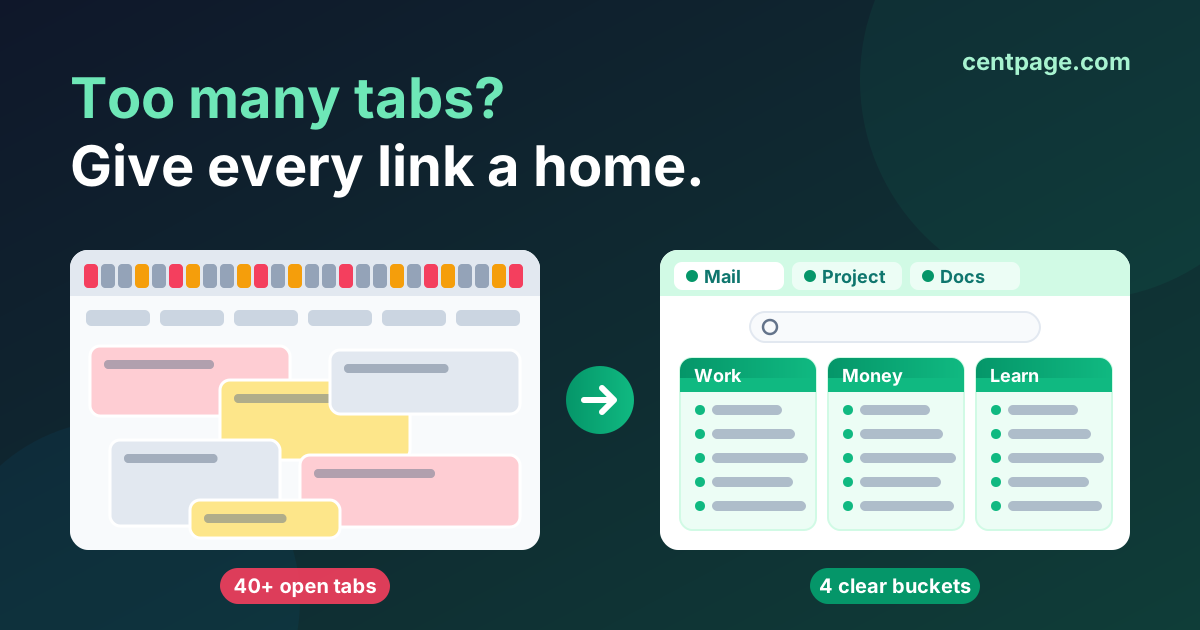
Key Takeaways
- Tab overload is usually a symptom: open tabs quietly become your to-do list, reading list and memory aid all at once.
- Bookmarks fail for the opposite reason: saving takes one click, but finding anything later in nested folders takes far too long.
- The 4-bucket system gives every link one home: daily drivers on a start page, active projects in saved sessions, read-later items in one list, and reference links in a flat archive.
- Clean up bookmarks in a fixed order: back up, remove duplicates, check dead links, flatten folders, then promote your daily sites to a dashboard.
- Small habits such as a tab limit, a daily close-out and one window per project keep the clutter from coming back.
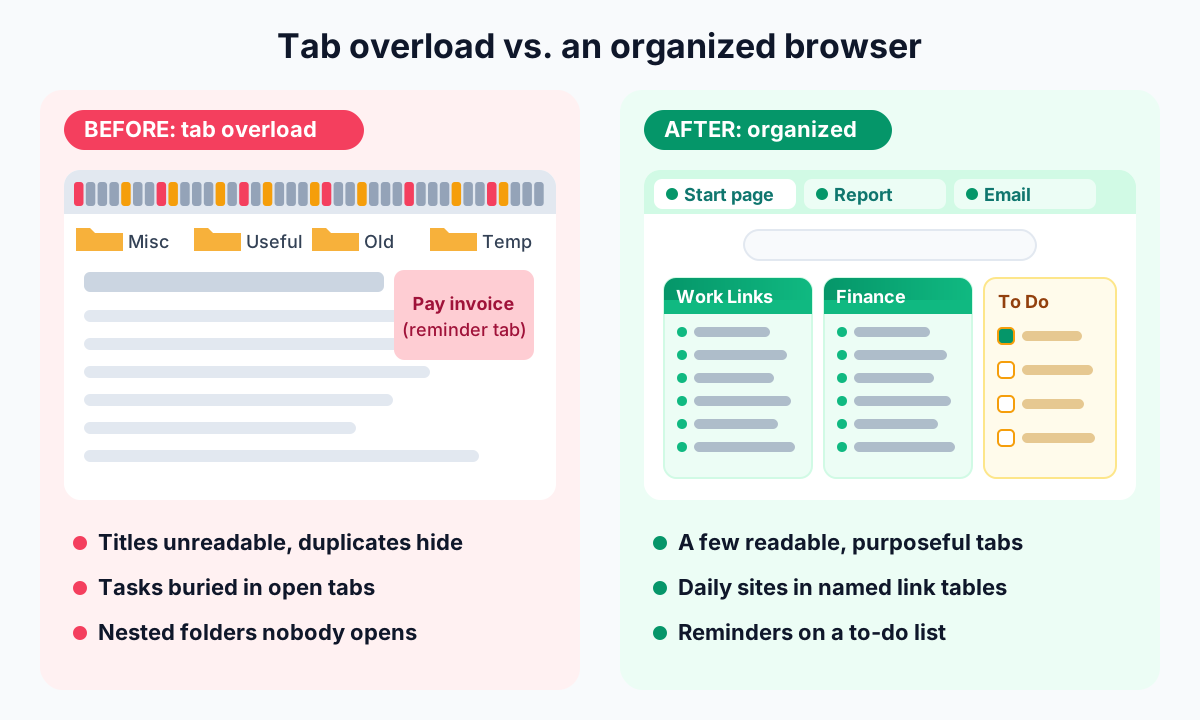
You open the browser to check one thing and see a row of 40 tabs, each squeezed down to a favicon. Somewhere in there is the article you meant to read, the invoice you need to pay and the doc your teammate shared yesterday. You open a new tab and search for it again, because that is faster than hunting.
Your bookmarks are no better. There is a folder called "Useful" inside a folder called "Misc 2023", and you have not opened either in months. Saving a link takes one click; finding it again feels like archaeology.
If that sounds familiar, the problem is not discipline. Tabs and bookmarks are being asked to do jobs they were never designed for. This guide explains why tab overload and bookmark overload happen, what they cost you, and a simple system that gives every link a proper home.
Why do we keep too many tabs open?
Tab hoarding rarely comes from laziness. Each open tab is usually doing a quiet job that nothing else in your setup is doing. The most common ones:
- Tabs as a to-do list. The open tax form means "file this". The open email thread means "reply". Closing the tab feels like deleting the task.
- Fear of losing something. You found that page after 20 minutes of searching. Bookmarking it feels like sending it to a place you will never look again, so it stays open.
- "I'll read it later." Articles, long videos and newsletters pile up because later never arrives, and the tab is the only reminder that it exists.
- Research sprawl. Comparing laptops, planning a trip or debugging a problem can spawn 15 tabs in an hour. When the research pauses, the tabs stay, waiting for you to come back.
- Daily sites never closed. Email, calendar, chat and your project tool stay pinned open because reopening them from scratch is annoying.
Notice the pattern: every one of those tabs is a reminder, a to-do item, a bookmark or a workspace in disguise. That is why simply closing tabs does not stick. The job the tab was doing still needs to be done somewhere.
Why bookmarks turn into a graveyard
Bookmarks fail for the opposite reason. They are great at capturing and terrible at retrieving.
Saving is a single click or keyboard shortcut, so you save generously. But retrieval depends on you remembering the right folder, the right name and that the bookmark exists at all. Over time you get:
- Nested folders nobody opens. Deep hierarchies made sense the day you created them. Three clicks deep, nothing gets found.
- Duplicates. The same site saved four times in four folders, often with slightly different URLs.
- Vague names. Page titles like "Home" or "Dashboard | App" tell you nothing six months later.
- Link rot. Pages move, sites shut down, articles get rewritten. A surprising share of old bookmarks lead to errors or to pages that no longer say what you saved them for.
The result is that people stop trusting their bookmarks, and when you do not trust your storage, you keep things open instead. Bookmark overload and tab overload feed each other.
What tab and bookmark overload actually costs you
It is tempting to treat a messy browser as purely cosmetic. It is not.
Performance. Every open tab takes memory, and busy pages (video, live dashboards, heavy ads) can keep using processor time in the background. Browsers now put idle tabs to sleep, which helps, but a machine juggling dozens of tabs still tends to feel sluggish, and laptops tend to lose battery faster.
Attention. Each visible tab is a small, unresolved decision. Scanning a crowded tab bar to find one page pulls your focus away from the task, and every glance past an unread article or unanswered message is a tiny interruption.
Lost information. When the browser crashes, updates or you accidentally close a window, a tab-based system disappears with it. And bookmarks you cannot find are functionally the same as bookmarks you never saved.
The 4-bucket system for tabs and bookmarks
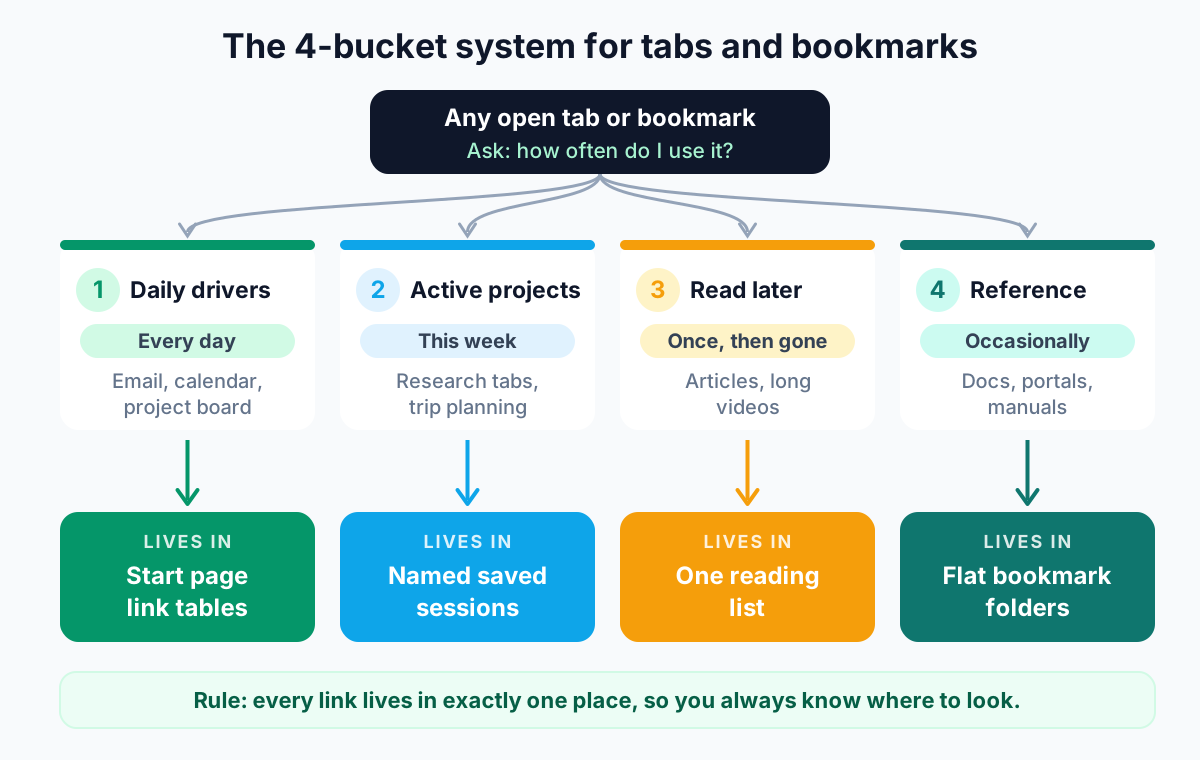
The fix is to stop asking tabs and bookmarks to do everything. Instead, sort every link by how you use it, and give each kind a dedicated home. Four buckets cover almost everything:
- Daily drivers — sites you open every day or several times a week.
- Active projects — groups of tabs tied to work that is in progress right now.
- Read and watch later — content you intend to consume once, then discard.
- Reference archive — links you might need occasionally for months or years.
Each bucket has one rule: a link lives in exactly one place. If you know which bucket something belongs to, you know where to find it.
Bucket 1: Daily drivers live on your start page
Your ten to twenty most-used sites should be one click away every time you open a new tab. The best place for them is a start page or dashboard with clearly named link groups, not a crowded bookmarks bar and definitely not pinned tabs you never close.
Group them by context rather than by type: "Work", "Money", "Learning", "Personal". A good start page also covers common sites you would otherwise bookmark individually, such as news, email or streaming, so you do not have to curate those yourself. If you have never set one up, our guide to browser start pages explains the options and how to set one as your new tab in each browser.
On CentPage, for example, you can create a named custom link table such as "Work Links" for your personal daily drivers, and lean on curated categories like News, Tools or Finance for common sites. In edit mode you drag links into order; the first seven links in each category show on the page and the rest sit in a "More" dropdown, which nudges you to keep only the truly frequent ones up front.
Try it: Move your daily drivers out of pinned tabs and into one organized page. Open CentPage in your browser or add the CentPage extension for Chrome / Firefox so every new tab opens on your links.
Bucket 2: Active projects live in saved sessions
Research sprawl is legitimate. When you are comparing options or working through a problem, you genuinely need 12 related pages together. The mistake is keeping them open for days when you are not working on them.
Instead, save the window as a named session ("Kitchen renovation", "Q3 report sources") and close it. When you come back to the project, restore the session and everything reopens exactly as you left it. Tab groups help while you are working; sessions help when you stop.
Browsers offer basic ways to do this, such as bookmarking all tabs into a folder. A dedicated session manager is smoother. Super Session Manager, a companion extension from the same team as CentPage, saves whole windows and tab groups (with their names and colors) as sessions you can restore later, and keeps crash-recovery snapshots in case the browser closes unexpectedly. It is available for Chrome, Firefox and Edge, and we cover it in detail in our walkthrough of saving and restoring tab groups.
Pro tip: Name sessions after the outcome, not the date. "Laptop purchase shortlist" is easy to find next month; "Session 14 Sept" is not.
Bucket 3: Read and watch later go to one list
Pick exactly one place for things you intend to consume later: your browser's reading list, a read-it-later app, or a to-do list with a "Read" section. It does not matter which, as long as it is only one.
Then treat it like an inbox. Once a week, skim it, read what still interests you, and delete the rest without guilt. If something has sat there for a month, you were never going to read it.
Long videos are the worst offenders because they demand 20 to 60 minutes you rarely have. Before you park a video tab for "later", consider reading a summary first. SummaryTube, another tool from the same team, summarizes YouTube videos with AI right on the YouTube page, so you can decide in a minute whether the full video deserves your time. It works on Chrome and Firefox.
Bucket 4: The reference archive stays flat and boring
Bookmarks are still the right tool for things you need occasionally: documentation, account portals, a recipe you cook twice a year, the warranty page for your fridge. The trick is to keep the structure flat.
Aim for five to ten top-level folders with plain names ("Finance & accounts", "Home", "Work reference", "Learning") and no folders more than one level deep. Search in the address bar will find most bookmarks by name, so good names matter more than clever hierarchies.
Where should each kind of link live?
Use this table as a quick sorting guide when you are staring at an open tab and wondering what to do with it.
| Resource type | Example | Where it should live | Review how often |
|---|---|---|---|
| Daily tool or site | Email, calendar, project board | Start page link table | When your routine changes |
| Common popular sites | News, video, shopping | Start page curated categories | Rarely |
| In-progress research | 12 tabs comparing laptops | Named saved session | End of each project |
| Task reminder tab | Bill to pay, form to finish | To-do list, then close the tab | Daily |
| Article to read | Long blog post, newsletter | One reading list | Weekly |
| Long video | Conference talk, tutorial | Reading list (after a summary check) | Weekly |
| Occasional reference | Docs, account portals, manuals | Flat bookmark folder | A few times a year |
| Quick note or snippet | Tracking number, code, phone number | Notes app or sticky note | Daily |
How to clean up bookmarks step by step
If your bookmarks already contain hundreds of links, do one focused cleanup session. Work in this order so you never lose anything important.
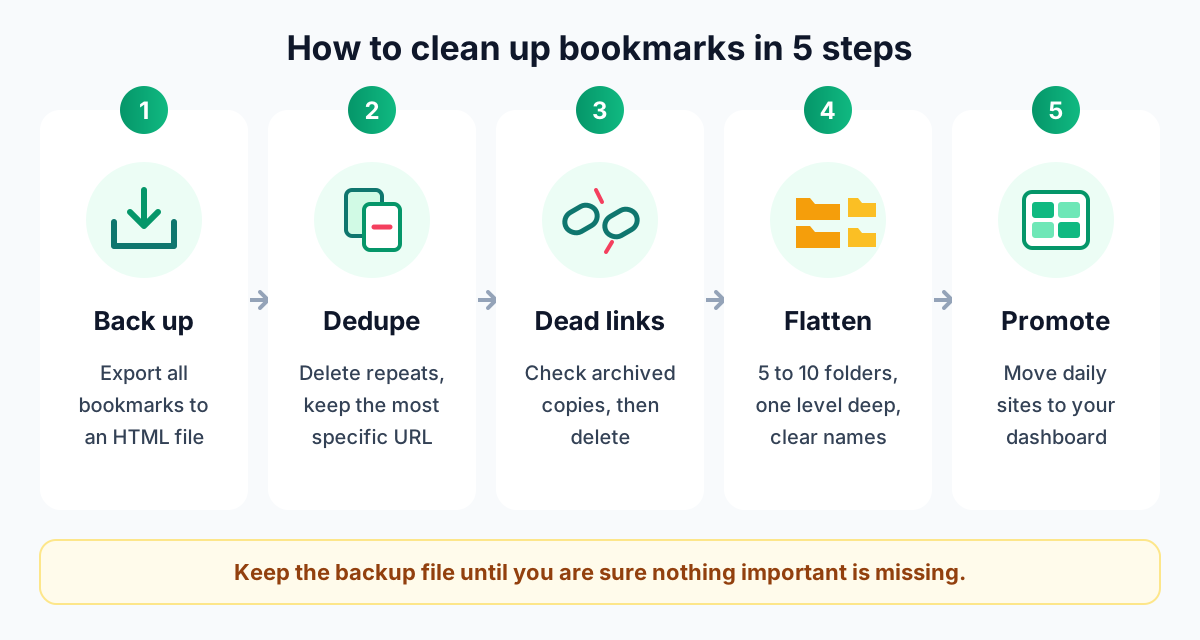
- Back up first. Use your browser's bookmark manager to export all bookmarks to an HTML file and store it somewhere safe. This is your undo button, and it lets you be ruthless in the next steps.
- Remove duplicates. Sort by name or URL in the bookmark manager and delete repeats. Where two versions differ, keep the most specific one (the actual page, not the site homepage).
- Check dead links. Open older bookmarks in batches and delete anything that errors out or redirects somewhere irrelevant. Before you delete a bookmark whose page has vanished or changed, check whether an archived copy exists. Web Archive Viewer, a companion extension from our team, shows archived versions of a page so you can recover the content you originally saved; it is available for Chrome.
- Flatten and rename folders. Merge nested folders into five to ten top-level ones. Rename vague bookmarks so the name describes why you saved them, for example "Tax portal – login" instead of "Home".
- Move daily drivers to your dashboard. Any bookmark you open weekly or more belongs in Bucket 1. Add it to your start page and delete it from the archive so it lives in one place only.
Expect the first pass to take 30 to 60 minutes for a large collection. After that, a quick review a few times a year keeps it tidy.
Pro tip: If you are unsure about a bookmark, move it to a folder called "Delete in 3 months". If you never open that folder, empty it on the date.
How to manage browser tabs day to day
The buckets fix the storage problem. These habits stop the tab bar from filling up again.
Set a soft tab limit
Pick a number, often 10 to 15 per window, where tab titles are still readable. When you hit it, sort the oldest tabs into a bucket before opening more. The limit is less about the number and more about forcing a decision.
Do a two-minute end-of-day close-out
Before you log off, go through your open tabs once:
- Finished? Close it.
- A task? Add it to your to-do list, then close it.
- Reading? Send it to your reading list.
- Part of a project? Save the window as a session.
- Used daily? Make sure it is on your start page.
Starting the next day with an empty or near-empty browser feels surprisingly good, and it means you begin with your own priorities instead of yesterday's leftovers.
Use one window per project
Keep your daily tools in one window and open a separate window (or a tab group) for each project. Switching projects then means switching windows, and saving or closing a project does not touch anything else.
Replace reminder tabs with real reminders
A tab left open so you remember to do something is a to-do item in a costume. Put it on an actual list. A new tab page that shows your tasks makes this effortless, because the reminder appears every time you open a tab anyway. On CentPage, the To Do List and Sticky Notes widgets sit on the same page as your links, so "remember to renew passport" no longer needs its own tab. Both also work as standalone pages, like the free online to-do list, if you prefer not to install anything.
For a wider look at trimming visual noise beyond tabs, including notifications, feeds and toolbar clutter, see our distraction-free browser setup.
How a centralized start page keeps overload from coming back
Most tab and bookmark clutter starts with the same small moment: you need a site, it is not in front of you, so you open another tab and search for it, and then you never close it. A centralized start page removes that moment. Your daily drivers, your tasks and your quick notes appear every time you open a new tab.
That is the idea behind using CentPage as your new tab: named link tables for your own sites, curated categories for the popular ones, and widgets such as To Do List, Sticky Notes and Calendar alongside them. If you want to design that page deliberately, our step-by-step productivity dashboard tutorial shows example layouts for work and study, and our full CentPage overview covers every feature in depth.
Start with one bucket this week
You do not need to fix everything in one afternoon. Start with the bucket that hurts most: if you are drowning in tabs, save your project windows as sessions tonight; if your bookmarks are a mess, export a backup and flatten the folders this weekend. Then move your daily drivers to a single start page so tomorrow begins with a clean browser.
When you are ready, set up your CentPage dashboard for free, or install the extension for Chrome or Firefox and let every new tab open on the links that matter.
Frequently Asked Questions
How many browser tabs is too many?
There is no fixed number, but a useful signal is when you can no longer read the titles on your tabs or you open a page you already had open. For most people, keeping around 10 to 15 tabs per window keeps things scannable. Anything beyond that is usually better stored as a saved session or a reading list entry.
Do lots of open tabs slow down my computer?
They can. Each open tab uses memory, and pages with video, ads or live updates can also use processor time in the background. Modern browsers put inactive tabs to sleep to reduce the impact, but closing tabs you do not need is still the most reliable way to keep the browser responsive.
What is the best way to organize bookmarks?
Keep the structure flat and shallow, with a handful of clearly named folders rather than deep nesting. Put the sites you visit every day somewhere always visible, such as a start page or the bookmarks bar, and keep long-term reference links in a separate archive folder. Review the archive a few times a year and delete what you no longer use.
How do I save all my open tabs without losing them?
Most browsers let you bookmark all open tabs into a folder, which works for occasional use. A session manager extension is more convenient because it saves a whole window, including tab groups, as a named session that you can restore later with one click. Either way, you can close the tabs afterward without losing your place.
Is it safe to delete old bookmarks?
Yes, as long as you export a backup first. Every major browser can export bookmarks to an HTML file, which you can re-import at any time if you delete something by mistake. Keeping that backup file also means you can clean up aggressively without worrying.
What should I do with bookmarks that lead to dead pages?
First check whether the content moved to a new address by searching for the page title. If it is gone, an archived copy may still exist in a web archive service, so you can save the useful parts or update the bookmark to the archived version. If neither works, delete the bookmark.
What is tab hoarding?
Tab hoarding is the habit of keeping many tabs open for days or weeks because closing them feels like losing something. The tabs typically act as reminders, unfinished reading or research in progress. Giving each of those purposes a proper home is the most effective way to break the habit.
Tags:#Tab Overload#Too Many Tabs#Bookmark Organization#Tab Hoarding#Browser Tab Management#Clean Up Bookmarks#Browser Productivity
More from the CentPage Blog
Guides
How to Create a Productivity Dashboard for Work and Study
Learn how to create a productivity dashboard in 6 steps, with ready-made setups for professionals, developers and students you can copy into your browser today.
10 min readRead →
Guides
The Ultimate Guide to Browser Start Pages
Browser start page guide: homepage vs new tab vs speed dial vs dashboard, how to set one in Chrome, Firefox, Edge and Safari, and how to organize your sites.
11 min readRead →