Productivity•11 min read•
How to Build a Distraction-Free Browser Setup (Step by Step)
Build a distraction-free browser: remove feeds, notifications and clutter, set up a clean new tab, and use focus sessions to stay on task. 10 practical steps.
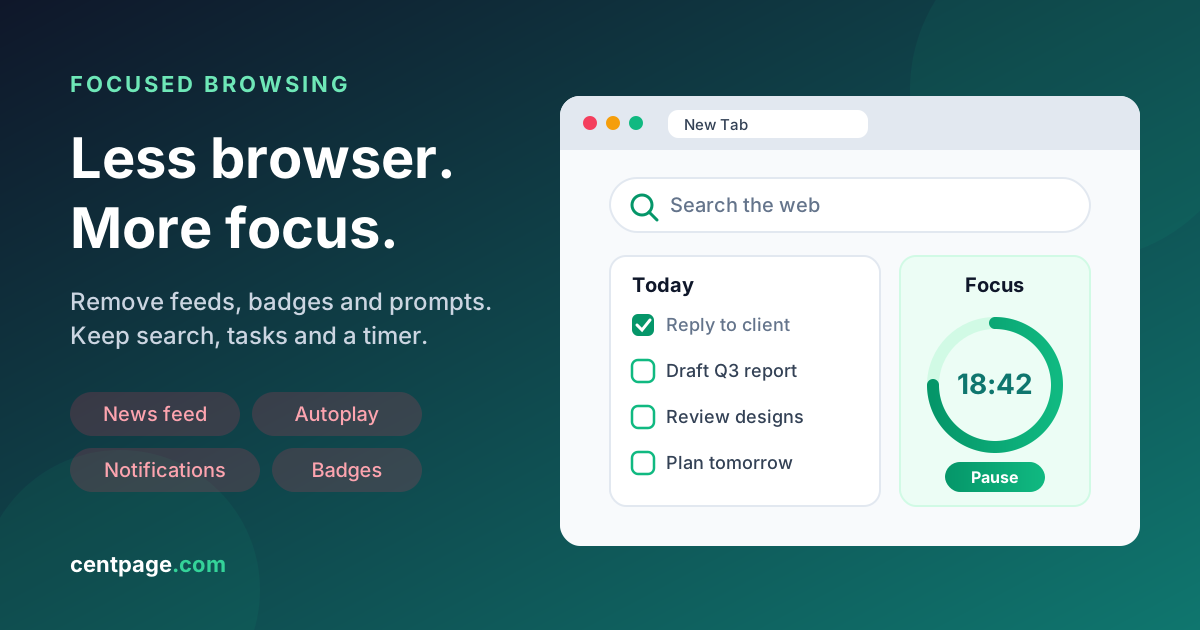
Key Takeaways
- Most browser distraction is designed in: feeds on the new tab, notification prompts, badges, autoplay and one-click shortcuts to time-wasters.
- A distraction-free browser is built by subtraction: audit what pulls you off-task, then remove or hide it rather than adding more tools.
- Your new tab should show only search, a few essential work links and today's tasks, never an infinite feed.
- Separate work and personal profiles, one window per task, and saved sessions keep old tabs from competing for your attention.
- Tools like focus timers and video summaries help, but the setup only works when it supports a habit of deciding what to do before you open the browser.
You open a new tab to check one number in a spreadsheet. Twenty minutes later you have read three headlines, cleared two notification badges, watched most of a video that autoplayed, and you still have not checked the number.
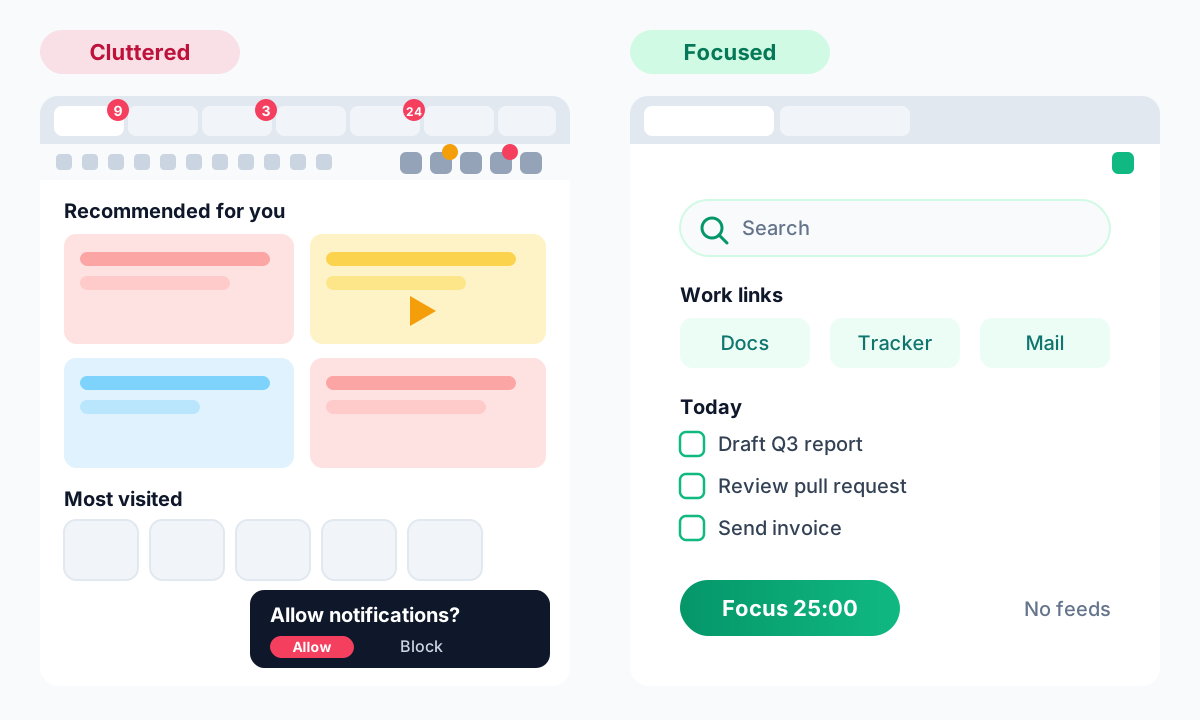
That is not a willpower problem. The modern browser is full of features designed to capture attention: recommended articles on the new tab, sites asking to send notifications, unread counts on pinned tabs, and one-click tiles to the places you visit most (which are usually the places you waste the most time).
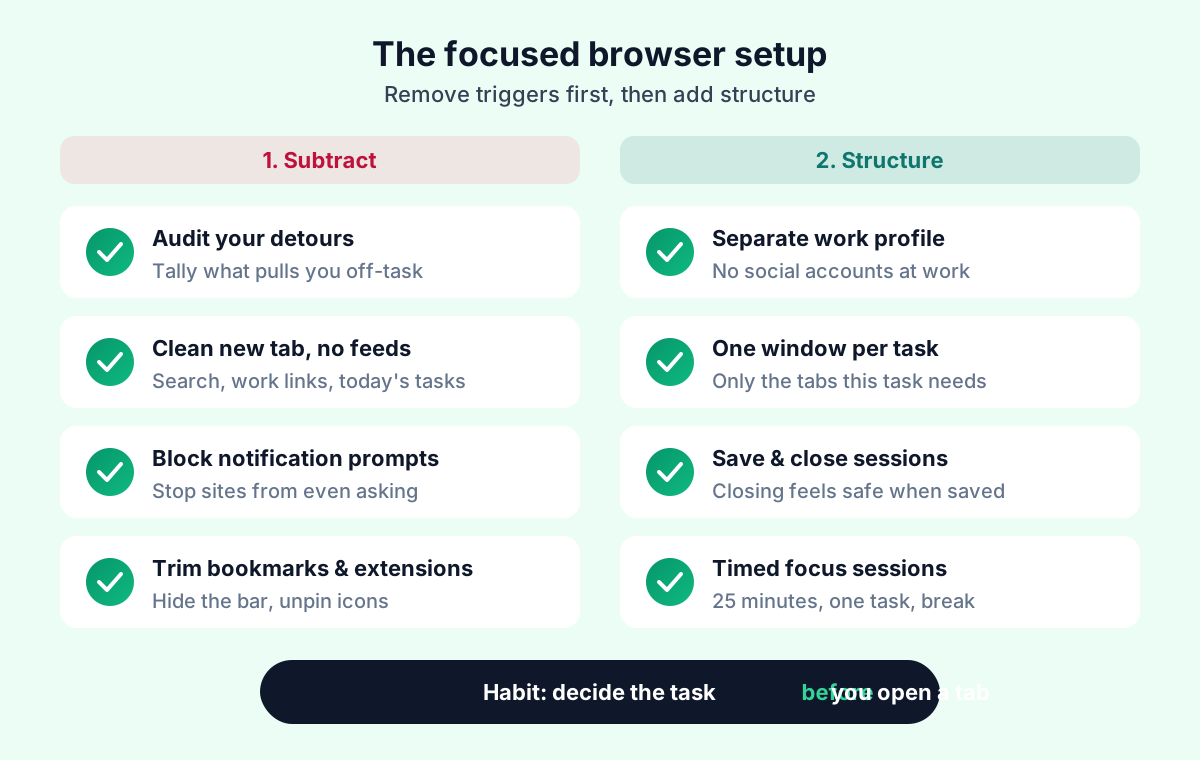
The fix is not another app. It is subtraction. This guide walks through where browser distraction actually comes from and a practical, step-by-step setup for a distraction-free browser that keeps you on task without making the web less useful.
Why is your browser so distracting?
Most distractions in the browser are not random. They sit at the exact moments when your attention is most fragile: opening a new tab, finishing a task, or waiting for something to load. Here are the usual suspects.
- Infinite feeds on the new tab. Many default new tab pages show news, "recommended for you" stories or trending content. Every new tab becomes a small invitation to scroll.
- Notification prompts and site notifications. Sites ask permission to notify you, and once allowed, they interrupt with pop-ups that pull you to another page.
- Pinned social and messaging tabs. A pinned tab with an unread count is a permanent reminder that something might be waiting for you.
- Autoplay. Video sites queue the next clip automatically, so stopping requires a decision while continuing requires nothing.
- Too many toolbar extensions. Each icon can show a badge, a pop-up or a color change that competes for a glance.
- A cluttered bookmarks bar. Twenty tiny favicons along the top of the window are twenty tempting detours.
- Most-visited tiles. Shortcut tiles are built from your history, so they tend to promote exactly the sites you are trying to visit less.
- Badges and unread counts. Numbers on tab titles and favicons create a nagging sense of unfinished business.
Notice the pattern: almost every item is something the browser shows you automatically. A minimalist browser setup simply stops showing them.
Step 1: Audit what actually pulls you off-task
Before changing anything, spend one normal workday noticing your detours. Keep a sticky note (paper or digital) and add a tally mark each time you end up somewhere you did not intend to go. Write down the trigger, not just the site.
After a day, you will usually see two or three dominant triggers, for example:
- "Opened a new tab and clicked a news headline."
- "Saw the unread count on my pinned chat tab."
- "A video I looked up for work started autoplaying the next one."
This audit matters because it tells you which steps below will give you the biggest win. If new tab feeds cause half your detours, fix that first and ignore the rest for a week.
Step 2: Replace the default new tab with a clean one
The new tab page is the most-viewed page in your browser. Most people open dozens of tabs a day, so whatever appears there gets dozens of chances to distract you. A clean new tab is the single highest-leverage change in this guide.
A focused new tab should answer one question: "What was I about to do?" That means it needs three things and very little else:
- A search bar, so you can go straight to what you intended.
- A handful of essential links, the tools you use for the work you are doing right now.
- Today's tasks, so your priorities are the first thing you see.
Everything else is optional, and anything that refreshes with new content is a liability during work hours. If you want to go deeper on designing this page, our guide on building a productivity dashboard for work or study covers layouts for different roles.
What to keep vs what to remove on a focused new tab
| Keep (minimal) | Remove or hide during work (maximal) |
|---|---|
| Search bar | News feeds and "recommended" stories |
| 5–8 links for current work tools | Most-visited tiles built from history |
| Today's to-do list | Social media shortcuts |
| Focus timer | Video feeds and trending clips |
| Clock, and weather if you need it | Sports scores, jokes, entertainment widgets |
| One scratchpad for quick notes | Rotating backgrounds with clickable "learn more" links |
A useful rule: if a widget or link could give you something new to read every time you open a tab, it does not belong on your work new tab.
Try it: CentPage lets you build this kind of calm, focused start page in a few minutes, with multi-engine search, your own link tables and productivity widgets. Open CentPage in your browser or add the CentPage extension for Chrome / Firefox to make it your new tab.
Step 3: Stop notification prompts at the source
Notifications are the most direct way a website can interrupt you, and the permission prompt itself is a distraction. Most browsers let you turn off both.
General steps that work in Chrome, Firefox and most Chromium-based browsers:
- Open Settings and find the Privacy or Site settings / Permissions section.
- Open Notifications.
- Choose the option that stops sites from asking to send notifications (wording varies, for example "Don't allow sites to send notifications" or "Block new requests").
- Review the list of sites already allowed and remove any you do not need.
Keep notifications only for things that are truly time-sensitive, like a calendar reminder. Chat and email can almost always wait until you check them on purpose.
Pro tip: Also check your operating system's notification settings. Browser notifications often pass through the system notification center, and many systems offer a focus or do-not-disturb mode you can schedule for working hours.
Step 4: Hide or trim the bookmarks bar
The bookmarks bar is visible on every page, which makes it a constant menu of alternatives to what you are doing. You have two good options:
- Hide it entirely (most browsers use a keyboard shortcut or a right-click option on the bar). Your bookmarks still exist in the bookmarks menu and your new tab.
- Trim it to your current work only, five to eight links with no entertainment sites and no folders full of "read later" material.
If your bookmarks have grown into hundreds of half-sorted links, that is a separate problem worth solving on its own. Our guide to taming tab and bookmark overload lays out a system for sorting and pruning them.
Step 5: Trim extensions and unpin their icons
Open your extensions page and go through the list honestly. For each extension, ask: "Did I use this in the last month? Does it need to be visible?"
- Remove extensions you do not use. Fewer extensions also means fewer permissions granted to third parties.
- Disable ones you need only occasionally, and turn them on when needed.
- Unpin icons from the toolbar for everything that does not need a one-click button. Most browsers keep unpinned extensions available under a puzzle-piece or extensions menu.
- Turn off badges where an extension offers the setting, especially for email and social tools.
A toolbar with two or three icons is calmer than one with twelve, and you lose nothing because the rest are still one click away.
Step 6: Separate work and personal browser profiles
Browser profiles are one of the most underused focus tools. Each profile has its own bookmarks, history, extensions, logged-in accounts and new tab. That means you can build a work profile that simply does not know about your personal social accounts, streaming services or shopping carts.
A practical split:
- Work profile: work email, project tools, documentation, a clean new tab with work links and tasks, only work-related extensions.
- Personal profile: social media, entertainment, news, shopping, personal email.
Autocomplete and history stay separate too, so typing one letter in your work profile no longer suggests a social site. Switching profiles becomes a deliberate choice instead of an accident.
Step 7: One window per task, and close sessions instead of hoarding them
Forty open tabs are forty unfinished decisions. Each one is a reminder of something you could be doing instead, which makes focused browsing almost impossible.
Try this rule: one window per task. When you start writing a report, open a fresh window with only the tabs that report needs. When you switch tasks, do not leave the old window open "just in case." Save it and close it.
Saving is what makes closing feel safe. Super Session Manager, a companion extension from the same team as CentPage, lets you save a window or tab group as a named session and restore it later, including tab group names and colors. It is available for Chrome, Firefox and Edge, and our Super Session Manager walkthrough shows how to set it up. Once "Q3 report research" is safely saved, you can close all twelve tabs without anxiety.
Step 8: Run focus sessions with a Pomodoro timer
A clean browser removes triggers. A timer adds structure. The Pomodoro technique is simple: pick one task, work on it for a fixed block (25 minutes is the classic default), then take a short break. After a few blocks, take a longer break.
Why it helps with browsing specifically:
- The block has a clear end, so "I will check that later" becomes a real promise with a time attached.
- Writing the task down before you start gives every new tab a purpose.
- Breaks give you a guilt-free window for the things you postponed.
Keep the timer where you will see it. A timer on your new tab is effective because each new tab reminds you that a session is running. CentPage's Pomodoro Timer widget does exactly this, and you can also try the free Pomodoro timer tool in any browser without installing anything.
Step 9: Turn off autoplay and consume video on purpose
Video is where short research turns into long detours. Two changes help.
First, turn off autoplay on the video sites you use. The setting is usually a toggle on the player or in account settings. Without it, every next video requires an intentional click.
Second, decide whether a video is worth watching before you watch it. Many work-related videos are long explanations of a few key points. SummaryTube, another extension from the same team, summarizes YouTube videos with AI directly on YouTube (Chrome / Firefox). Read the summary first: if it answers your question, close the tab; if it does not, you watch with a clear purpose.
Step 10: Build a "focus mode" new tab (sample CentPage setup)
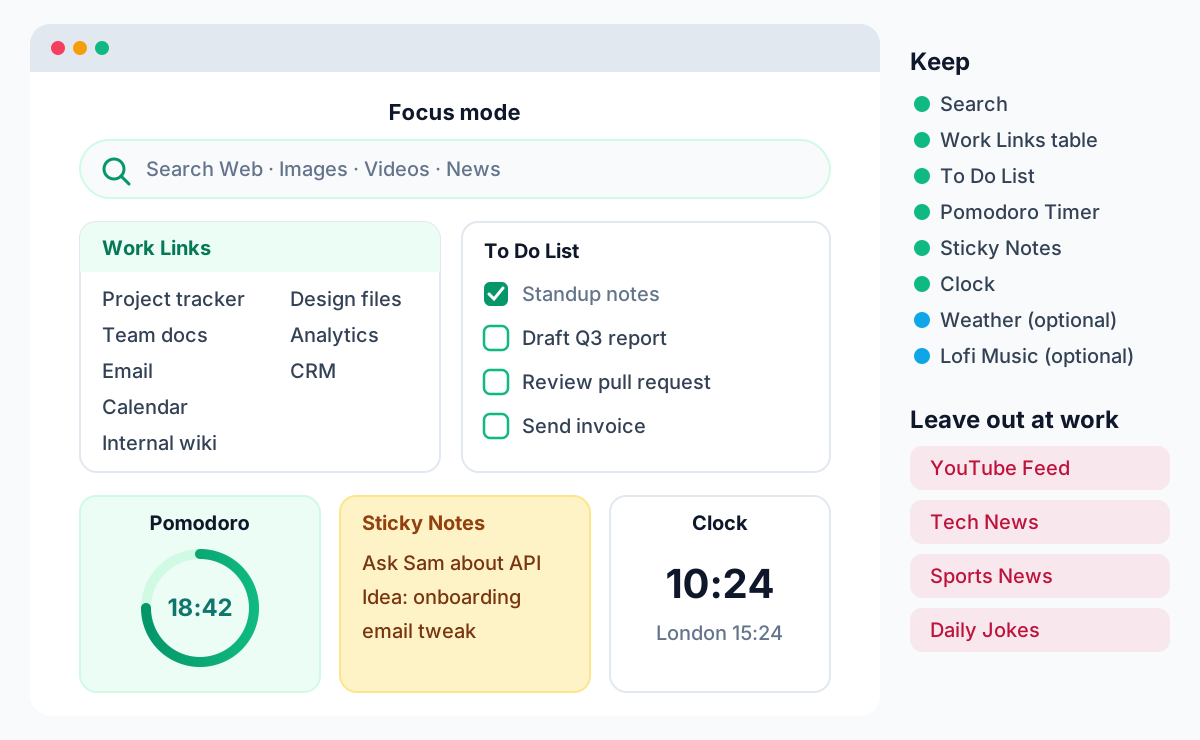
Here is a concrete example of a work-hours configuration in CentPage. The same principles apply to any start page, but it helps to see a real layout.
Categories and link tables to keep
- One custom table, such as "Work Links." Add the 5–8 tools you use every day: project tracker, docs, email, calendar, the internal wiki. The free plan includes one custom table with eight links, which is enough for a focused setup.
- Tools or Reference, if you regularly use calculators, dictionaries or converters for work.
- Use Enter Edit Mode to drag your work table to the top. Only the first seven links of a category show on the homepage, so put the ones you use most first.
Widgets to keep
- To Do List for today's three to five priorities.
- Pomodoro Timer for focus blocks.
- Sticky Notes as a scratchpad for thoughts you want to park, not act on.
- Clock & Timer, especially if you work across time zones.
- Weather, optional, if it genuinely affects your day (commute, outdoor work).
- Lofi Music player, a premium widget, optional if background music helps you concentrate.
Widgets to avoid during work
- YouTube Feed, Tech News, Sports News and RSS News Reader: all produce new content every time you look.
- Daily Jokes, Movies & OTT Radar and Smart Recommender: great for a break, bad for a work block.
- Crypto Prices and Stock Market, unless tracking them is literally your job.
These widgets are not bad. They just belong on your personal profile or your break time, not on the page you see every time you open a tab to work. If you are deciding which widgets are worth screen space at all, see our roundup of the best free new tab widgets.
One more detail that matters for distraction: CentPage Premium is ad-free and adds more custom tables and premium widgets such as Lofi Music. The free version is fully usable for a focus setup; see pricing if you want those extras.
Do you need to block distracting sites completely?
Sometimes. Removing shortcuts handles most accidental visits, but if your audit shows you are typing a social site's address from memory during work, a harder barrier can help. Site blocker extensions typically let you block specific domains on a schedule or during a timed session.
Use blocking as a targeted tool, not a first resort. Block the one or two sites that repeatedly win, keep the schedule to working hours, and review it after a couple of weeks. Overly strict rules tend to get switched off, while a small, specific block tends to stick.
Tools help, but habits do the heavy lifting
Every step in this guide lowers friction for focus and raises it for distraction. None of them decide what you should work on. The most effective habit is small: before you open the browser, know the one thing you are about to do. Write it in your to-do list, start a timer, and open only the tabs that task needs.
Expect to slip. When you notice a detour, do not rebuild your whole setup. Check your audit note, fix the specific trigger, and move on. A distraction-free browser is less a finished product than a setup you tune every few weeks.
Start with your new tab today
If you only do one thing from this guide, change your new tab. Replace the feed with search, a short list of work links and today's tasks, and you remove dozens of small interruptions every day.
For a closer look at everything the dashboard can do, from custom link tables to widgets, read our full CentPage overview. Or skip the reading and set up your focused new tab on CentPage now: it is free, and the extension for Chrome and Firefox makes it the first thing you see in every new tab.
Frequently Asked Questions
What is a distraction-free browser?
A distraction-free browser is a normal browser configured to remove attention traps such as news feeds on the new tab, notification prompts, badge counts, autoplay and shortcuts to social sites. You do not need a special browser for it. Chrome, Firefox and most other browsers can be set up this way with built-in settings and a clean new tab page.
How do I stop websites from asking to send notifications?
Open your browser settings, go to the site permissions or privacy section, and find Notifications. Most browsers let you choose an option that blocks sites from asking at all, and you can review and remove any sites you allowed in the past. Keep notifications only for tools you truly need to hear from during the day, such as a calendar.
Should I use separate browser profiles for work and personal browsing?
Yes, for most people it is one of the most effective changes. A separate work profile keeps personal social accounts, shopping carts and entertainment bookmarks out of sight while you work, and each profile can have its own new tab, extensions and history. Switching profiles becomes a deliberate act instead of an accidental click.
Is it better to block distracting sites or just remove shortcuts to them?
Start by removing shortcuts, because most visits to distracting sites begin with a tile, a pinned tab or an autocomplete suggestion rather than a conscious decision. If you still find yourself typing the address during work hours, a site blocker extension with a schedule adds a stronger barrier. Many people need only the first step.
Does a Pomodoro timer really help with focus while browsing?
A Pomodoro timer helps because it turns an open-ended session into a short, defined block with a clear end, which makes it easier to postpone distractions until the break. It works best when you write down the single task for the block before starting. Keeping the timer visible on your new tab reminds you of that commitment each time you open a tab.
How many browser extensions is too many?
There is no fixed number, but if you cannot say what each extension does and when you last used it, you have too many. Every extension can add toolbar icons, badges and pop-ups, and each one is also a permission you have granted. Keep the ones you use weekly, disable the rest, and unpin icons you do not need to see.
Tags:#Distraction-Free Browser#Minimalist Browser Setup#Focused Browsing#Reduce Browser Distractions#Clean New Tab#Block Distracting Sites#Deep Work
More from the CentPage Blog
Guides
How to Create a Productivity Dashboard for Work and Study
Learn how to create a productivity dashboard in 6 steps, with ready-made setups for professionals, developers and students you can copy into your browser today.
10 min readRead →
Productivity
Too Many Tabs? How to Stop Tab and Bookmark Overload
Too many tabs and a bookmark bar nobody opens? Learn why tab overload happens and use a simple 4-bucket system to organize tabs, bookmarks and daily sites.
11 min readRead →