Productivity•11 min read•
The Best Free Browser Widgets for Your New Tab (2026)
A widget-by-widget guide to free browser widgets for your new tab: weather, world clock, to-do, notes, calendar, currency and more, plus how to avoid clutter.
Key Takeaways
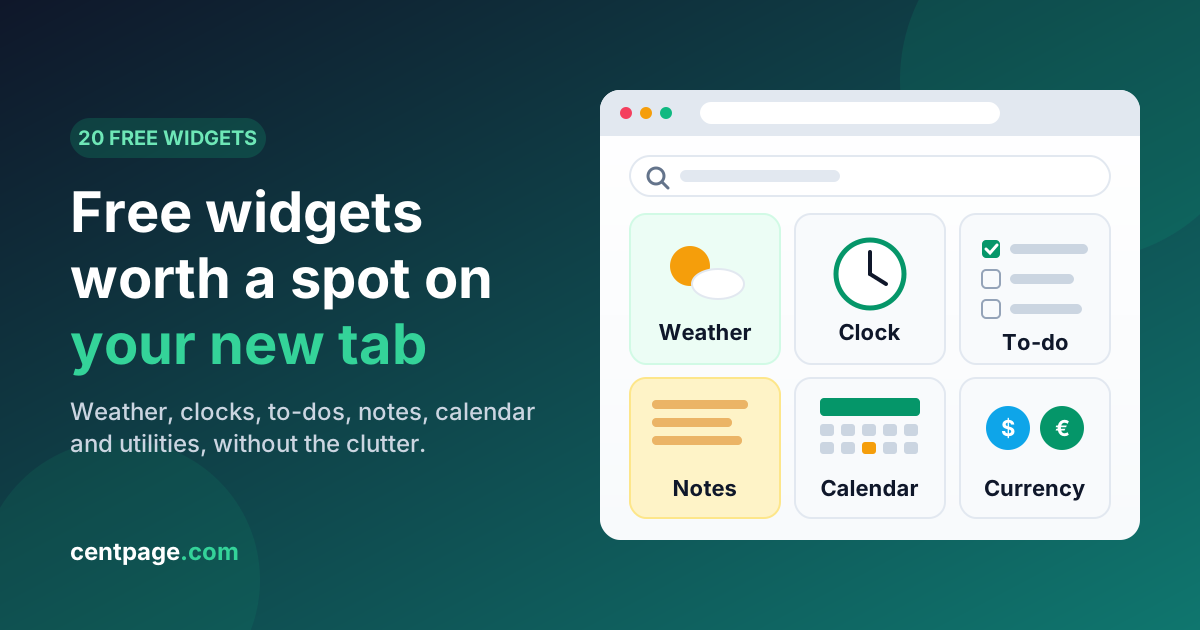
- A browser widget is a small live panel on your new tab that answers one question at a glance, unlike a full app you have to open and navigate.
- The most useful free new tab widgets cover time and place (weather, clocks), planning (to-do, notes, calendar, Pomodoro) and quick utilities (calculator, converters, translator).
- Market tickers, habit trackers and finance calculators are handy but often premium; add them only if you would check them daily.
- Keep four to six widgets, one per job, with the actionable ones above the fold, and remove anything you have ignored for two weeks.
- Build your stack around who you are: a minimal setup, a remote worker juggling time zones, or a student planning deadlines all need different widgets.
You open dozens of new tabs a day, and most of them start with the same small errands. Is it going to rain? What time is it in Berlin? What was the third thing on today's list? Each answer lives in a different app or website, so you type, wait, find it, and forget why you opened the tab in the first place.
Browser widgets fix that by putting the answers on the page you already see most often: your new tab. The trick is choosing the right ones, because too many turn your new tab into noise you learn to ignore.
This guide covers the free browser widgets worth adding, who needs each one, and how to build a small stack that stays useful for months.
What is a browser widget (and how is it different from an app)?
A browser widget is a small, live panel on your new tab or start page that does one job and shows the result immediately. A weather widget shows the forecast. A to-do list widget shows your tasks. You do not open it, log into it or navigate through menus; the information is simply there when the tab loads.
A full app is the opposite: many screens, many features, lots of clicks. Great for planning a quarter, overkill for checking whether your 2 pm meeting moved.
The best way to think about new tab widgets is as a glanceable layer on top of your apps:
- Widgets answer quick questions in under five seconds.
- Apps handle real work that takes minutes or hours.
- Widgets link into apps when you need to go deeper.
If you want the bigger picture of how widgets fit alongside extensions, web apps and bookmarks, our guide to browser productivity tools that cut context switching covers the full landscape. Here we stay focused on the widgets themselves.
Time and place widgets: weather, clocks and time zones
These are the most-used widgets on almost any new tab because the questions they answer come up every single day.
Weather widget
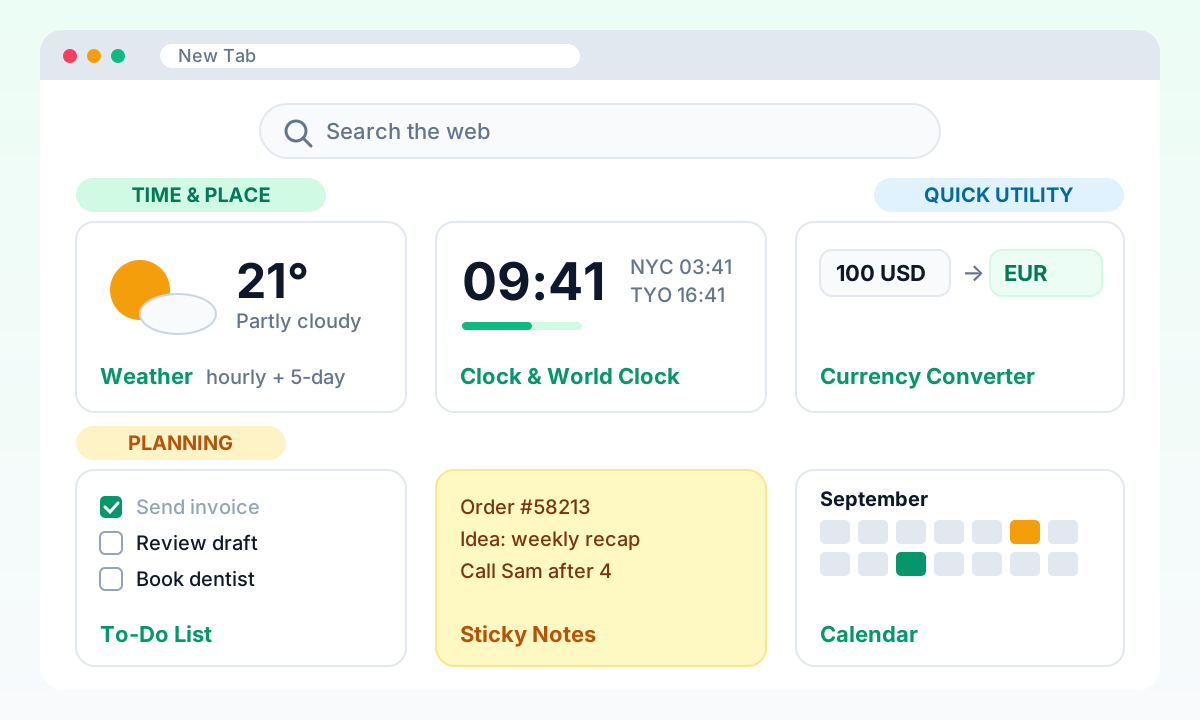
Good for: deciding what to wear, whether to bike, and whether that outdoor lunch is realistic. A good weather widget shows current conditions plus an hourly and multi-day forecast so you can plan ahead, not just react.
Who needs it: nearly everyone, especially commuters, parents doing school runs and anyone who works partly outdoors.
Tip: set your location once instead of relying on automatic detection, which can pick up your VPN or office network rather than where you actually are. CentPage's free weather widget shows current conditions, hourly and 5-day forecasts.
Clock and timer widget
Good for: a clean, always-visible time display plus a stopwatch and countdown for timed tasks, cooking, workouts or presentations.
Who needs it: people who work in full-screen apps where the system clock is hidden, and anyone who times short tasks.
Tip: use the countdown for hard stops ("leave for the station in 25 minutes") rather than setting a phone alarm you will snooze. Try the free clock and timer tool.
World clock widget for time zones
Good for: scheduling calls across countries without doing mental arithmetic or searching "time in Tokyo" for the fifth time this week.
Who needs it: remote teams, freelancers with international clients, and anyone with family abroad.
Tip: only add the cities you actually talk to. Three well-chosen time zones are far more useful than eight. The world clock is part of CentPage's free Clock & Timer widget.
Sun and moon widget
Good for: sunrise and sunset times, golden hour and moon phase. It sounds niche until you need it.
Who needs it: photographers, runners and cyclists planning daylight sessions, gardeners, and anyone who tracks daylight hours in winter.
Tip: add it for the darker months and swap it out in summer. See the free sun and moon tool.
Try it: Want these on every new tab without hunting for separate sites? Open CentPage in your browser to build a free widget dashboard, or add the CentPage extension for Chrome / Firefox.
Planning widgets: to-do lists, notes and calendars on your new tab
Planning widgets are where a new tab stops being decoration and starts saving real time. Every tab you open becomes a gentle reminder of what matters today.
To-do list widget
Good for: keeping today's three to seven must-dos in front of you, not your whole backlog.
Who needs it: everyone who has ever opened a tab, got distracted, and forgotten the task that prompted it.
Tip: treat the new tab list as a daily list. Clear it every evening and move bigger projects to a proper task manager. CentPage's free to-do list widget is built for exactly this kind of short, visible list.
Sticky notes widget
Good for: quick capture. A phone number from a call, a half-formed idea, the order number you need to copy later.
Who needs it: people who currently keep a "notes.txt" file open all day or email themselves reminders.
Tip: use one note as an inbox and empty it once a day into wherever it really belongs. A notes widget that grows forever turns into another junk drawer. Try the free sticky notes tool.
Calendar widget
Good for: seeing the month at a glance, spotting weekends and deadlines, and counting days without opening a full calendar app.
Who needs it: students tracking exam dates, freelancers invoicing on specific days, anyone planning around holidays.
Tip: use it for orientation ("what date is next Thursday?") and keep detailed scheduling in your main calendar. See the free calendar widget.
Pomodoro timer widget
Good for: focused work sprints, typically 25 minutes of work followed by a short break.
Who needs it: anyone who struggles to start difficult tasks, and people whose days dissolve into email and chat.
Tip: start the timer before you open the distracting site you were heading to; that pause is often enough to change course. The Pomodoro timer is free on CentPage.
Habit tracker widget (Premium)
Good for: building streaks for daily habits such as reading, exercise or language practice.
Who needs it: people who respond well to visible streaks and checkboxes.
Tip: track two or three habits at most. On CentPage the habit tracker is a Premium widget, so if you are sticking to free widgets, a simple recurring item on your to-do list does a similar job.
Money widgets: currency, markets and calculators
Finance widgets are useful for the right person and noise for everyone else.
Currency converter widget
Good for: online shopping from other countries, travel budgeting, and freelancers billing in a foreign currency.
Who needs it: travelers, cross-border shoppers and anyone paid in one currency but spending in another.
Tip: save your most common pair (for example, your home currency against USD or EUR) so the answer is already there. The currency converter is one of CentPage's free widgets.
Stocks, crypto and precious metals (Premium)
Good for: a quick look at market indices, crypto prices or gold and silver prices without opening a trading app.
Who needs it: people who actively follow markets as part of their job or hobby.
Tip: ask yourself whether live prices on every tab help you or make you anxious. For many people a daily check is plenty. On CentPage, the stock market widget, crypto prices and precious metals widgets are Premium.
Loan and investment calculators (Premium)
Good for: EMI and loan payments, compound interest, SIP, ROI and FIRE projections.
Who needs it: anyone planning a major purchase or regularly comparing savings scenarios.
Tip: these are "occasional" widgets. Add them while you are shopping for a mortgage or reviewing your savings plan, then remove them. CentPage's loan calculator and investment growth calculator are Premium widgets.
Knowledge widgets that teach you something in five seconds
Knowledge widgets will not make you more productive directly, but they turn dead seconds into small moments of learning.
Word of the Day
A new word with its meaning and usage every day. Great for writers, students and language learners. Tip: try to use the word once that day, in an email or a note. The Word of the Day widget is free.
Daily Fact and On This Day
A short fact or a historical event tied to today's date. They are conversation starters and pleasant micro-breaks. Tip: pick one, not both, unless you really read them. Both the Daily Fact and On This Day widgets are free on CentPage.
Daily AI Tips
A daily tip about using AI tools better. Useful if you are building AI into your workflow and want a steady trickle of ideas without following a dozen newsletters. The Daily AI Tips widget is free.
Dictionary (Premium)
Look up a word's definition without leaving the new tab. Handy for writers and non-native speakers. On CentPage the dictionary widget is Premium; the free language translator covers many of the same quick lookups.
Utility widgets: search, calculator, unit converter and translator
Utility widgets replace the tiny tasks you currently do by searching.
Search bar
Technically a built-in feature, but the most-used element of any new tab. The best ones let you switch engines and modes (web, images, news) in place; CentPage includes multi-engine search out of the box.
Calculator
For splitting a bill, checking a discount or doing quick work maths. A calculator with history is worth more than one without, because you can retrace a figure you computed an hour ago. The calculator widget is free.
Unit converter
Recipes in grams, screen sizes in inches, temperatures in the other scale. The unit converter is free and saves repeated searches.
Language translator
Translate a phrase, an email line or a product description in place. Tip: for anything important, translate back into your language to check the meaning survived. The language translator is free on CentPage.
For a much longer reference list of calculators, converters and everyday utilities that run in a tab, see our roundup of 50+ tools you can use without installing apps.
Which browser widgets are free? A quick comparison
Here is how the widgets above compare, including whether they are free on CentPage and whether they pass the "would I look at this every day?" test for most people.
| Widget | Free on CentPage? | Best for | Glance-worthy daily? |
|---|---|---|---|
| Weather | Yes | Commuters, planners | Yes |
| Clock & Timer / World Clock | Yes | Remote teams, timed tasks | Yes, if you work across zones |
| Sun & Moon | Yes | Photographers, outdoor exercise | Seasonal |
| To-Do List | Yes | Everyone | Yes |
| Sticky Notes | Yes | Quick capture | Yes |
| Calendar | Yes | Students, freelancers | Yes |
| Pomodoro Timer | Yes | Deep work, procrastinators | When working |
| Habit Tracker | Premium | Streak builders | Yes, if you track habits |
| Currency Converter | Yes | Travelers, cross-border work | Situational |
| Stocks / Crypto / Metals | Premium | Active market watchers | For a few people |
| Loan & Investment Calculators | Premium | Big financial decisions | Occasional |
| Word of the Day / Daily Fact | Yes | Learners, writers | Nice to have |
| Daily AI Tips | Yes | AI-curious professionals | Nice to have |
| Dictionary | Premium | Writers, language learners | On demand |
| Calculator / Unit Converter | Yes | Everyday maths | On demand |
| Language Translator | Yes | Multilingual work | On demand |
CentPage offers 50 widgets in total, 20 of them free, and you can compare what Premium adds on the pricing page.
How to choose new tab widgets without overcrowding
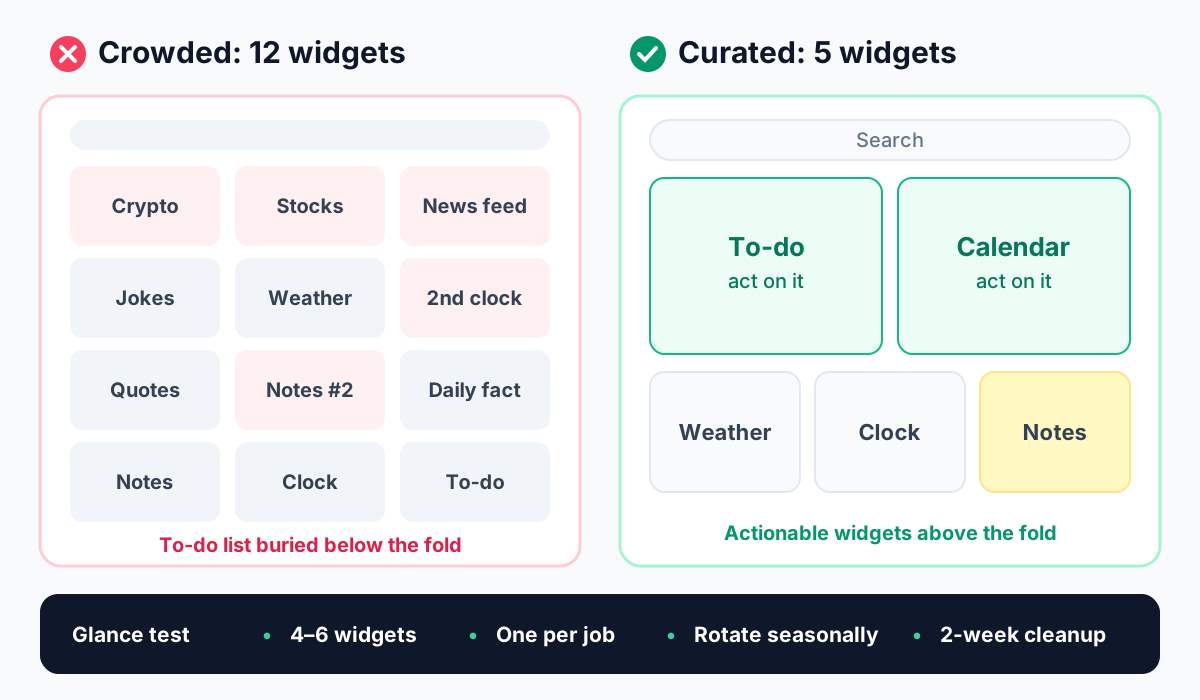
The biggest mistake with browser widgets is picking too many. A crowded new tab looks impressive on day one and becomes invisible by day ten, because your brain learns to skip the whole page.
1. Apply the glance test
Before adding any widget, ask: would I look at this at least once a day, and would it change what I do? Weather passes for most people. A live crypto ticker passes for a trader and fails for almost everyone else. If the honest answer is "sometimes", bookmark the tool page instead.
2. Keep it to four to six widgets
Four to six widgets covers time, tasks, notes and one or two personal extras, and still fits on a laptop screen without scrolling. Beyond that, each new widget steals attention from the ones you rely on.
3. One widget per job
Do not run two note widgets, two clocks or three news feeds. Pick the single best widget for each job. If a to-do list and sticky notes overlap for you, keep the one you open more and drop the other.
4. Put actionable widgets above the fold
Your eyes land at the top of the page first, so that space should go to widgets you act on: to-do list, calendar, search, Pomodoro. Informational widgets like Word of the Day or a daily fact can live lower down, where they are pleasant but not demanding.
5. Rotate seasonally
Add the sun and moon widget in winter, the currency converter before a trip, the loan calculator while house hunting. Then take them off again. A dashboard you adjust four times a year stays relevant.
6. Remove anything you ignore for two weeks
If you have not looked at a widget in two weeks, it is clutter. Remove it. You can always add it back, and if you never miss it, you have your answer.
If clutter is a wider problem in your browser, our guide to a distraction-free browser setup covers tabs, feeds and notifications as well as your new tab.
Example widget stacks for different people
These three stacks show how the rules above play out in practice. Treat them as starting points, not prescriptions.
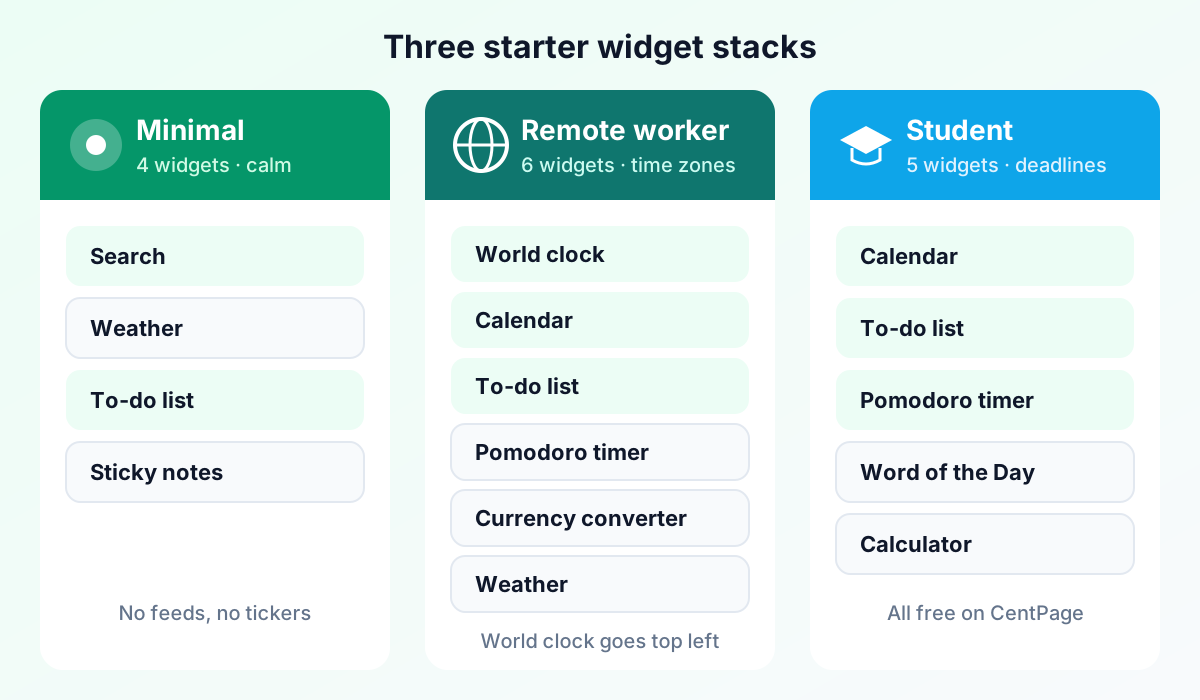
The Minimal stack (4 widgets)
For people who want a calm new tab that still earns its place.
- Search at the top
- Weather for the day ahead
- To-do list with today's three priorities
- Sticky notes as a capture inbox
No feeds, no tickers: everything is either a daily question or a place to put something.
The Remote worker stack (6 widgets)
For people collaborating across countries and calendars.
- World clock with your two or three most common team time zones
- Calendar for deadlines and public holidays in other countries
- To-do list for today's deliverables
- Pomodoro timer to protect focus between calls
- Currency converter if you invoice or get paid in another currency
- Weather for your own city
The world clock goes top left, because "is it too late to message them?" is the question you ask most.
The Student stack (5 widgets)
For studying, deadlines and a bit of daily learning.
- Calendar with exam and assignment dates
- To-do list for this week's coursework
- Pomodoro timer for study sessions
- Word of the Day or Periodic Table depending on your subjects
- Calculator with history for problem sets
Everything here is free on CentPage. For a step-by-step walkthrough of arranging these into a full workspace with links and categories, see how to build a productivity dashboard for work or study.
Build your widget stack in ten minutes
Pick one stack above, or write down the four questions you most often open a tab to answer. Map each question to a single widget, put the actionable ones at the top, and set a reminder two weeks from now to remove anything you have not used.
If you want these widgets on every new tab, CentPage lets you drag them into place alongside your search bar, bookmarks and site categories, free. Read our full CentPage overview to see how the pieces fit together, or open your CentPage dashboard and add your first widget now.
Frequently Asked Questions
What is a browser widget?
A browser widget is a small, live panel that sits on your new tab page or start page and shows one piece of information or one quick tool, such as the weather, a clock, a to-do list or a calculator. Unlike a full web app, you do not need to open it or navigate anywhere; the answer is visible the moment the tab opens.
How do I add widgets to my new tab page?
Most browsers do not include a full widget system on the default new tab, so you usually add one with a new tab extension or by setting a dashboard website as your homepage. Once installed, you typically open an edit or customize mode, pick widgets from a list and drag them into the layout you want.
Are free browser widgets safe to use?
Widgets from a reputable new tab extension or dashboard are generally safe, but check what permissions the extension asks for and install it only from the official Chrome Web Store or Firefox Add-ons site. Avoid extensions that request access to all your browsing data without a clear reason, and be careful about typing sensitive information into any third-party widget.
How many widgets should I put on my new tab?
A good rule of thumb is four to six widgets. That is enough to cover the jobs you actually do every day without turning your new tab into a wall of numbers you stop reading. If you need more, rotate them seasonally instead of stacking everything at once.
Do new tab widgets slow down my browser?
A handful of lightweight widgets rarely makes a noticeable difference, but every widget that fetches live data adds a little work each time a new tab opens. Keeping your stack small and removing widgets you ignore keeps the page quick as well as easy to read.
Can I use a weather or world clock widget without installing an extension?
Yes. Many dashboards, including CentPage, offer standalone tool pages that run in any browser tab without an install. The extension simply puts those widgets on every new tab so you see them without looking them up.
Tags:#Browser Widgets#New Tab Widgets#Free Browser Widgets#Weather Widget#World Clock Widget#To-Do List Widget#Productivity Dashboard
More from the CentPage Blog
Productivity
10 Best Browser Productivity Tools (No Download Needed)
The 10 best browser productivity tools, from quick notes and to-do lists to focus timers and converters, plus how one dashboard cuts context switching.
11 min readRead →
Guides
How to Create a Productivity Dashboard for Work and Study
Learn how to create a productivity dashboard in 6 steps, with ready-made setups for professionals, developers and students you can copy into your browser today.
10 min readRead →