Productivity•11 min read•
10 Best Browser Productivity Tools (No Download Needed)
The 10 best browser productivity tools, from quick notes and to-do lists to focus timers and converters, plus how one dashboard cuts context switching.
Key Takeaways
- Most small daily jobs, such as notes, tasks, timers, quick math and conversions, can be handled by browser productivity tools with nothing to download.
- The real productivity drain is rarely a missing app; it is the constant hopping between apps, tabs and windows to reach the ones you already have.
- A good browser tool opens instantly, saves automatically, stays out of the way and does one job well.
- Putting your ten most-used tools on one page, ideally your new tab, turns dozens of small detours into a single glance.
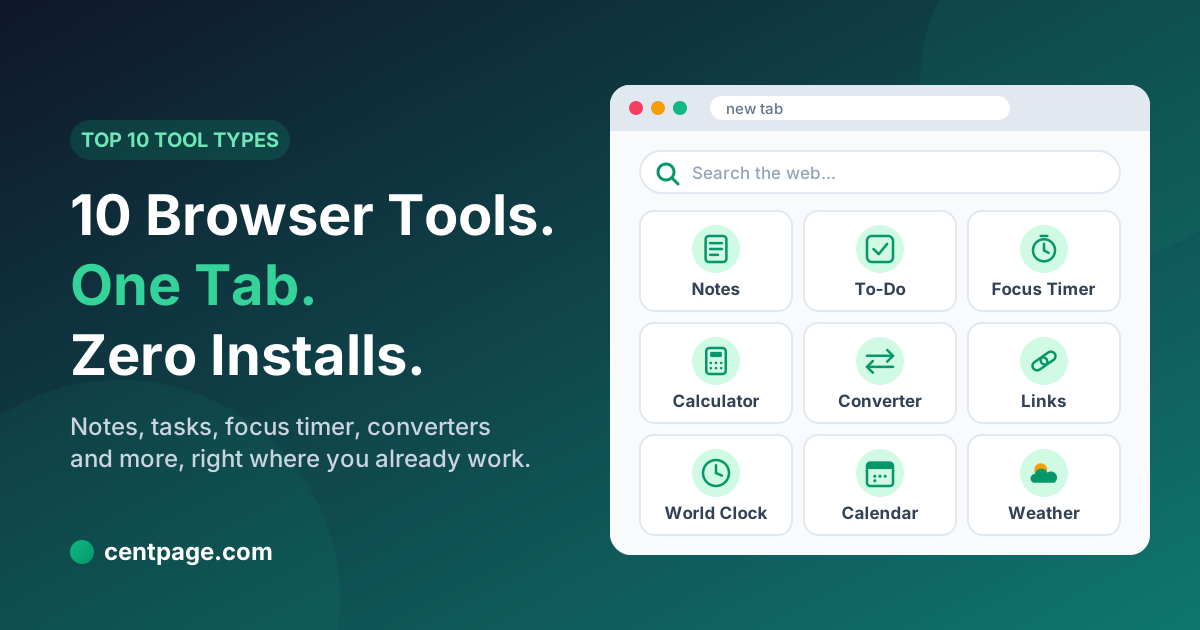
- CentPage gathers notes, to-dos, a Pomodoro timer, converters, clocks, a calendar, weather and bookmarks into one free browser dashboard.
You open a tab to jot down a phone number, and ten minutes later you are three tabs deep in something else with the number still unwritten. Or you need to convert 180 pounds to kilograms, so you open a search, scroll past ads, and lose the thread of the email you were writing.
None of this is a willpower problem. It's a tooling problem. The small tools you reach for dozens of times a day are scattered across desktop apps, bookmarks, phone apps and random websites, and every trip to fetch one costs you a little focus.
This guide covers ten browser productivity tools that handle those everyday jobs without downloading anything. For each one you'll see what it solves, what separates a good one from a clumsy one, a practical way to use it, and where to find a free version that runs in your browser. Then we'll look at why keeping them together on one page matters more than which specific tool you pick.
Why use productivity tools in the browser at all?
Your browser is already open most of the working day. Email, documents, project boards and research all live there. Adding a separate desktop app for notes or a phone app for timers means leaving the environment where the actual work is happening.
Browser-based productivity apps have a few practical advantages:
- Nothing to install or update. Open a URL and the tool is ready, on a work laptop where you can't install software, a shared computer or a new machine.
- Works on any operating system. Windows, macOS, Linux and ChromeOS all get the same tool.
- Your data follows your account, not a single device, when the tool supports sign-in.
- Fewer windows to manage. A tab is lighter than another app competing for space in your taskbar.
The trade-off is that browser tools depend on the page being open, and the good ones are sometimes buried among ad-heavy clones. That's why the criteria below matter.
The hidden cost of context switching between apps and tabs
Every time you move from one app or tab to another, your brain has to set down one task and pick up another. You need to remember where you were, reload the context of the new task, and then do the reverse when you come back. Researchers who study attention generally agree that this switching has a real cost, even when each switch feels instant.
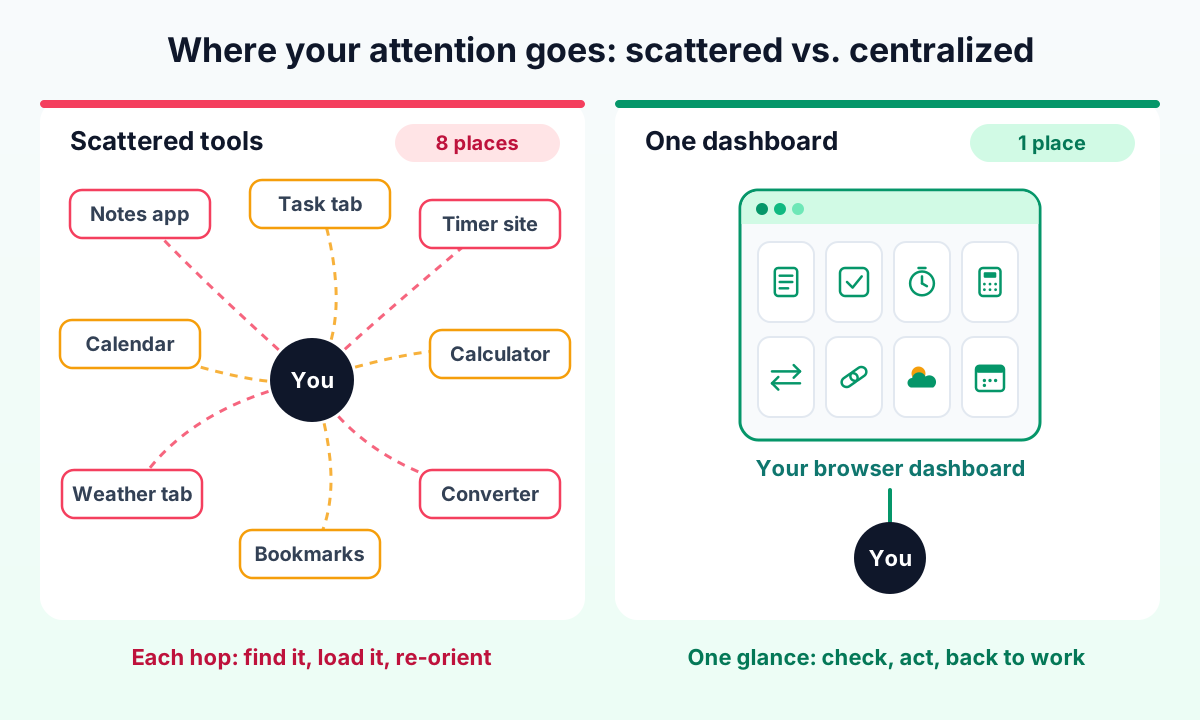
The expensive part isn't the second it takes to click. It's everything that comes with the trip:
- Finding the tool. Which tab was the timer in? Was the note in the desktop app or the phone?
- Getting distracted on the way. The route to your calculator passes a notification badge, a news feed or an inbox.
- Re-orienting when you return. You come back to your document and spend a moment remembering what you were about to write.
- Leaving loose ends. Half-finished detours pile up as open tabs you're afraid to close.
Why centralizing your tools on one page helps
You can't eliminate context switching, but you can make each switch shorter and more predictable. When your notes, tasks, timer and converters all sit on one page, the trip is always the same: open a tab, glance, act, close. No searching, no detours through feeds, and no guessing which app holds what.
The best place for that page is the one you already see constantly: your browser's new tab. Every new tab becomes a quick check-in with your tools instead of a blank screen that invites wandering. If you want to go further and strip out other distractions too, our guide to a focused, clutter-free browser setup covers tabs, notifications and feeds.
How to choose a good browser productivity tool
Before the list, here are the qualities that separate tools worth keeping from ones you'll abandon in a week:
- Instant to open. If it takes longer to load than to do the task, you won't use it.
- Saves automatically. No "save" button, no lost notes when a tab closes.
- Minimal and focused. It does one job well rather than ten jobs badly.
- Clean of heavy ads and pop-ups, which are themselves context switches.
- Syncs where it matters. Notes and tasks should follow your account; a calculator doesn't need to.
The 10 best browser productivity tools
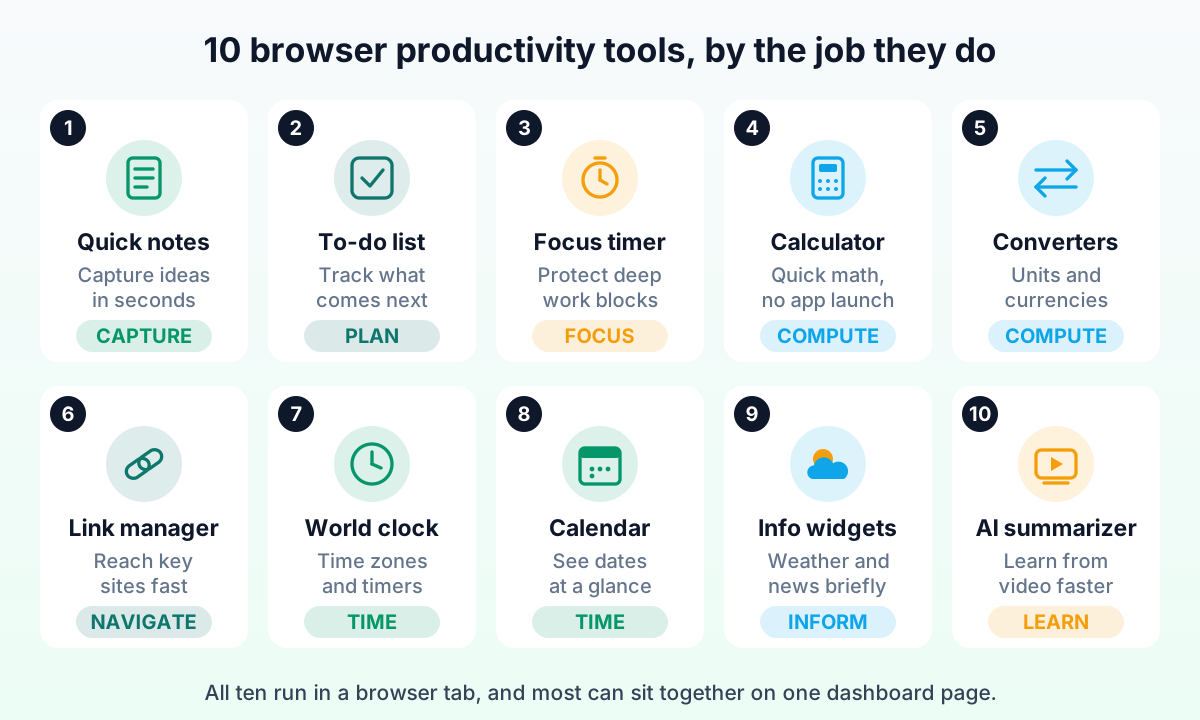
1. Quick notes: capture ideas before they disappear
What it solves: the phone number, the meeting idea or the half-formed thought you need to park somewhere right now.
What a good one does: opens with the cursor ready, saves every keystroke automatically, and keeps notes available the next time you open the browser. Formatting is optional; speed is not.
Usage tip: treat it as an inbox, not an archive. Capture freely during the day, then spend two minutes at the end of the day moving anything important to its proper home and deleting the rest.
Where to get it: a free online notepad works in any browser, and the same Sticky Notes widget can live on your dashboard.
2. To-do list: know what comes next
What it solves: the mental load of remembering everything you've promised to do.
What a good one does: lets you add a task in one line, check it off in one click, and see the whole list without scrolling through projects and menus. For daily work, a short list beats a complex system you never open.
Usage tip: keep today's list to three to five items. If it's longer, the list becomes a source of stress rather than direction. Park everything else in a separate "later" list.
Where to get it: use the free browser to-do list as a standalone page or as a widget.
3. Pomodoro and focus timer: protect deep work
What it solves: starting hard tasks and staying on them. Working in fixed blocks, commonly 25 minutes of focus followed by a 5-minute break, gives you a finish line and permission to ignore everything else until it rings.
What a good one does: starts in one click, shows remaining time clearly, alerts you when a block ends and handles break cycles for you.
Usage tip: before starting a block, write the single task it's for at the top of your to-do list. When the timer rings, stand up, even for thirty seconds.
Where to get it: try the free Pomodoro timer in your browser.
4. Calculator: quick math without leaving your work
What it solves: splitting a bill, checking a percentage or totaling a few numbers without reaching for your phone.
What a good one does: supports keyboard input, handles percentages sensibly and keeps a history so you can check what you typed.
Usage tip: use the history as a scratch pad. When you're adding up a budget, the history is your audit trail.
Where to get it: a free online calculator with history is one tab away.
5. Unit and currency converters: answers without a search detour
What it solves: recipes in grams, specs in inches, invoices in another currency. Searching for each conversion usually means ads and a results page full of distractions.
What a good one does: covers common unit families (length, weight, temperature, volume, speed) and, for currency, uses regularly updated exchange rates and says when they were last refreshed.
Usage tip: for money that matters, treat any online rate as an indication and confirm the exact rate with your bank or payment provider before a transfer.
Where to get it: open the free unit converter and the currency converter.
Try it: all of these tools can sit together on one page. Open CentPage in your browser to see the dashboard, or add the CentPage extension for Chrome / Firefox so they appear on every new tab.
6. Bookmark and link manager: reach key sites in one click
What it solves: the daily ritual of typing the same addresses or digging through a bookmarks bar that has grown into an unreadable strip of icons.
What a good one does: groups links by purpose (work, finance, learning), shows them visually, and makes reordering easy. The goal is that your ten most-used sites are always one click away.
Usage tip: create one group per context, such as "Daily work" and "Admin", and cap each group at around eight links. If a link hasn't been clicked in a month, it doesn't belong on the front page.
Where to get it: a free link list tool keeps your key sites together. If your problem is dozens of open tabs rather than bookmarks, Super Session Manager, a companion extension from the same team, can save and restore whole tab workspaces with named tab groups so you can close tabs without losing them.
7. Clock, world time and timers: coordinate without mental math
What it solves: scheduling across time zones, timing a task, or counting down to a deadline.
What a good one does: shows several cities at once with clear labels, and bundles a stopwatch and countdown so you don't need separate sites.
Usage tip: add the cities of the people you work with most, not every place you've ever been. Two to four clocks is plenty.
Where to get it: use the free clock and timer tool, which includes world time, a stopwatch and a countdown.
8. Calendar: see the shape of your week
What it solves: answering "what date is next Thursday?" or "how many days until the launch?" without opening a full scheduling app.
What a good one does: shows the current month at a glance, highlights today and lets you move between months quickly. For quick reference you don't need invitations and attendees, just dates.
Usage tip: keep your full calendar app for meetings and use a lightweight calendar view for planning glances. Mixing the two tends to pull you into rescheduling when you only wanted a date.
Where to get it: open the free browser calendar.
9. Information widgets: weather and news in a glance
What it solves: checking the weather or headlines without opening a site designed to keep you scrolling.
What a good one does: gives you the answer in one screen (current conditions, a short forecast, a handful of headlines) and nothing more.
Usage tip: limit news to one compact feed and check it at set times. Information widgets are useful precisely because they are small; a full news site on your start page defeats the purpose.
Where to get it: a free weather forecast tool shows current, hourly and 5-day conditions, and CentPage's news section collects major sources in one table.
10. AI video summarizer: learn from YouTube faster
What it solves: long tutorials, lectures and talks where you only need the key points, or you want to decide whether a video is worth an hour before committing.
What a good one does: works directly on the video page, produces a structured summary with the main ideas, and lets you jump to relevant parts of the video.
Usage tip: read the summary first, then watch only the sections that matter. For courses, keep the summaries as study notes.
Where to get it: SummaryTube, another extension from the CentPage team, summarizes YouTube videos with AI right on YouTube. Developers who spend their day inspecting pages may also like WebDeveloperTools.dev, a Chrome extension with web development utilities for auditing and editing any page.
Browser productivity tools compared at a glance
| Tool type | Main job | Free browser option |
|---|---|---|
| Quick notes | Capture ideas instantly | Online notepad |
| To-do list | Track today's tasks | To-do list |
| Pomodoro timer | Protect focus blocks | Pomodoro timer |
| Calculator | Quick math with history | Calculator |
| Unit converter | Length, weight, temperature and more | Unit converter |
| Currency converter | Convert between currencies | Currency converter |
| Link manager | One-click access to key sites | Link list |
| Clock and timers | Time zones, stopwatch, countdown | Clock and timer |
| Calendar | Dates at a glance | Calendar |
| Weather | Forecast without the clutter | Weather |
| AI video summarizer | Key points from YouTube videos | SummaryTube extension |
These ten are the everyday core. If you want the wider catalog, including text formatters, password generators, QR codes and developer utilities, see our list of 50+ tools you can use without installing apps.
How to put all your browser tools on one dashboard
Using ten separate tool websites is already better than ten desktop apps. Putting them on one page is better still, because it removes the "which tab was it?" step entirely. That's what a productivity dashboard does, and CentPage is built around exactly this idea.
CentPage is a personalized start page that has been online since 2012. It combines multi-engine search, curated website categories, your own bookmark tables and 50 widgets, including every tool on this list except the video summarizer. Sticky Notes, To Do List, Calendar, Pomodoro, Clock & Timer, Currency Converter, Calculator, Unit Converter and Weather are all among the free widgets, with premium widgets available if you want more.
A simple setup looks like this:
- Open your dashboard at centpage.com/homepage and create a free account so your layout is saved.
- Enter Edit Mode and add the widgets you'll use daily. Start with notes, to-do, Pomodoro and one information widget.
- Add a custom bookmark table with your most-used work links.
- Drag the most-used tools to the top so they're visible without scrolling.
- Install the extension for Chrome or Firefox so the dashboard replaces your new tab, or set centpage.com as your homepage in any browser.
Because your layout is tied to your account, the same dashboard appears wherever you sign in. For a detailed walkthrough with example layouts for professionals, developers and students, follow our step-by-step guide to building your own productivity dashboard. And if you're deciding which widgets deserve a spot, our breakdown of the free new-tab widgets worth keeping will help you avoid overcrowding.
Pro tip: resist adding every widget on day one. Start with five, use them for a week, then add or remove based on what you actually opened. A dashboard you can scan in two seconds beats one that needs scrolling.
Start with the tools you use most
The best browser productivity tools are the ones you stop noticing: they're there when you need a note, a timer or a conversion, and then they get out of the way. Pick the three or four jobs you do most often, find a clean browser tool for each, and put them where you'll see them every time you open a tab.
If you'd like all of them in one place without any setup overhead, read our full CentPage overview or simply open your free CentPage dashboard and add your first widgets. It takes a couple of minutes, and every new tab afterwards works a little harder for you.
Frequently Asked Questions
What are browser productivity tools?
Browser productivity tools are small web apps that run inside a browser tab instead of being installed on your computer. Common examples are note pads, to-do lists, focus timers, calculators, unit and currency converters, world clocks and calendars. They open instantly, work on any operating system and usually save your data to an account so it follows you between devices.
Are online productivity tools with no download safe to use?
Reputable browser tools are generally as safe as any other website you sign in to, because they run inside the browser sandbox and cannot access your files unless you upload them. Stick to well-known providers, check what a tool stores and where, and avoid pasting passwords or highly sensitive data into tools you do not trust. For extensions, review the permissions they ask for before installing.
What is context switching and why does it hurt productivity?
Context switching is the act of moving your attention from one task, app or tab to another. Each switch forces your brain to drop one mental model and load another, and it often exposes you to unrelated notifications or feeds along the way. The individual cost of a single switch is small, but dozens of them a day add up to fragmented focus and more mistakes.
What are the best productivity tools for Chrome?
The most useful productivity tools for Chrome are usually the simple ones you touch many times a day: a quick notes pad, a to-do list, a Pomodoro timer, a calculator, converters, a link manager and a calendar. A new tab dashboard extension can bundle most of these into the page Chrome shows every time you open a tab, which removes the need for separate extensions for each job.
Do I need an extension, or can I just use websites?
You can use most browser productivity tools as ordinary websites with no installation at all. An extension becomes useful when you want the tools to appear automatically, for example on every new tab, or when a tool needs to work inside another site, such as summarizing a video on the page you are watching.
How many productivity tools should I keep on one page?
Keep only the tools you actually use at least a few times a week, which for most people is somewhere between five and ten. Put the ones you touch most often in the most visible spots and move occasional tools out of sight. If a page starts to feel busy, remove the widget you glanced at least in the past week.
Tags:#Browser Productivity Tools#Productivity Tools In Browser#Online Productivity Tools#Browser-Based Apps#Context Switching#Chrome Productivity#Productivity Dashboard
More from the CentPage Blog
Guides
How to Create a Productivity Dashboard for Work and Study
Learn how to create a productivity dashboard in 6 steps, with ready-made setups for professionals, developers and students you can copy into your browser today.
10 min readRead →
Productivity
50+ Useful Browser Tools You Can Use Without Installing Apps
A categorized list of 70+ free online tools that run in your browser with no download: calculators, converters, dev utilities, notes, finance tools and more.
11 min readRead →