Browser Tips•10 min read•
What Is a New Tab Page? Turn Your Browser Into a Productivity Dashboard
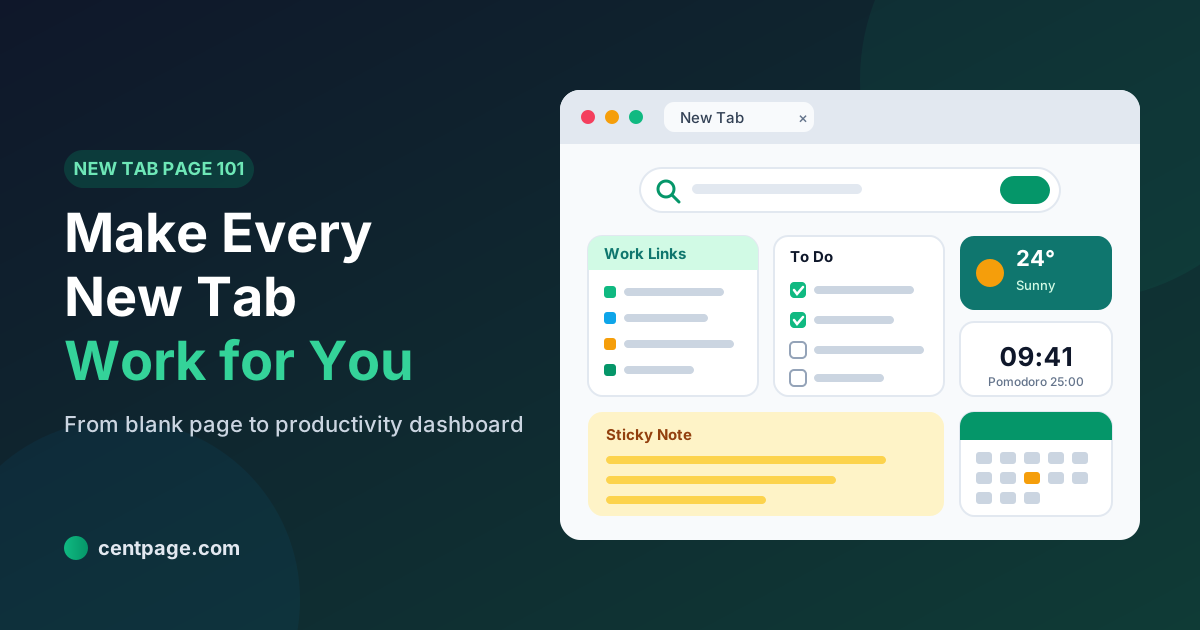
What is a new tab page, how did it evolve, and how do you change it? Learn how to turn the most-seen page in your browser into a useful productivity dashboard.
Key Takeaways
- A new tab page is the screen your browser shows every time you open a fresh tab, which makes it one of the pages you see most often.
- It has evolved from a blank screen to most-visited tiles, speed dials, inspirational wallpapers and now full productivity dashboards.
- A productivity new tab typically combines a search bar, organized link tables, glanceable widgets, notes, tasks and focus tools.
- Browsers generally only let you tweak the default new tab; replacing it entirely usually requires a new tab extension.
- The best new tab page is fast, private, easy to customize and shows only what you actually use.
You open a new tab dozens of times a day. Sometimes you know exactly where you're going. Often you don't, and the page that greets you nudges you toward whatever it happens to show: a grid of sites you visited yesterday, a feed of stories you never asked for, or nothing at all.
That page has a name, the new tab page, and it is quietly one of the most important screens in your browser. It sits between you and almost everything you do online, yet most people never think about it beyond the default.
This guide explains what a new tab page is, how it evolved from a blank screen into full productivity dashboards, what a modern one is made of, and how to change yours so it helps you work instead of distracting you.
What is a new tab page?
A new tab page is the page your browser loads whenever you open a fresh tab, whether you press Ctrl+T (Cmd+T on a Mac), click the plus button next to your tabs, or open a new window. It is the starting point for every search, every quick check of your inbox and every "what was I doing?" moment.
Because it appears so often, the new tab page is arguably the most-seen page in your browser. You might visit your email or project tool many times a day, but you pass through the new tab page on the way to nearly all of them.
That frequency is what makes it valuable. Anything placed on the new tab page gets seen repeatedly without any extra effort. Put a to-do list there and you will see your priorities every time you open a tab. Put an endless news feed there and you will see that instead.
New tab page vs homepage: what's the difference?
People often mix these up, and browsers don't always help.
- Homepage: the page that loads when you start the browser or click the Home button.
- New tab page: the page that loads each time you open a new tab.
- Start page: a general term for a page designed to be your starting point, which can be used as either or both.
In practice, most people open far more new tabs than they press Home, so the new tab page usually matters more. If you want a detailed breakdown of start pages, homepages and speed dials, plus how to set each one in different browsers, see our browser start page guide.
How has the new tab page evolved?
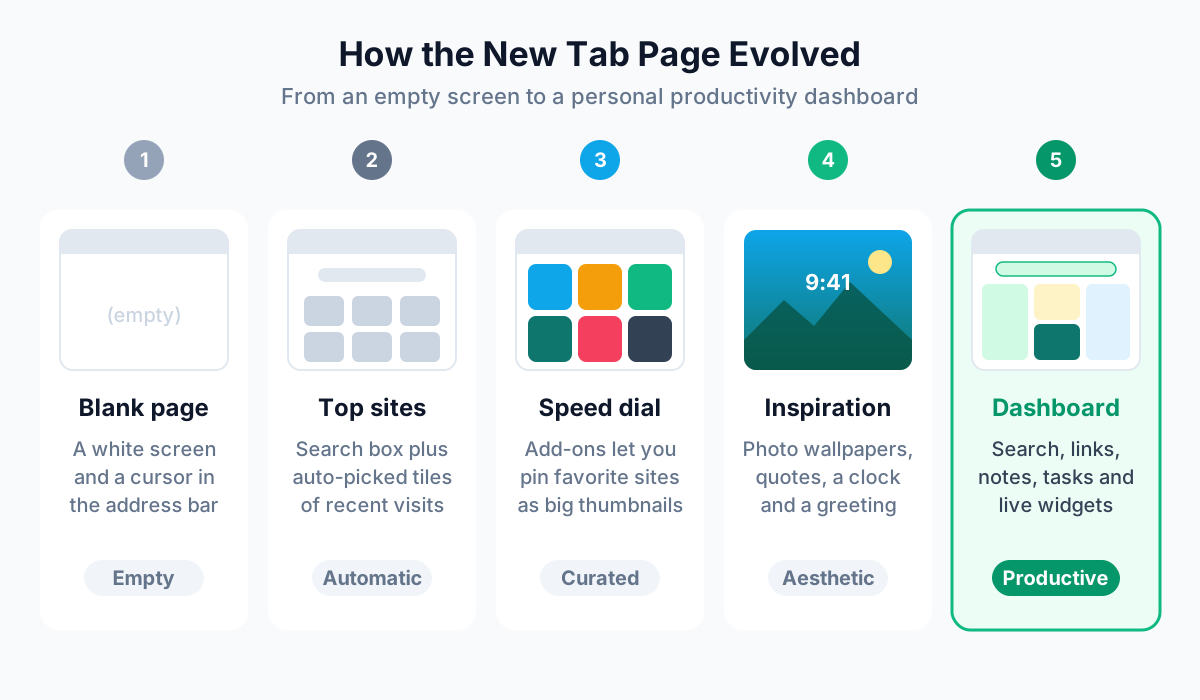
The new tab page has changed a lot over the years, and each stage reflects a different idea of what that screen is for.
1. The blank page
Early tabbed browsers simply opened an empty page with the cursor in the address bar. It was fast and neutral, but it offered nothing. Every session started from zero, and you had to remember and type where you wanted to go.
2. Most-visited tiles
Browsers then started filling the new tab with a search box and a grid of thumbnails for the sites you visit most. This was a real improvement because it saved typing. The catch is that the tiles are picked automatically from your history, so they reflect what you did, not necessarily what you want to do. A site you visited once for a rabbit hole can sit next to your work tools.
3. Speed dial add-ons
Speed dial extensions gave people control over those tiles. Instead of an automatic grid, you pinned favorite sites as large, visual shortcuts, often in groups. This was the first time the new tab became something you curated rather than something the browser decided for you.
4. Wallpaper and inspiration new tabs
Next came new tabs built around mood: full-screen photography, a big clock, a greeting, a daily quote, sometimes a single focus question. These made opening a tab more pleasant and could encourage a moment of intention, but they tended to trade function for looks. Beautiful, yes, but often with little you could actually do there.
5. Productivity dashboards
The current stage combines the best of the previous ones. A productivity new tab page keeps a fast search bar, adds organized links you choose, and layers in small tools: notes, tasks, a calendar, weather, timers and more. The goal shifts from "show me something" to "help me get something done."
What does a modern productivity new tab page include?
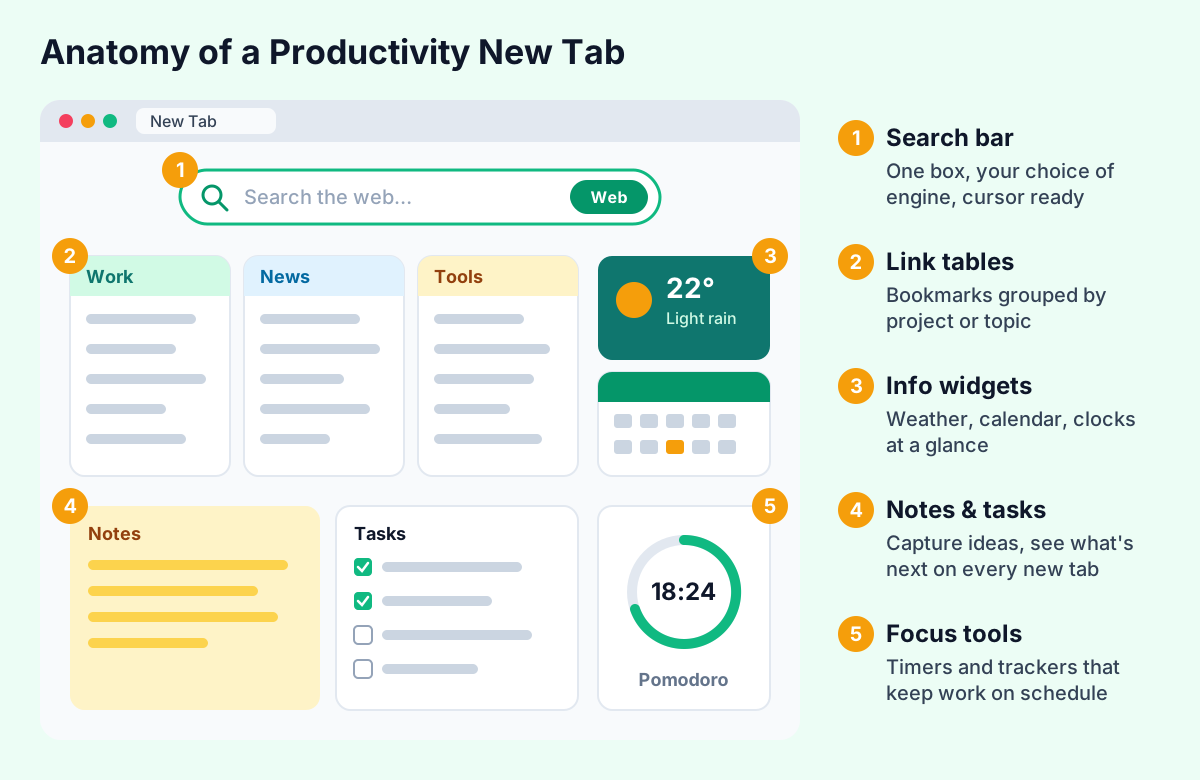
Not every dashboard looks the same, but most productivity new tabs are built from the same core building blocks.
Search bar
The search bar is the one element every new tab needs. The best ones put your cursor straight into the box and let you choose which engine to use. Some go further and let you switch between web, image, video and news results without leaving the page.
Organized links and bookmark tables
Instead of a grid of history-based tiles, productivity new tabs usually offer link tables or groups: a "Work" table with your project tools, a "Reading" table with newsletters, a "Finance" table with banking and budgeting sites. Grouping links by context means you find things by where they belong, not by scanning a crowded bookmarks bar.
Glanceable info widgets
These are small panels that answer quick questions without opening another site: the weather, today's date and calendar, a world clock, currency rates or market indices. The key word is glanceable. A good info widget gives you what you need in a second and gets out of the way.
Notes and tasks
A sticky note and a to-do list on your new tab page are surprisingly powerful. Because you see them every time you open a tab, they become a lightweight capture system: jot down a thought mid-meeting, check off a task between emails, and keep today's priorities visible without a separate app.
Focus and planning tools
Pomodoro timers, habit trackers, countdowns and expense trackers turn the new tab from a launcher into a small command center. You don't need all of them. Most people get the most value from one or two that match how they work.
Pro tip: Start with just search, one link table and two widgets. Add more only when you notice yourself repeatedly leaving the new tab to do something a widget could handle.
If you want help choosing which widgets earn a spot, our roundup of the most useful free browser widgets covers what's worth adding and what tends to clutter a dashboard.
A real-world example: CentPage as a productivity new tab
To make this concrete, here is how one productivity new tab puts those building blocks together. CentPage started in 2012 as a personalized internet homepage and has grown into a productivity dashboard you can use as your new tab page.
It maps onto the anatomy above fairly directly:
- Search: a multi-engine search bar lets you search Google, Bing, Yahoo and other engines from one box, with Web, Images, Videos and News modes.
- Links: curated category tables (18+ categories such as AI, News, Tools, Finance and Learn) sit alongside your own custom bookmark tables, which you can reorder by dragging and dropping in edit mode.
- Widgets: 50 widgets, 20 of them free, covering productivity (Sticky Notes, To Do List, Calendar, Pomodoro), information (Weather, World Clock, Currency Converter) and utilities (Calculator, Unit Converter, Translator).
- Sync: your layout is tied to your CentPage account, so it looks the same on any computer where you sign in.
Try it: See what a productivity new tab feels like before installing anything: open CentPage in your browser, or add the CentPage extension for Chrome / Firefox to make it your new tab page.
For the full tour of features and use cases, see our full CentPage overview.
Default new tab vs custom new tab: which is better?
Every major browser ships with its own new tab page, and for some people that's enough. The question is whether it fits the way you actually work.
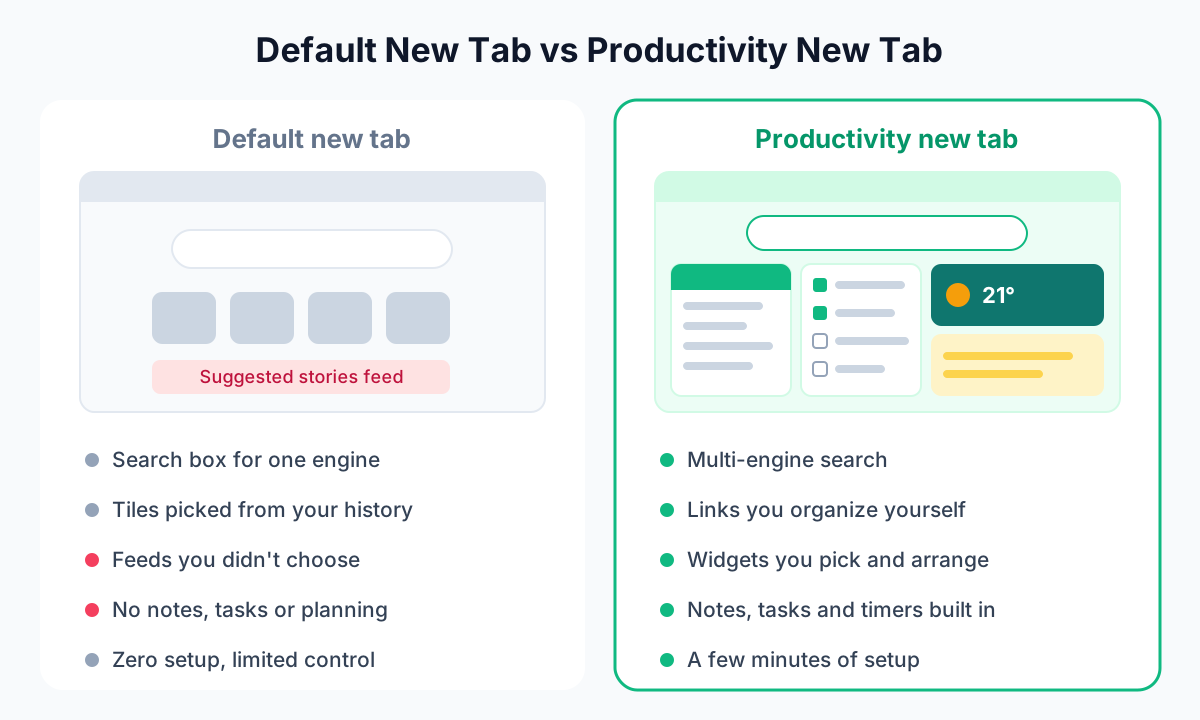
In general terms, default new tab pages typically offer a search box tied to the browser's default engine, shortcut tiles based on your browsing history, and in some browsers a feed of suggested articles or sponsored content. You can usually change the background and hide some sections, but you can't add your own tools.
| Feature | Default new tab page | Custom productivity new tab |
|---|---|---|
| Search | Usually one engine | Often several engines and result types |
| Shortcuts | Picked from history, limited number | Links you choose, grouped by topic |
| Content feed | Often suggested stories you didn't pick | Only the feeds you add, if any |
| Notes and tasks | Not included | Built in as widgets |
| Info at a glance | Minimal | Weather, calendar, clocks, rates |
| Setup time | None | A few minutes |
| Consistency across devices | Depends on browser sync | Account-based dashboards follow you |
Stick with the default if you mostly type URLs from memory, rarely revisit the same sites and don't want anything extra on screen.
Switch to a custom new tab if you juggle several tools a day, keep losing useful links in a sea of bookmarks, or find yourself opening separate sites just to check the weather, a to-do list or a quick calculation.
How do you change your new tab page?
The short version: browsers let you customize the default new tab, but replacing it with a completely different page usually requires an extension.
Customizing the built-in new tab
Most browsers offer some settings for their built-in new tab page:
- Chrome: a Customize button on the new tab lets you change the background, color theme and shortcuts.
- Firefox: Settings, then Home, controls what appears on new tabs, including sections of Firefox Home and a blank page option.
- Other browsers: typically offer similar layout toggles and background options.
This is fine for small adjustments, but you are still working within the browser's layout.
Replacing it with a new tab extension
To make a dashboard your new tab page, you install a new tab extension. The extension tells the browser to load its page instead of the default one whenever you open a tab. The general process looks like this:
- Open your browser's extension store (the Chrome Web Store or Firefox Add-ons).
- Find the new tab extension you want and check its permissions and privacy policy.
- Click Add or Install and confirm.
- Open a new tab. Some browsers will ask whether you want to keep the change; choose to keep it.
- Set up your links and widgets, and sign in if the dashboard uses an account.
To undo it, disable or remove the extension and your browser's default new tab returns.
Setting your homepage is a separate step in most browsers. If you want the same dashboard to appear on startup too, the start page guide walks through homepage settings browser by browser.
Don't forget what's already open
Changing your new tab page won't fix a browser that already has forty tabs open. If tabs pile up faster than you can close them, a session manager helps. Super Session Manager, a companion extension from the same team, lets you save and restore tab sessions and tab groups so you can close tabs without losing them.
What should you look for in a new tab page?
Whether you pick CentPage or something else, a few criteria separate a helpful new tab from one you'll uninstall in a week.
- Speed. It should load instantly. If you notice a delay every time you open a tab, that friction adds up fast.
- Search that fits you. Check that you can use your preferred search engine and that the cursor lands in the search box.
- Real customization. You should be able to add, remove and rearrange links and widgets, not just change the wallpaper.
- Useful tools, not just decoration. Notes, tasks, calendar and a couple of info widgets are the core. Everything else is optional.
- Minimal permissions and clear privacy. Look at what the extension asks to access and whether the developer explains why.
- Sync across devices. If you use more than one computer, an account-based dashboard saves you from rebuilding your setup.
- Room to stay uncluttered. The best dashboards make it easy to hide what you don't need. More widgets is not automatically better.
For a side-by-side look at specific options and the trade-offs between them, see our guide to choosing a new tab extension for Chrome and Firefox.
Common mistakes to avoid
- Adding every widget on day one. A crowded new tab becomes as distracting as the default feed you replaced.
- Copying your whole bookmarks bar. Put only the sites you open weekly or more on the new tab; archive the rest.
- Ignoring the search bar setup. Choose your engine once so every search goes where you expect.
- Never revisiting the layout. Your work changes. A quick monthly tidy keeps the dashboard relevant.
Turn your next new tab into a dashboard
Your new tab page is going to appear on screen countless times whether you customize it or not. Making it useful is one of the smallest changes you can make to your browser with one of the biggest day-to-day payoffs.
Start small: a search bar, one table of your most-used links, a to-do list and a note. Live with it for a week and adjust. When you're ready to build a full setup for work or study, our step-by-step guide on how to build a productivity dashboard shows example layouts for different roles.
If you want to try it right now, open CentPage to see a productivity new tab in action, then add the extension for Chrome or Firefox to make it the page you see every time you open a tab.
Frequently Asked Questions
What is a new tab page in a browser?
A new tab page is the page your browser loads whenever you open a new tab. By default it usually shows a search box and shortcuts to sites you visit often. You can customize it in your browser settings or replace it completely with a new tab extension.
What is the difference between a new tab page and a homepage?
The homepage is the page that loads when you start the browser or click the Home button, while the new tab page appears every time you open a fresh tab. Most people open far more new tabs than they press Home, so the new tab page is usually the one you see more often. Many people set both to the same dashboard for consistency.
How do I change my new tab page in Chrome?
Chrome lets you adjust the default new tab, such as its background and shortcuts, from the Customize button at the bottom of the page. To replace the new tab page with a different page or dashboard, install a new tab extension from the Chrome Web Store. Chrome will then load the extension's page each time you open a tab.
How do I change my new tab page in Firefox?
Firefox has a setting under Settings, then Home, that controls what new tabs show, including the Firefox Home content and a blank page option. For a fully custom dashboard, install a new tab add-on from the Firefox Add-ons site. Once installed, Firefox uses the add-on's page for new tabs.
Are new tab extensions safe to use?
Most reputable new tab extensions are safe, but it is worth checking the permissions an extension requests before installing it. Prefer extensions from established developers with clear privacy policies and a minimal set of permissions. Avoid extensions that ask for access to all your browsing data without a clear reason.
Will a custom new tab page slow down my browser?
A well-built new tab page should load almost instantly. Slowdowns usually come from very heavy wallpapers, too many live widgets or poorly optimized extensions. Keeping your dashboard focused on the widgets you actually use helps it stay fast.
Can I use the same new tab dashboard on multiple computers?
Yes, if your new tab page is tied to an online account rather than stored only on one device. Account-based dashboards load the same layout wherever you sign in, so your links, widgets and notes follow you between work and home computers.
Tags:#New Tab Page#Custom New Tab#Productivity Dashboard#Browser Productivity#New Tab Extension#Start Page#Chrome and Firefox Tips
More from the CentPage Blog
Guides
How to Create a Productivity Dashboard for Work and Study
Learn how to create a productivity dashboard in 6 steps, with ready-made setups for professionals, developers and students you can copy into your browser today.
10 min readRead →
Guides
The Ultimate Guide to Browser Start Pages
Browser start page guide: homepage vs new tab vs speed dial vs dashboard, how to set one in Chrome, Firefox, Edge and Safari, and how to organize your sites.
11 min readRead →