Browser Tips•11 min read•
Best New Tab Extensions for Chrome and Firefox in 2026
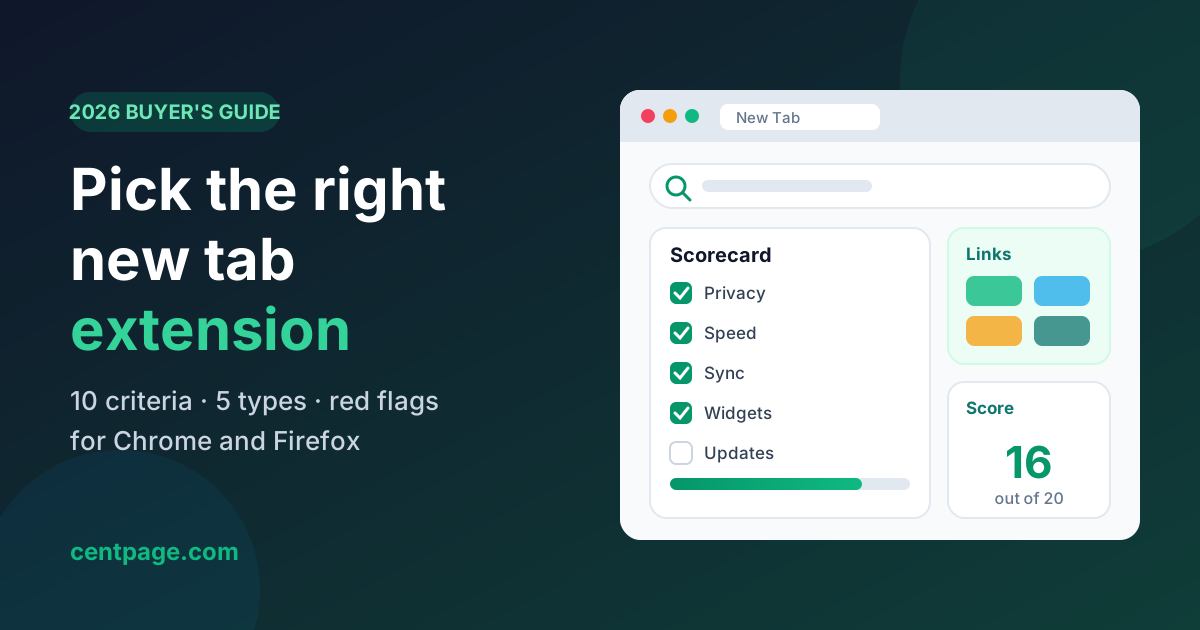
How to choose a new tab extension for Chrome or Firefox in 2026: 10 criteria, a scoring checklist, permission red flags and the five main types compared.
Key Takeaways
- A new tab extension replaces the page you see dozens of times a day, so it should be judged on speed, privacy and usefulness, not looks alone.
- Read the permission prompt before installing: a new tab extension rarely needs to "read and change all your data on all websites".
- The five main types are minimalist/wallpaper, speed dial, start page/link directory, productivity dashboard and open-source/self-hosted, and each suits a different person.
- Score candidates with a simple 10-criterion checklist and uninstall anything that changes your search engine without asking, injects ads or has stopped receiving updates.
- CentPage is a free productivity dashboard for Chrome and Firefox with multi-engine search, curated categories, custom link tables, 50 widgets and account sync.
You open a new tab dozens, maybe hundreds, of times a day. Each time, the browser shows you the same page: a search box, a handful of shortcut tiles, and perhaps a feed of articles you never asked for. It is the most-viewed screen on your computer, and most people have never changed it.
A new tab extension replaces that screen with something you choose. Done well, it saves clicks, keeps your important links one tap away and helps you stay focused. Done badly, it slows down every tab, clutters your view or quietly changes your search engine to one that serves ads.
This buyer's guide gives you a practical way to tell the difference. You will get ten evaluation criteria, a scoring checklist you can copy, the five main types of new tab extension, the red flags that should make you uninstall, and a closer look at one option, CentPage, with honest notes on who it suits.
What does a new tab extension actually do?
A new tab extension is a browser add-on that overrides the page Chrome or Firefox shows when you open a new tab. Instead of the browser's default, you see a page rendered by the extension: a wallpaper and clock, a grid of favourite sites, a directory of links or a full dashboard with widgets.
Under the hood, both browsers give extensions a specific "new tab override" capability for this. That matters for privacy, because replacing the new tab page on its own does not require access to the websites you visit. Anything beyond that is an extra permission the extension should justify.
If you want the background on how new tab pages evolved from blank screens to speed dials and dashboards, start with our explainer on what a new tab page is. This article focuses on choosing an extension.
How to choose a new tab extension: 10 criteria that matter
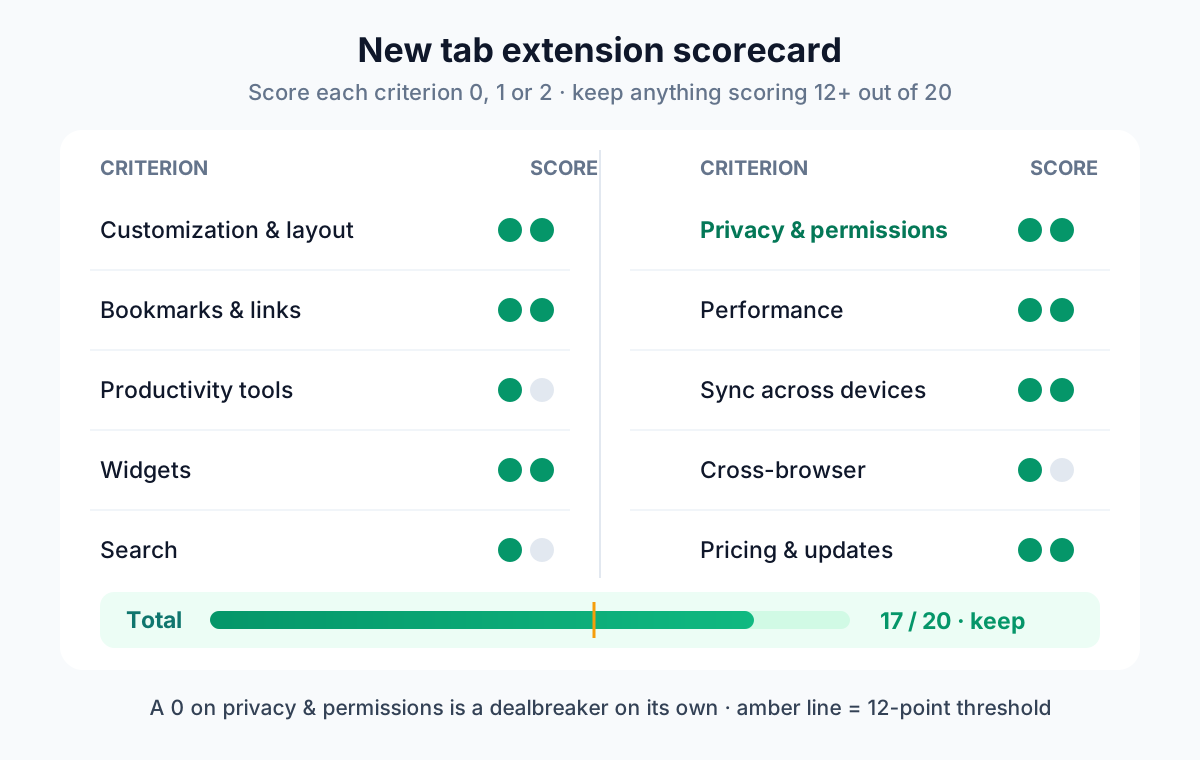
Every criterion below is something you can check in a few minutes from the store listing, the permission prompt, or a short trial. Read them once, then use the checklist table further down to compare two or three candidates.
Customization and layout
Can you move things, hide things and resize them? The best new tab page extensions let you decide what goes where rather than locking you into a designer's idea of a nice page. Look for drag-and-drop editing, the ability to remove sections you don't use, and a layout that still looks tidy on a small laptop screen.
Bookmarks and links
For many people, the whole point of a new tab is reaching their regular sites fast. Check how links are added (one at a time, imported from bookmarks, or pre-filled), whether you can group them into named sections, and whether there's a limit on how many you can keep on a free plan.
Productivity tools
A productivity new tab extension usually adds notes, a to-do list, a timer or a calendar. These are useful if you'll actually open them; they are clutter if you won't. Ask yourself which two or three tools you'd use daily, and check that those specific ones exist.
Widgets
Widgets are small live panels: weather, clocks, currency rates, news headlines and so on. More is not better. What matters is whether the widgets you want are available and whether you can turn off the rest. Our guide to which free browser widgets are worth adding covers this in detail.
Search
Most new tab extensions include a search bar. Check which engine it uses and whether you can choose. A trustworthy extension sends your query to the engine you picked and nothing else. Be wary of search boxes that route through an unfamiliar domain before reaching results.
Privacy and permissions
This is the criterion people skip, and the one that matters most. When you click "Add to Chrome" or "Add to Firefox", the browser shows a permission prompt listing what the extension can do. Read it.
- "Replace the page you see when opening a new tab" is the expected core permission.
- Storage, top sites or bookmarks are reasonable if the extension clearly uses them (saving settings, showing most-visited sites, importing bookmarks).
- "Read and change all your data on all websites" (Chrome) or "Access your data for all websites" (Firefox) means the extension can see and modify every page you open. A new tab page almost never needs this. If it's there, the listing should explain exactly why.
- Changing your search settings should only happen if you explicitly opt in.
On the store listing, look for a linked privacy policy, a real developer website and a clear description of what data is collected. The Chrome Web Store also shows a privacy practices section declared by the developer, which is worth a quick read.
Performance and load speed
A new tab should feel instant. After installing, open five new tabs in quick succession. If you see a blank flash, a spinner or a noticeable delay compared with the default page, that friction will add up across a whole day. Heavy video backgrounds and many live feeds are the usual culprits.
Sync across devices
If you use more than one computer, your layout should follow you. Some extensions sync through the browser's own sync, some through their own account, and some not at all. An account-based setup is usually the most reliable way to get the same dashboard on a work laptop and a home desktop.
Cross-browser availability
Check whether the extension exists for both Chrome and Firefox if you use both, or might switch. Being tied to one browser's store makes changing browsers harder later.
Pricing model and free tier
Many new tab extensions are free with an optional paid tier. That's a healthy model because the developer has a way to earn money that isn't your data. Check what the free tier includes and whether the features you need are behind a paywall. Be more cautious with extensions that are fully free, heavily featured and have no visible business model.
Maintenance and update history
The listing shows a "last updated" date and version number. An extension that hasn't been updated in a long time may break with browser changes or be sold to a new owner with different intentions. Regular updates and a responsive support channel are good signs.
A new tab extension scoring checklist you can use
Score each candidate 0 (poor or missing), 1 (acceptable) or 2 (strong) on every row. Anything scoring under 12 out of 20 is probably not worth keeping, and a 0 on privacy is a dealbreaker on its own.
| Criterion | What to check | Score (0–2) |
|---|---|---|
| Customization and layout | Drag-and-drop editing, hide unused sections | |
| Bookmarks and links | Named groups, easy adding, sensible limits | |
| Productivity tools | The two or three tools you'd use daily | |
| Widgets | The ones you want exist, the rest can be turned off | |
| Search | Your choice of engine, no odd redirects | |
| Privacy and permissions | Narrow permissions, clear privacy policy | |
| Performance | Loads as fast as the default new tab | |
| Sync | Layout follows you across devices | |
| Cross-browser | Available on Chrome and Firefox | |
| Pricing and maintenance | Clear free tier, recent updates |
Pro tip: Install only one new tab extension at a time. Chrome and Firefox allow just one extension to control the new tab page, so installing several leads to confusing behaviour and makes it hard to judge any of them fairly.
What are the main types of new tab extensions?
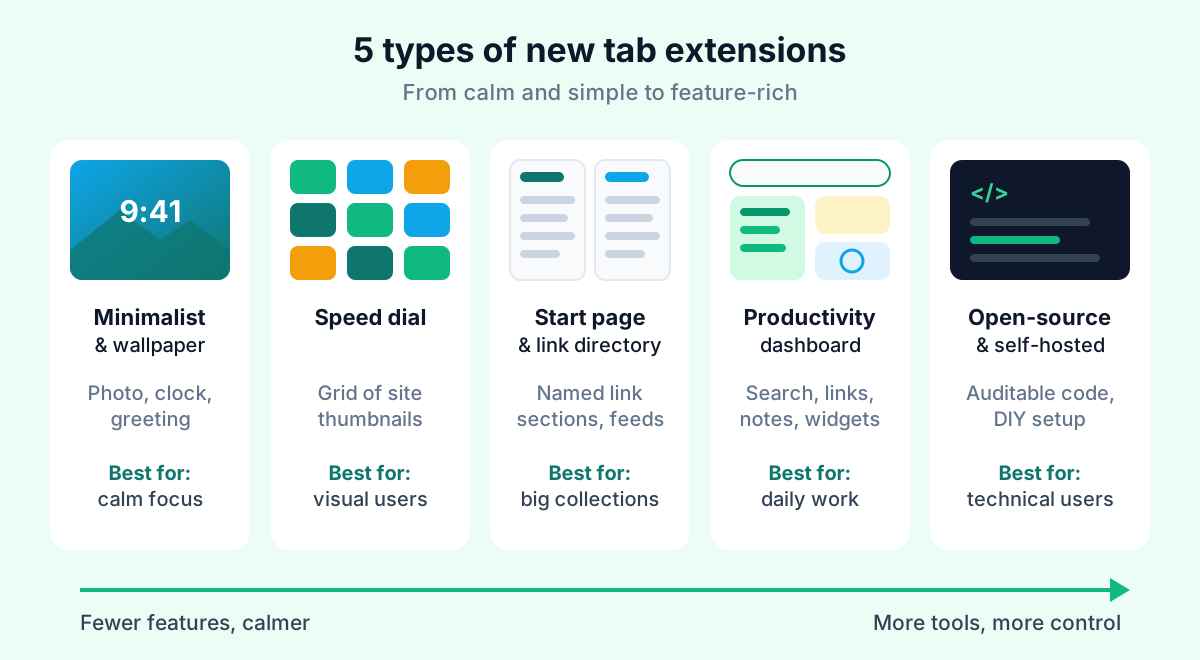
New tab extensions fall into five broad types. Knowing which type you want narrows the field fast, because a great wallpaper extension and a great dashboard are solving different problems.
Minimalist, wallpaper and inspiration extensions
These show a large photo, the time, a greeting and perhaps a quote or a single daily focus. Momentum is the best-known example of this style, and open-source options such as Tabliss and Bonjourr take a similar calm approach. They suit people who want a peaceful moment between tasks rather than more information.
Speed dial extensions
Speed dials show a grid of large site thumbnails you can click. Many speed dial add-ons exist for both browsers, and Infinity New Tab is a well-known example that combines a tile grid with extras. They're great if you visit the same dozen sites all day and think visually.
Start page and link directory extensions
Start pages organize lots of links into named sections or pages, often with RSS feeds mixed in. start.me is a familiar name in this space. They suit researchers, marketers and anyone who keeps a large, structured collection of resources. Our start page guide compares start pages, homepages and speed dials in more depth.
Productivity dashboard extensions
Dashboards combine search, links and working tools like notes, tasks, timers and calendars in one screen. The goal is to reduce the number of tabs and apps you open during the day. They suit knowledge workers, students and developers who want their daily tools within one click.
Open-source and self-hosted options
Some extensions publish their source code, and some people skip extensions entirely by self-hosting a start page. These give you maximum transparency and control, at the cost of setup time and, usually, fewer built-in features. They suit technical users who value auditing what runs in their browser.
Red flags: when to avoid a new tab extension
The new tab page is valuable real estate, which unfortunately makes it attractive to adware. Watch for these warning signs before and after installing.
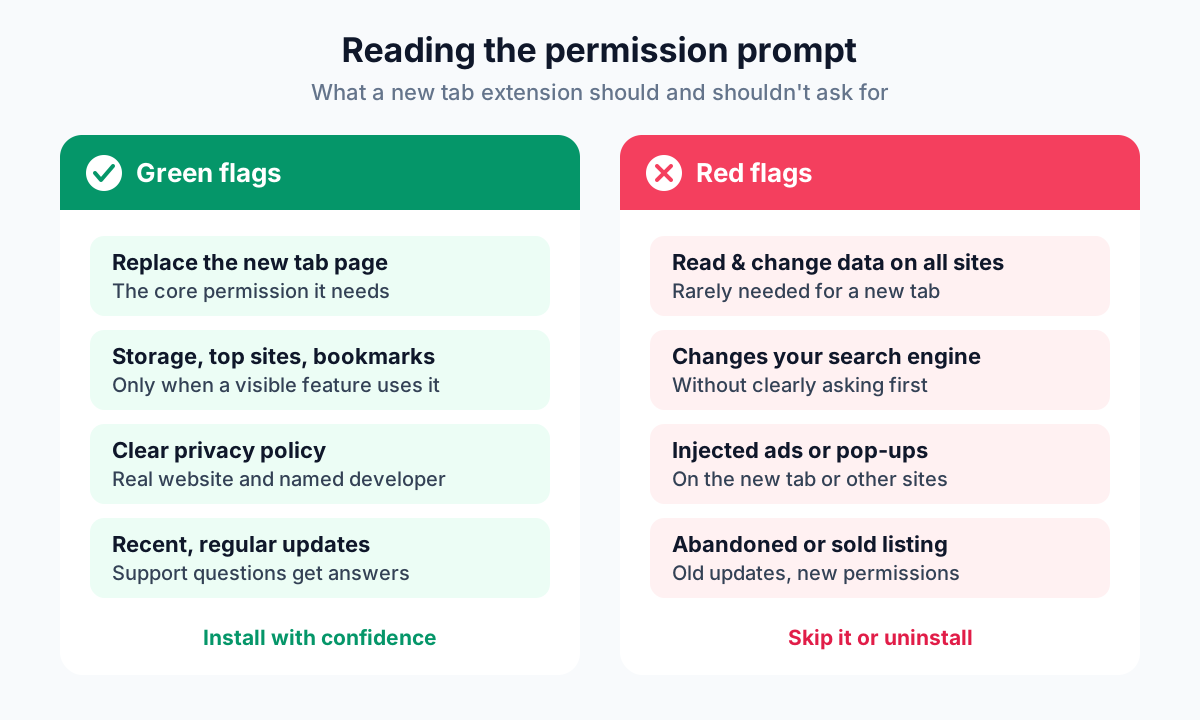
- Excessive permissions. Access to all websites, browsing history or downloads without a clear reason tied to a visible feature.
- Search hijacking. Your default search engine changes, or searches from the new tab pass through an unknown domain, without you clearly agreeing to it.
- Ad injection. Banners, sponsored tiles or pop-ups appear on the new tab or, worse, on other websites.
- Abandoned listings. No updates for a long time, broken links to the developer's site, or support questions left unanswered.
- Vague ownership. No privacy policy, no website, or a listing that recently changed hands and suddenly requests new permissions.
- Reinstalls itself or resists removal. Legitimate extensions uninstall cleanly from the browser's extensions page.
If you spot one of these after installing, remove the extension and then check your default search engine and homepage in browser settings.
Try it: Want a productivity new tab that asks for minimal permissions? Open CentPage in your browser to try the dashboard first, or add the CentPage extension for Chrome / Firefox.
CentPage: a productivity dashboard for your new tab
CentPage is a personalized start page that has been online since 2012 and has grown into a productivity dashboard. The CentPage – Productivity New Tab extension puts that dashboard on every new tab in Chrome and Firefox. Here's how it maps to the criteria above.
What CentPage offers
- Multi-engine search. One search bar for Google, Bing, Yahoo and other engines, with Web, Images, Videos and News modes.
- Curated categories. More than 18 categories of top sites, such as AI, News, Tools, Finance, Learn, Travel and Career, each shown as a table of links.
- Custom link tables. Create your own named tables, such as "Work Links". The free plan includes one custom table with eight links; Premium allows five tables.
- 50 widgets. 20 are free and 30 are Premium, covering productivity (Sticky Notes, To Do List, Calendar, Pomodoro, Habit Tracker), information (Weather, Sun & Moon, Word of the Day), finance (Currency Converter, Stock Market, Crypto Prices) and utilities (Calculator, Unit Converter, Language Translator, Password Generator). Every widget also works as a free standalone tool, like the Pomodoro timer.
- Notes and tasks. Sticky Notes and a To Do List sit right on your new tab, so quick capture doesn't need another app.
- Edit mode. Click "Enter Edit Mode" and drag and drop to reorder categories and links. The first seven links in a category appear on the page, and the rest go into a "More" dropdown.
- Account sync. Your layout is tied to your CentPage account, so it's the same wherever you sign in.
- Minimal extension permissions. The extension asks only for what it needs to show your dashboard on the new tab.
Premium, described on the pricing page, adds an ad-free experience, five custom tables, all Premium widgets, a personal URL and priority support. The core product is free.
Who CentPage suits (and who it doesn't)
CentPage fits people who want their links, search and small daily tools on one screen: remote workers juggling many web apps, students tracking assignments, and anyone who keeps a sticky note and a timer open all day. If you want help deciding what goes on it, our walkthrough on building a productivity dashboard has example layouts.
It's less of a fit if you want nothing on your new tab but a photo and a clock. A minimalist extension will feel calmer. Likewise, if you prefer a fully open-source, self-hosted setup, CentPage is a hosted service and won't match that preference.
How to install CentPage and set it up
- Open the CentPage extension on the Chrome Web Store or CentPage on Firefox Add-ons.
- Click "Add to Chrome" or "Add to Firefox" and review the permission prompt before confirming.
- Open a new tab. Chrome may ask whether to keep the new tab change; choose to keep it.
- Create a free account so your layout syncs across devices.
- Click "Enter Edit Mode" and drag your most-used categories to the top. Remove or reorder links you don't need.
- Add a custom table for your own work links, such as your email, project tool and team chat.
- Add two or three widgets you'll use daily, for example Sticky Notes, To Do List and Weather, and leave the rest off.
For a complete tour of features and use cases, read our full CentPage overview.
Extensions that pair well with your new tab
A new tab extension handles your starting point. These companion extensions from the same team cover other parts of the browsing day.
- Super Session Manager saves and restores tab sessions and named, coloured tab groups, with crash recovery. It's available for Chrome, Firefox and Edge; see sessionmanager.net.
- SummaryTube summarizes YouTube videos with AI right on YouTube, for Chrome and Firefox. More at summarytube.com.
- WebDeveloperTools.dev is a Chrome extension with 500+ tools to inspect, outline, edit and audit any web page. Details at webdevelopertools.dev.
- Web Archive Viewer opens archived versions of pages, which helps when a saved link has gone dead. Get it for Chrome or visit webinternetarchive.com.
Picking your new tab extension for 2026
Start with the type that matches how you work, then shortlist two candidates and run them through the checklist. Give each one a full working day. The one you stop noticing, because it quietly gets you where you need to go, is the right one.
Once it's installed, keep the page lean. Our guide to a distraction-free browser setup shows how to trim feeds, notifications and tabs around it. And if a productivity dashboard sounds like your type, try CentPage on your homepage first, then add it to Chrome or Firefox when you're ready.
Frequently Asked Questions
What is the best new tab extension for Chrome?
There is no single best option because it depends on what you want from a new tab. If you want calm and a clock, a minimalist wallpaper extension fits. If you want your links, notes, tasks and search in one place, a productivity dashboard such as CentPage is a better match. Judge any candidate on permissions, speed, sync and update history.
Are new tab extensions safe to use?
Most reputable new tab extensions are safe, but the category has a history of adware that hijacks search or injects ads. Check the requested permissions, the developer's website and privacy policy, and the date of the last update before installing. Remove any extension that changes your default search engine without clearly asking.
Do new tab extensions slow down the browser?
A well-built new tab extension adds very little overhead, but heavy ones that load large video wallpapers or many live feeds can make each new tab feel sluggish. Open a few new tabs in a row after installing and compare against the default page. If the delay is noticeable, trim widgets or pick a lighter extension.
Can I use the same new tab extension on Chrome and Firefox?
Many popular new tab extensions publish versions for both the Chrome Web Store and Firefox Add-ons, though features sometimes differ slightly between them. If you switch browsers or use both, choose one that is available on both stores and syncs your layout through an account or export file.
How do I remove a new tab extension and get the default page back?
In Chrome, open the Extensions page, find the extension and click Remove. In Firefox, open Add-ons and Themes, find it under Extensions and choose Remove. The browser returns to its default new tab page right away, and you should also confirm your default search engine in settings in case it was changed.
What permissions should a new tab extension ask for?
A new tab extension needs to replace the new tab page and, often, to store your settings. Some also request access to top sites, bookmarks or specific domains for features they clearly explain. Broad access to read and change data on all websites is rarely necessary and deserves a close look.
Tags:#New Tab Extension#Chrome Extensions#Firefox Add-ons#New Tab Page#Productivity Extensions#Browser Privacy#Start Page
More from the CentPage Blog
Browser Tips
What Is a New Tab Page? Turn Your Browser Into a Productivity Dashboard
What is a new tab page, how did it evolve, and how do you change it? Learn how to turn the most-seen page in your browser into a useful productivity dashboard.
10 min readRead →
Productivity
The Best Free Browser Widgets for Your New Tab (2026)
A widget-by-widget guide to free browser widgets for your new tab: weather, world clock, to-do, notes, calendar, currency and more, plus how to avoid clutter.
11 min readRead →