Browser Tips•8 min read•
How to Change Your New Tab Page in Chrome, Firefox and Edge
Change what you see when you open a new tab in Chrome, Firefox or Edge: built-in options, how to use a custom new tab page, and how to set up a useful dashboard instead of a blank page.
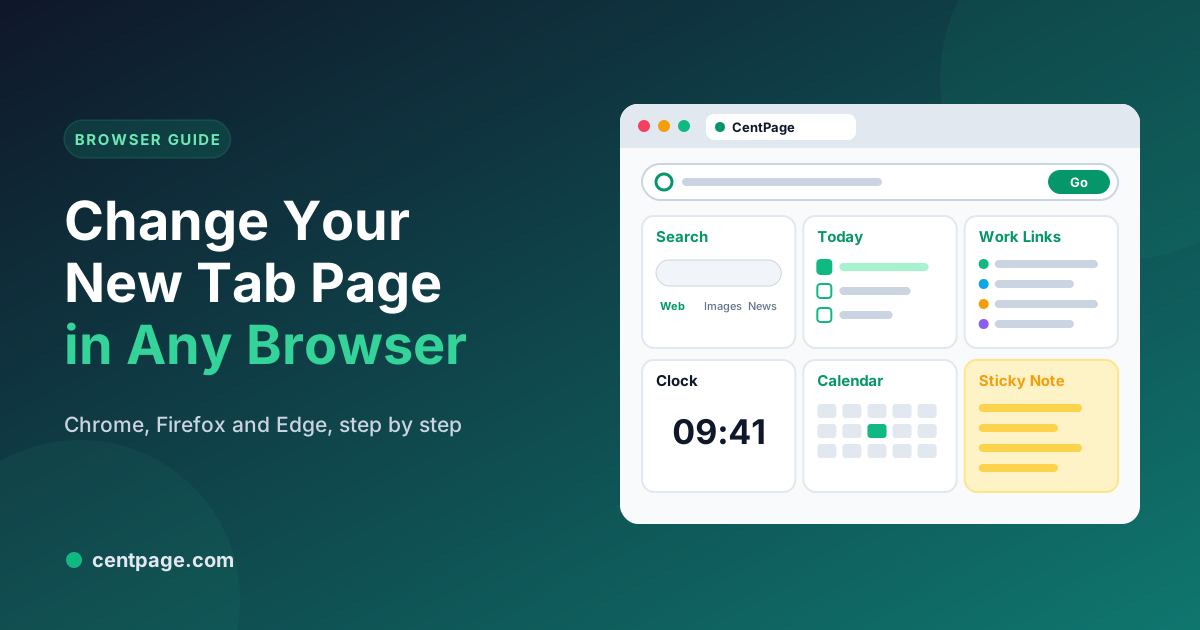
Key Takeaways
- Chrome, Firefox and Edge let you customize the look of their default new tab, but none of them lets you point the new tab at any URL you like without an extension.
- In Chrome, use the Customize Chrome panel for backgrounds and shortcuts; in Firefox, Settings → Home; in Edge, the gear icon on the new tab page.
- To use a completely different new tab page, install a new tab extension such as CentPage, then confirm the change when the browser asks.
- A good new tab answers one question, “what was I about to do?”, with search, a few links and today’s tasks.
You probably open dozens of new tabs a day. Each one shows the same page: a search box and a row of shortcut tiles in Chrome, a feed of stories in Edge or Firefox. Most people never change it, which is a missed opportunity, because the new tab is the most-viewed page in your browser.
This guide shows how to change your new tab page in Chrome, Firefox and Edge, what each browser lets you do on its own, and how to replace the new tab with something genuinely useful.
What each browser lets you change
All three browsers let you customize their own new tab page. None of them lets you point new tabs at a website of your choice with a built-in setting. For that you need a new tab extension.
| Chrome | Firefox | Edge | |
|---|---|---|---|
| Change background and colors | Yes | Yes (wallpapers) | Yes |
| Choose shortcut tiles | Yes | Yes | Yes |
| Turn off stories and feeds | No feed on desktop | Yes | Yes |
| Use any URL as the new tab | Extension needed | Extension needed | Extension needed |
Customize Chrome’s new tab page
- Open a new tab and click Customize Chrome (the pencil button at the bottom right), or open the Chrome menu and choose Customize Chrome.
- In the side panel, pick a background, a color theme and whether to show shortcuts.
- Choose My shortcuts to curate the tiles yourself, or Most visited sites to let Chrome choose them from your history.
Tip: Most visited tiles promote the sites you already spend the most time on, which are often the ones you’re trying to visit less. Curating your own list is usually better for focus.
Customize Firefox’s new tab page
- Open Settings (
about:preferences) and choose Home. - Under New windows and tabs, set New tabs to Firefox Home or Blank Page.
- Under Firefox Home Content, turn off sections you don’t need, such as recommended stories, and choose how many rows of shortcuts to show.
You can also click the gear icon on the new tab page itself to reach the same options.
Customize Edge’s new tab page
- Open a new tab and click the gear icon at the top right.
- Choose a layout and turn off the content feed if you don’t want news on every new tab.
- Toggle quick links and pick a background.
Replace the new tab with your own page
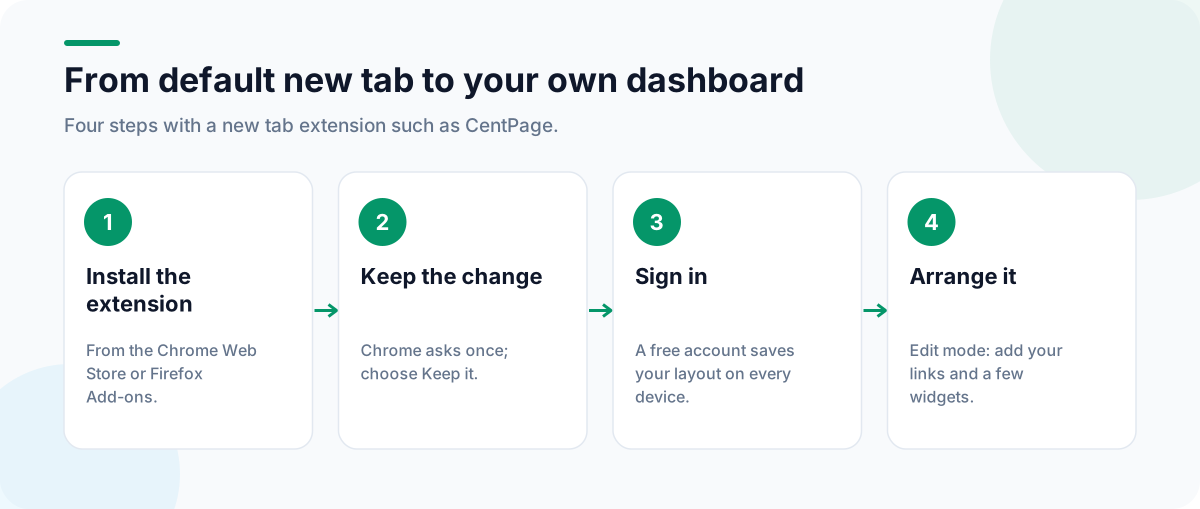
To use a completely different page, install a new tab extension. Here’s how it works with CentPage, a free productivity new tab for Chrome and Firefox:
- Install the CentPage extension for Chrome or Firefox.
- Open a new tab. Chrome will ask whether to keep the change made by the extension; choose Keep it.
- Create a free account if you want your layout to follow you to other computers.
- Click Enter Edit Mode and arrange your dashboard: a custom table of your daily links, then a few widgets such as To Do List, Calendar and Pomodoro Timer.
Using Edge? CentPage isn’t listed in the Edge Add-ons store, but Edge can install extensions from the Chrome Web Store. Open edge://extensions, turn on Allow extensions from other stores, then install from the Chrome Web Store link above.
What to put on your new tab
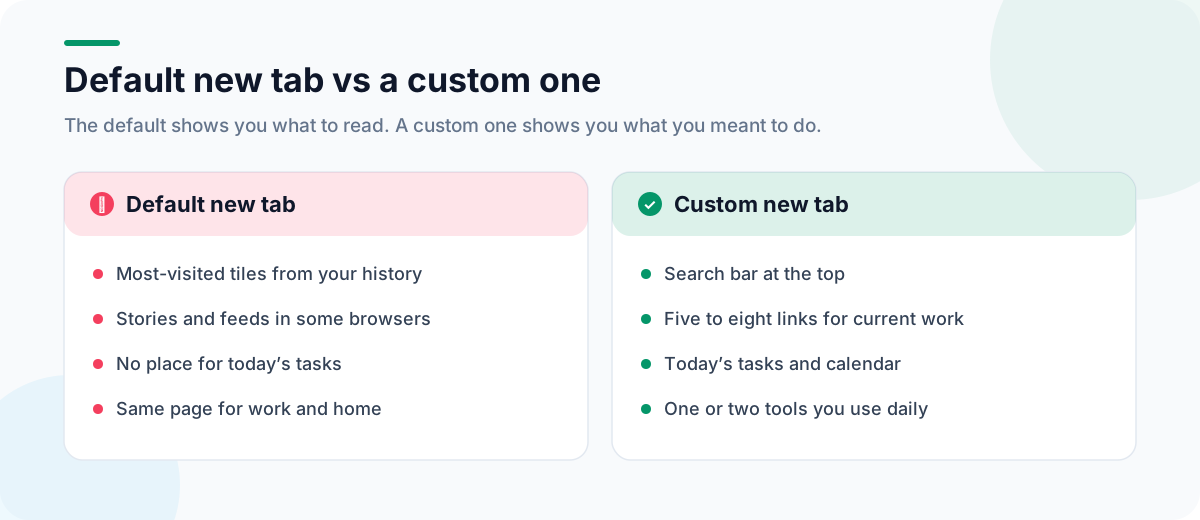
A useful new tab answers one question: what was I about to do? Keep it to:
- A search bar, so you can go straight to what you intended. CentPage’s search bar can send the query to several engines and switch between Web, Images, Videos and News.
- Five to eight links for the work you’re doing now, in a custom table.
- Today’s tasks, so priorities are the first thing you see.
- One or two tools you use daily, such as a timer or a calendar.
Anything that refreshes with new content (feeds, trending lists, recommended stories) is a distraction during work hours. For a fuller design, see our guide to building a productivity dashboard, and for the difference between a new tab, a start page and a homepage, see what is a new tab page.
New tab vs homepage vs startup page
These three settings are separate:
- New tab page: what appears every time you open a tab.
- Homepage: what the Home button opens.
- Startup page: what opens when the browser starts.
You can point all three at the same dashboard. Our guide to setting your homepage in Chrome, Firefox and Edge covers the other two.
Keep it fast and private
A new tab extension runs every time you open a tab, so choose carefully. Check the permissions on the store page before installing, keep only one new tab extension enabled (they conflict), and remove ones you no longer use. If your new tab is cluttered with dozens of open tabs behind it, Super Session Manager can save them as sessions so you start each day clean, and our guide to stopping tab and bookmark overload has more ideas.
Frequently Asked Questions
Can I set a custom URL as my new tab page in Chrome?
Not with a built-in setting. Chrome lets you change the background, colors and shortcuts on its own new tab page, and set a custom page for startup or the home button, but replacing the new tab itself requires a new tab extension.
Why does Chrome ask me whether to keep the changes after installing a new tab extension?
Chrome shows that prompt whenever an extension changes the new tab page, so that nothing can take it over without your knowledge. Choose Keep it to use the extension, or Change it back to return to the default.
How do I get my old new tab page back?
Disable or remove the new tab extension from your browser’s extensions page. The browser’s default new tab returns immediately, and any customization you made to it before is usually still there.
Does CentPage work in Microsoft Edge?
CentPage is published on the Chrome Web Store and Firefox Add-ons. Edge can install extensions from the Chrome Web Store once you allow extensions from other stores in Edge’s extension settings.
Tags:#Change New Tab Page#Custom New Tab Chrome#Firefox New Tab#Edge New Tab Settings#New Tab Extension#Browser Settings
More from the CentPage Blog
Browser Tips
What Is a New Tab Page? Turn Your Browser Into a Productivity Dashboard
What is a new tab page, how did it evolve, and how do you change it? Learn how to turn the most-seen page in your browser into a useful productivity dashboard.
10 min readRead →
Browser Tips
Best New Tab Extensions for Chrome and Firefox in 2026
How to choose a new tab extension for Chrome or Firefox in 2026: 10 criteria, a scoring checklist, permission red flags and the five main types compared.
11 min readRead →