Browser Tips•7 min read•
How to Set Your Homepage in Chrome, Firefox and Edge
Step-by-step instructions to set your homepage and startup pages in Chrome, Firefox and Edge, show the Home button, and choose a homepage that actually helps you get started.
Key Takeaways
- Browsers have three separate settings: the startup page, the homepage (Home button) and the new tab page.
- Chrome: Settings → On startup for startup pages, Settings → Appearance → Show home button for the homepage.
- Firefox: Settings → Home → Homepage and new windows. Edge: Settings → Start, home, and new tabs.
- The best homepage gets you to your first task quickly: search, your daily links and today’s plan.
Your homepage is the first thing your browser shows you, so it sets the tone for every session. Most people leave it on whatever the browser or a software installer chose. Changing it takes a minute, and the right homepage gets you to your first task faster.
Three settings, not one
Browsers split “the first page you see” into three settings:
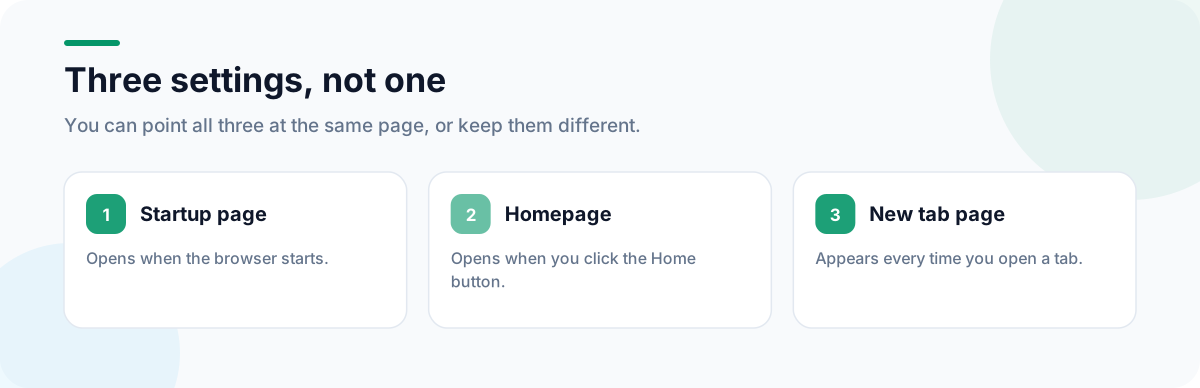
| Setting | When it appears |
|---|---|
| Startup page | When the browser opens |
| Homepage | When you click the Home button |
| New tab page | Every time you open a new tab |
This guide covers the first two. For the third, see how to change your new tab page, and for how the three differ in practice, what is a new tab page.
Set your homepage in Chrome
Startup page:
- Open Settings (
chrome://settings). - Click On startup.
- Choose Open a specific page or set of pages, then Add a new page and enter the address.
Home button:
- In Settings, click Appearance.
- Turn on Show home button.
- Choose the custom address option and enter your homepage.
Set your homepage in Firefox
- Open Settings (
about:preferences) and choose Home. - Next to Homepage and new windows, choose Custom URLs and enter the address.
- To open several pages, separate addresses with a vertical bar:
https://example.com|https://example.org. - To show the Home button, right-click the toolbar, choose Customize Toolbar and drag the Home icon into place.
In Firefox, the homepage also opens when the browser starts if Open previous windows and tabs is turned off.
Set your homepage in Edge
- Open Settings (
edge://settings) and choose Start, home, and new tabs. - Under When Edge starts, choose Open these pages and add the address.
- Under Home button, turn on Show home button on the toolbar and enter the address.
Restore your previous tabs instead?
If you’d rather pick up where you left off, choose Continue where you left off (Chrome), Open previous windows and tabs (Firefox) or Open tabs from the previous session (Edge). You can still keep a homepage for the Home button. If you rely on restoring tabs, a session manager such as Super Session Manager adds named sessions you can restore even after a crash.
What makes a good homepage?
A homepage should get you to your first task quickly, not pull you into reading. A good one has:
- A search bar at the top.
- Your daily links, a short curated list rather than a grid of most-visited sites.
- Today’s plan: a to-do list or calendar. Our 5-minute daily planning routine shows how to use it.
- Glanceable information you actually use, such as the weather or a world clock.
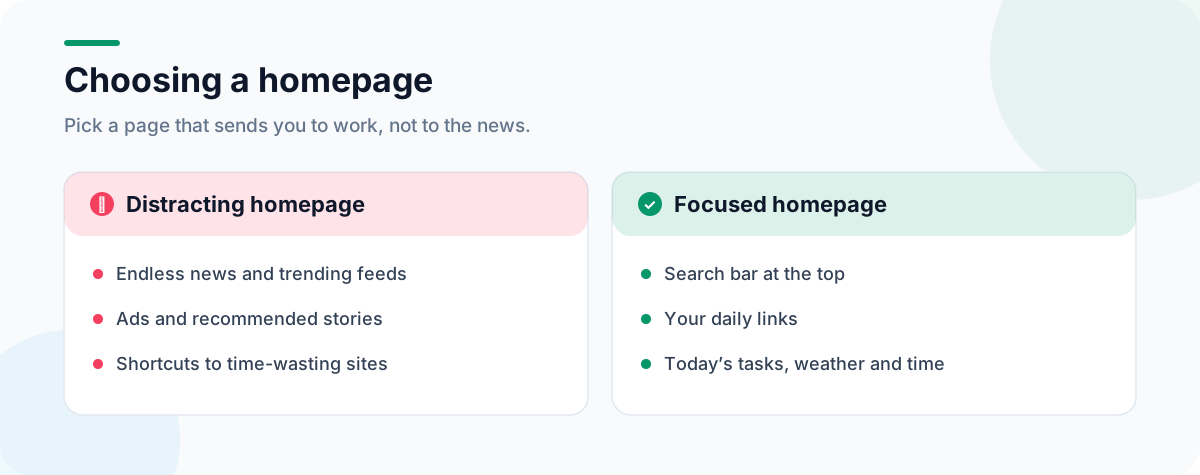
CentPage was built as exactly this kind of homepage: a multi-engine search bar, 18+ curated categories of popular sites, your own custom bookmark table and widgets such as To Do List, Calendar, Weather and Clock & Timer. To use it, set https://www.centpage.com/homepage as your startup page and Home button address, and install the extension for Chrome or Firefox if you want the same page on every new tab too.
Our browser start page guide explains how to choose between start page styles, from minimal to dashboard.
If your homepage keeps changing
Software installers and some extensions change your homepage without asking. If it keeps reverting:
- Open your browser’s extensions page and remove anything you don’t recognise.
- In Chrome, look for a note under the setting saying it’s controlled by an extension.
- Run your browser’s Reset settings option as a last resort; it restores defaults without deleting bookmarks or passwords.
Frequently Asked Questions
What is the difference between a homepage and a startup page?
The startup page opens when the browser starts. The homepage opens when you click the Home button. In Firefox, the homepage setting covers both. You can set them to the same page or to different ones.
Why does my homepage keep changing?
An installed program or extension may be changing it. Check your extensions page for anything you don’t recognise and remove it, then set your homepage again. In Chrome, a setting controlled by an extension shows a note naming that extension.
Can I set more than one homepage?
Chrome and Edge can open several pages at startup. Firefox lets you enter several URLs separated by a vertical bar ( | ) as the homepage, and opens each in its own tab.
Can I use CentPage as my homepage?
Yes. Set https://www.centpage.com/homepage as your startup page or homepage in any browser, and install the extension if you also want it on every new tab.
Tags:#Set Homepage Chrome#Change Homepage Firefox#Edge Homepage#Startup Page#Home Button#Best Homepage
More from the CentPage Blog
Browser Tips
How to Change Your New Tab Page in Chrome, Firefox and Edge
Change what you see when you open a new tab in Chrome, Firefox or Edge: built-in options, how to use a custom new tab page, and how to set up a useful dashboard instead of a blank page.
8 min readRead →
Guides
The Ultimate Guide to Browser Start Pages
Browser start page guide: homepage vs new tab vs speed dial vs dashboard, how to set one in Chrome, Firefox, Edge and Safari, and how to organize your sites.
11 min readRead →