Browser Tips•9 min read•
How to Organize Your Bookmarks (A Simple System That Lasts)
Clean up years of browser bookmarks and keep them tidy with a simple four-part system: daily links, project folders, a reading list and an archive. Works in Chrome, Firefox and Edge.
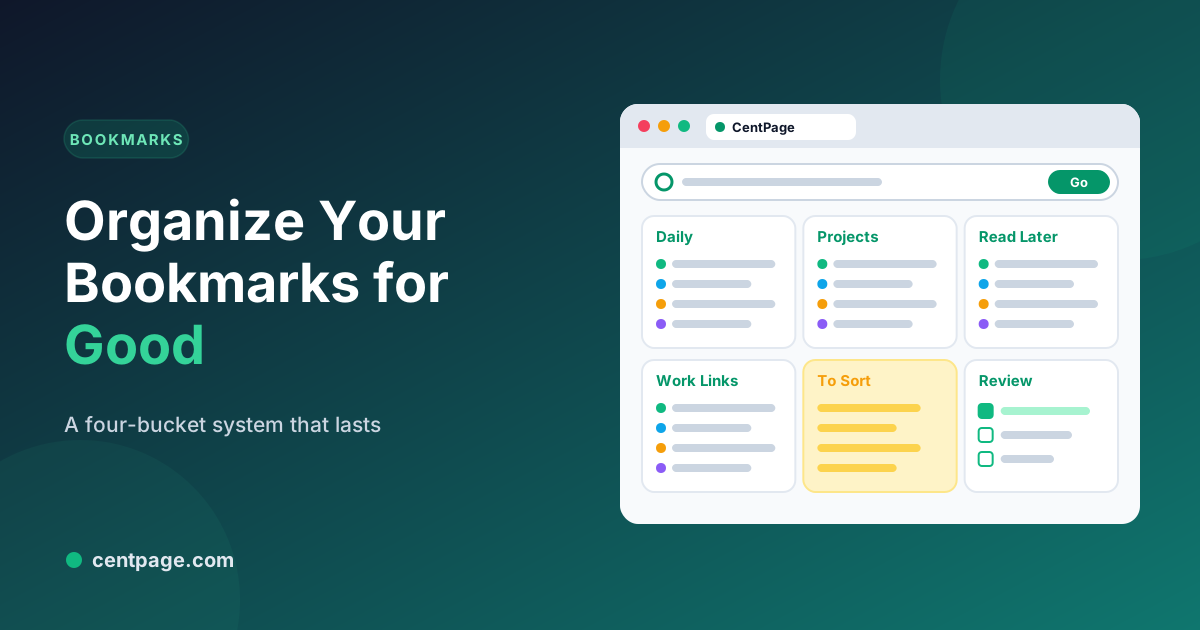
Key Takeaways
- Most bookmark collections fail because everything is saved “just in case” into one big pile.
- Sort links by how often you use them: daily links, active projects, read later, and an archive.
- Keep daily links visible on your bookmarks bar or new tab, and everything else out of sight.
- A ten-minute monthly review keeps the system working; duplicates and dead links go.
Bookmarks start out useful. Then, after a few years, you have a bookmarks bar with forty tiny icons, a folder called “Other bookmarks” with eight hundred links, and three copies of the same tutorial. You keep saving, but you never find anything, so you search the web again instead.
The fix isn’t a better tool. It’s a simple rule about where each kind of link lives. Here’s a system that takes an hour to set up and ten minutes a month to maintain.
Why bookmark collections fall apart
- Everything is saved “just in case.” Saving is effortless, so the collection grows faster than you could ever use it.
- One big pile. Without a structure, every new link goes into the same place.
- Daily links are buried. The sites you open every day are mixed in with things you saved once in 2019.
- No review. Dead links, duplicates and finished projects never leave.
The four-bucket system
Sort every bookmark by how often you’ll actually use it.
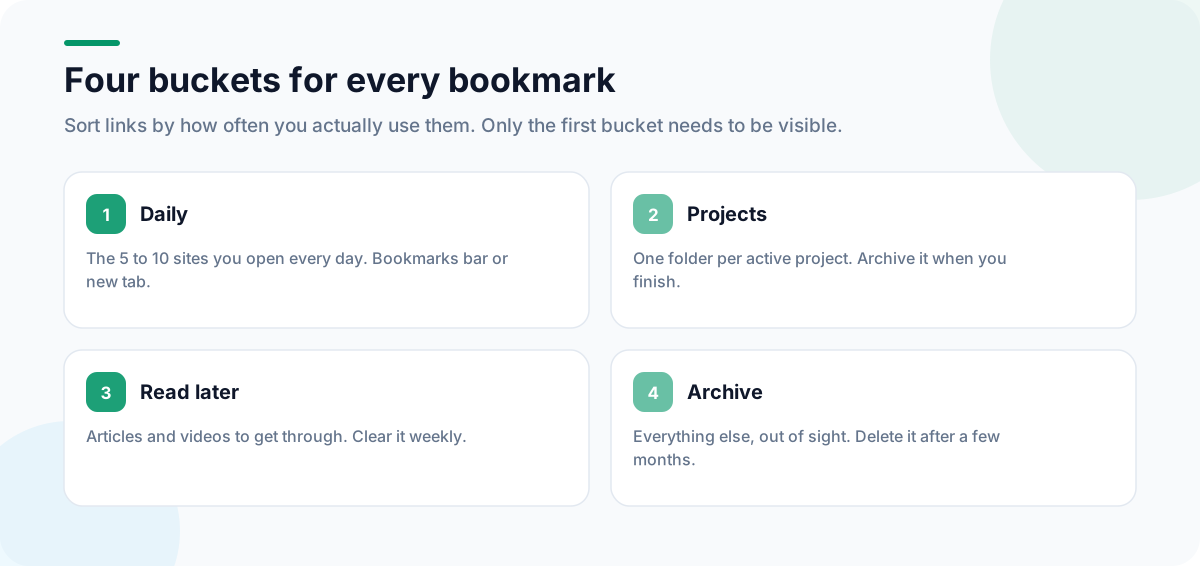
| Bucket | What goes in | Where it lives |
|---|---|---|
| Daily | The 5–10 sites you open every day | Bookmarks bar or your new tab |
| Projects | Links for work in progress | One folder per active project |
| Read later | Articles and videos to get through | Reading list or a single folder |
| Archive | Anything you might need again someday | One Archive folder, out of sight |
Step 1: Make room with a quick cleanup
- Back up first. In Chrome’s bookmark manager (
Ctrl+Shift+O), open the three-dot menu and choose Export bookmarks. Firefox and Edge have the same option in their bookmark managers. - Create the folders: Daily, Projects, Read later, Archive.
- Move everything you don’t recognise into Archive. Don’t decide link by link; you’ll stall.
- Pick out your daily links and move them to the bookmarks bar.
Step 2: Keep your daily links where you’ll see them
The bookmarks bar is the classic home for daily links. Show it with Ctrl+Shift+B (Cmd+Shift+B on a Mac). Rename bookmarks to short names, or remove the names entirely so only icons show, to fit more in.
A new tab dashboard is a roomier alternative. In CentPage, a custom bookmark table holds your daily links on every new tab, with names you choose and a drag-and-drop order. The free plan includes one custom table with up to eight links; Premium allows five tables. Because the first seven links in a table show directly and the rest go into a More menu, the most important links always stay in view.
Step 3: One folder per active project
Create a folder for each thing you’re actively working on: “Kitchen renovation”, “Q4 report”, “Job search”. When the project ends, move the folder into Archive. Keep folders shallow; if you need more than two levels, you’re building an archive, not a working set.
Step 4: Stop bookmarking things to read later
Articles you mean to read aren’t bookmarks; they’re a queue. Use your browser’s reading list (Chrome has one in the side panel), or a single Read later folder, and clear it weekly. If you haven’t read something in a month, you probably won’t.
Step 5: Review monthly
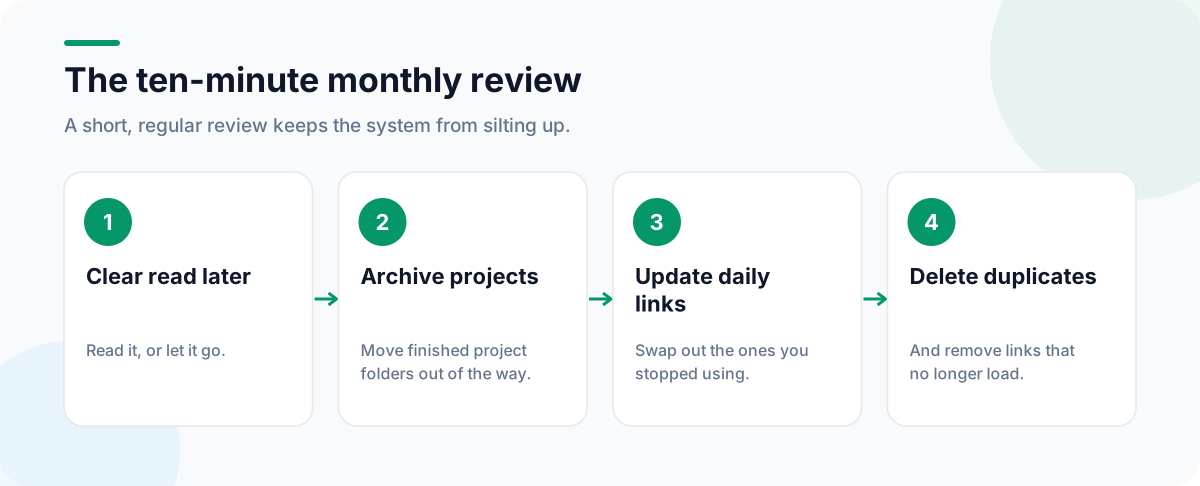
Set a monthly reminder and:
- Clear the Read later folder.
- Move finished project folders into Archive.
- Swap daily links you no longer use for ones you open often.
- Delete duplicates and links that no longer load.
For dead links you still need, an archived copy may survive: Web Archive Viewer’s guide to fixing link rot explains how to find one.
Bookmarks vs open tabs vs sessions
Bookmarks are for things you’ll return to. Open tabs are for what you’re doing right now. In between are sessions: a whole set of tabs you’ll come back to tomorrow. Saving those as a session with Super Session Manager keeps them out of your bookmarks entirely. Our guide to stopping tab and bookmark overload explains how the three fit together.
Quick keyboard shortcuts
| Action | Chrome / Edge | Firefox |
|---|---|---|
| Bookmark this page | Ctrl+D | Ctrl+D |
| Bookmark all open tabs | Ctrl+Shift+D | Ctrl+Shift+D |
| Show or hide the bookmarks bar | Ctrl+Shift+B | Ctrl+Shift+B |
| Open the bookmark manager | Ctrl+Shift+O | Ctrl+Shift+O (Library) |
More time-savers are in our list of browser keyboard shortcuts. Once your daily links are sorted, put them where you’ll see them every day: here’s how to change your new tab page.
Frequently Asked Questions
How do I open the bookmark manager?
Press Ctrl+Shift+O (Cmd+Option+B on a Mac) in Chrome. In Firefox, Ctrl+Shift+O opens the Library window with your bookmarks. In Edge, Ctrl+Shift+O opens Favorites.
How do I find and remove duplicate bookmarks?
Browsers have no built-in duplicate finder. Sort a folder by name or URL in the bookmark manager and duplicates sit next to each other, or export your bookmarks to an HTML file and check them in a spreadsheet before re-importing.
Should I use folders or tags?
Folders work in every browser and sync everywhere, so they are the safest choice. Firefox also supports tags. Keep folders shallow, two levels at most, so you never have to dig.
What should I do with bookmarks I never open?
Move them to an Archive folder rather than deleting them straight away. If you haven’t needed anything from the archive after a few months, it’s safe to delete or export it.
Tags:#Organize Bookmarks#Bookmark Manager#Clean Up Bookmarks#Bookmarks Bar#Bookmark Folders#Chrome Bookmarks
More from the CentPage Blog
Productivity
Too Many Tabs? How to Stop Tab and Bookmark Overload
Too many tabs and a bookmark bar nobody opens? Learn why tab overload happens and use a simple 4-bucket system to organize tabs, bookmarks and daily sites.
11 min readRead →
Guides
The Ultimate Guide to Browser Start Pages
Browser start page guide: homepage vs new tab vs speed dial vs dashboard, how to set one in Chrome, Firefox, Edge and Safari, and how to organize your sites.
11 min readRead →