Browser Tips•7 min read•
30 Browser Keyboard Shortcuts That Save Time Every Day
The browser keyboard shortcuts worth learning for Chrome, Firefox and Edge: tabs, windows, address bar, search, bookmarks and page navigation, on Windows and Mac.
Key Takeaways
- A dozen shortcuts cover most daily browsing: new tab, close tab, reopen closed tab, switch tabs and focus the address bar.
- Most shortcuts are the same in Chrome, Firefox and Edge; on a Mac, use Cmd instead of Ctrl.
- Ctrl+Shift+T (Cmd+Shift+T) reopens the last closed tab, and works repeatedly.
- Learn two shortcuts a week rather than thirty at once.
Every trip to the mouse costs a second or two. Across a day of browsing, that adds up, and it also breaks concentration. You don’t need to memorize hundreds of shortcuts: about thirty cover almost everything, and a dozen of those do most of the work.
The shortcuts below work in Chrome, Firefox and Edge unless noted. On a Mac, use Cmd where you see Ctrl, and Option for Alt.
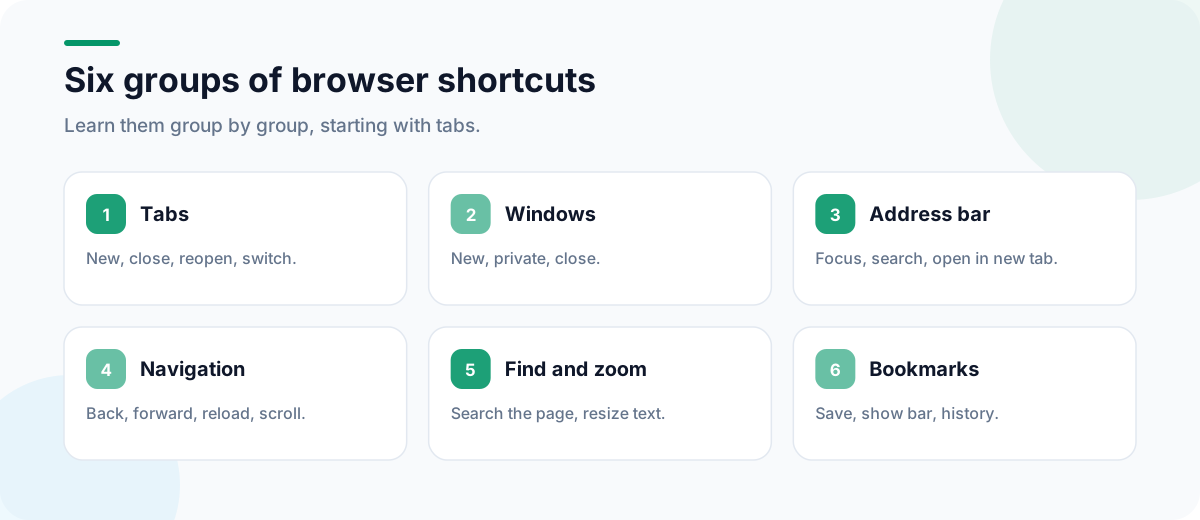
Tabs
| Action | Windows / Linux | Mac |
|---|---|---|
| New tab | Ctrl+T | Cmd+T |
| Close tab | Ctrl+W | Cmd+W |
| Reopen last closed tab | Ctrl+Shift+T | Cmd+Shift+T |
| Next tab | Ctrl+Tab | Ctrl+Tab |
| Previous tab | Ctrl+Shift+Tab | Ctrl+Shift+Tab |
| Jump to tab 1–8 | Ctrl+1 … Ctrl+8 | Cmd+1 … Cmd+8 |
| Jump to last tab | Ctrl+9 | Cmd+9 |
| Open link in new background tab | Ctrl+click | Cmd+click |
Tip: if your new tab opens to a dashboard such as CentPage, Ctrl+T becomes a shortcut to your links, tasks and search, not just a blank page. See how to change your new tab page.
Windows
| Action | Windows / Linux | Mac |
|---|---|---|
| New window | Ctrl+N | Cmd+N |
| New private window | Ctrl+Shift+N (Chrome, Edge), Ctrl+Shift+P (Firefox) | Cmd+Shift+N / Cmd+Shift+P |
| Close window | Ctrl+Shift+W | Cmd+Shift+W |
Address bar and search
| Action | Windows / Linux | Mac |
|---|---|---|
| Focus the address bar | Ctrl+L, Alt+D or F6 | Cmd+L |
| Search from the address bar | Ctrl+K or Ctrl+E | Cmd+K (Firefox) / Cmd+Option+F (Chrome) |
| Open address in a new tab | Alt+Enter | Cmd+Enter (Chrome) |
Search shortcuts make the address bar even faster; our guide to using multiple search engines shows how to set them up.
Page navigation
| Action | Windows / Linux | Mac |
|---|---|---|
| Back / forward | Alt+Left / Alt+Right | Cmd+[ / Cmd+] |
| Reload | Ctrl+R or F5 | Cmd+R |
| Hard reload (skip cache) | Ctrl+Shift+R | Cmd+Shift+R |
| Scroll a screen down / up | Space / Shift+Space | Space / Shift+Space |
| Top / bottom of page | Home / End | Cmd+Up / Cmd+Down |
Find and zoom
| Action | Windows / Linux | Mac |
|---|---|---|
| Find on page | Ctrl+F | Cmd+F |
| Zoom in / out | Ctrl and + / - | Cmd and + / - |
| Reset zoom | Ctrl+0 | Cmd+0 |
Bookmarks and history
| Action | Windows / Linux | Mac |
|---|---|---|
| Bookmark this page | Ctrl+D | Cmd+D |
| Bookmark all tabs | Ctrl+Shift+D | Cmd+Shift+D |
| Show bookmarks bar | Ctrl+Shift+B | Cmd+Shift+B |
| History | Ctrl+H | Cmd+Y (Chrome), Cmd+Shift+H (Firefox) |
| Downloads | Ctrl+J | Cmd+Shift+J (Chrome), Cmd+Shift+Y (Firefox) |
For keeping those bookmarks useful, see how to organize your bookmarks.
How to actually learn them
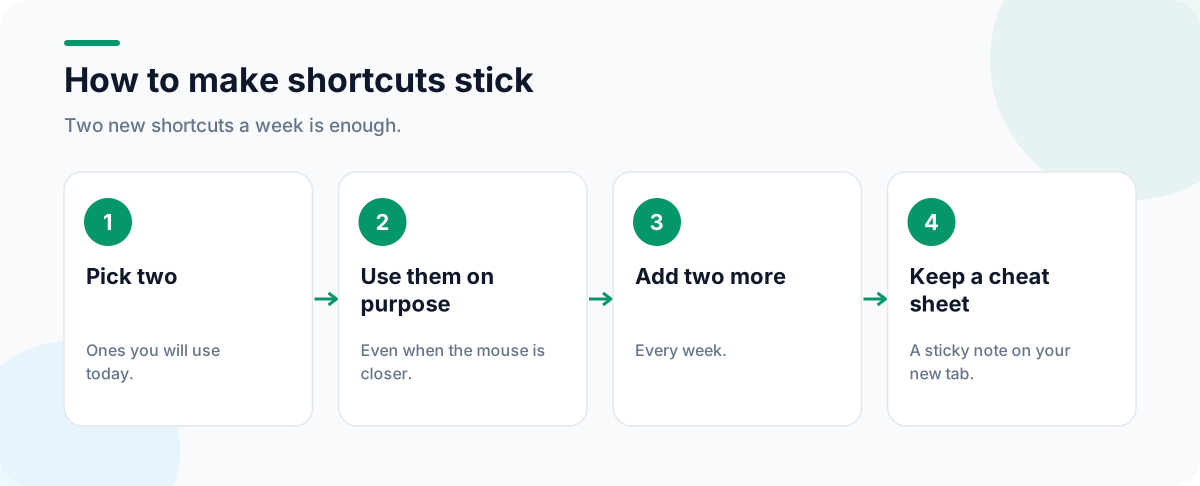
- Pick two shortcuts you’ll use today, such as
Ctrl+LandCtrl+Shift+T. - Use them on purpose every time, even when the mouse is closer.
- Add two more each week.
- Stick a short list on your new tab: CentPage’s Sticky Notes widget is handy for this.
Beyond shortcuts
Shortcuts get you between tabs faster; fewer tabs get you there faster still. If you regularly have dozens open, Super Session Manager saves sets of tabs as sessions, and Edit Page’s guide to recovering closed tabs and lost sessions covers what to do when Ctrl+Shift+T isn’t enough.
Frequently Asked Questions
How do I reopen a tab I closed by accident?
Press Ctrl+Shift+T on Windows or Linux, or Cmd+Shift+T on a Mac. Press it again to reopen earlier tabs and windows in the order you closed them.
Are browser shortcuts the same in Chrome, Firefox and Edge?
The common ones are: new tab, close tab, reopen tab, switch tabs, focus the address bar, find, zoom and reload all use the same keys. A few differ, such as the bookmark manager and history panels.
How do I switch to a specific tab quickly?
Ctrl+1 to Ctrl+8 jump to the first eight tabs, and Ctrl+9 jumps to the last tab. On a Mac, use Cmd with the number.
How do I go straight to the address bar?
Press Ctrl+L, Alt+D or F6 on Windows, or Cmd+L on a Mac. The current address is selected so you can type a new one or a search.
Tags:#Browser Keyboard Shortcuts#Chrome Shortcuts#Firefox Shortcuts#Edge Shortcuts#Tab Shortcuts#Productivity Tips
More from the CentPage Blog
Browser Tips
How to Use Multiple Search Engines (and Why You Should)
Get better results by searching more than one engine: when to switch, how to set search shortcuts in Chrome, Firefox and Edge, and how to search several engines from a single box.
8 min readRead →
Browser Tips
How to Organize Your Bookmarks (A Simple System That Lasts)
Clean up years of browser bookmarks and keep them tidy with a simple four-part system: daily links, project folders, a reading list and an archive. Works in Chrome, Firefox and Edge.
9 min readRead →